Restore files and folders for Windows
-
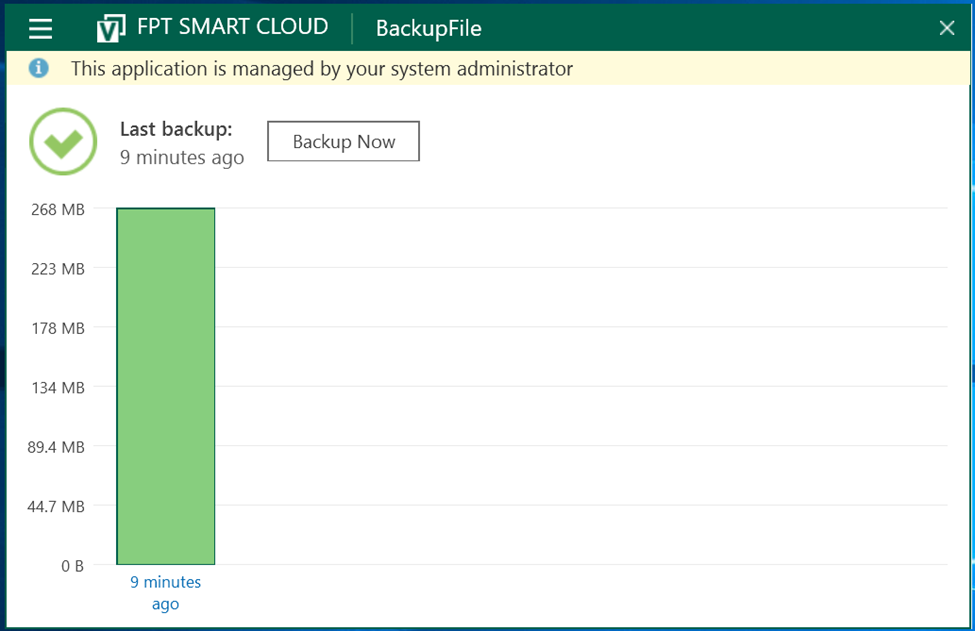
Launch Veeam Agent for Windows.
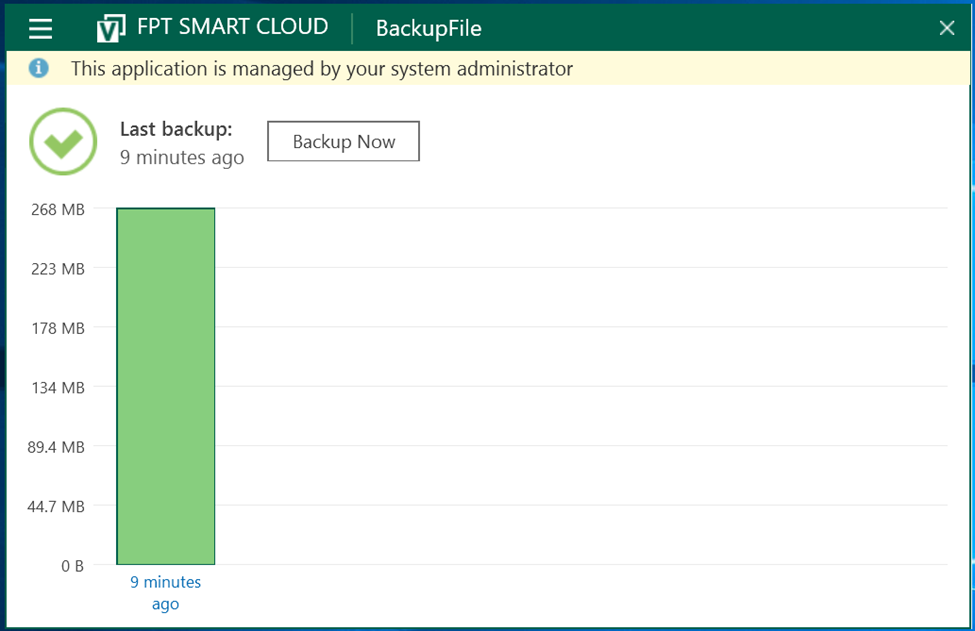 note
noteIf the restore point you need is older than what is available in the quick restore view, use the File Level Restore feature described in step 5.
-
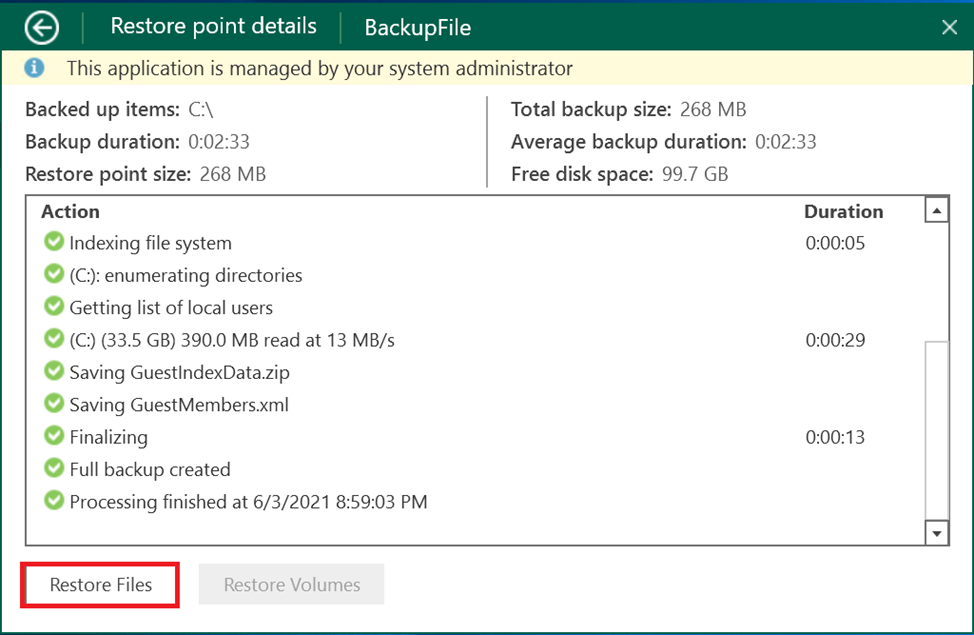
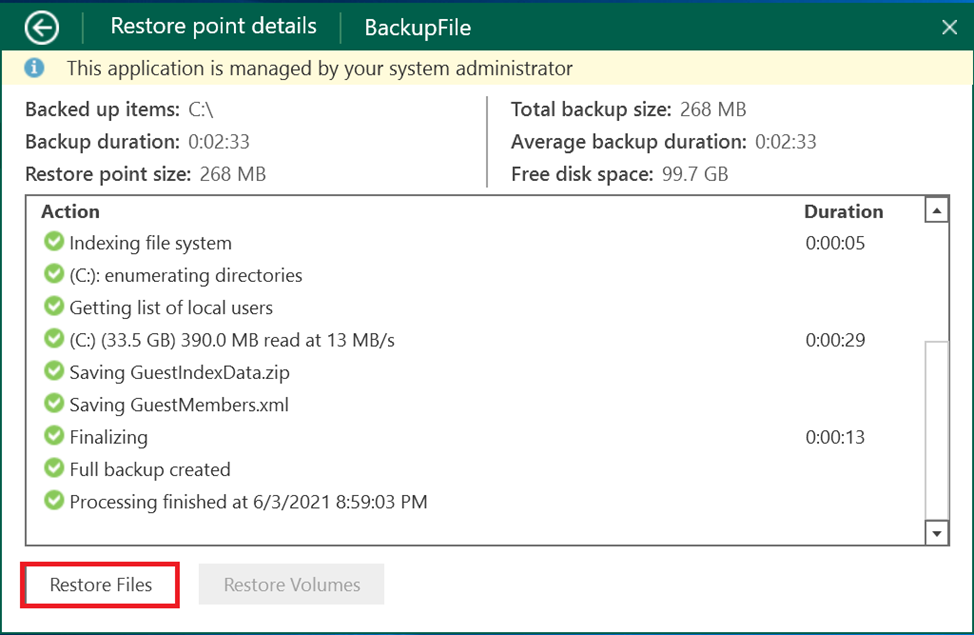
Click on the backup job that contains the file you want to restore, then select Restore Files.
-
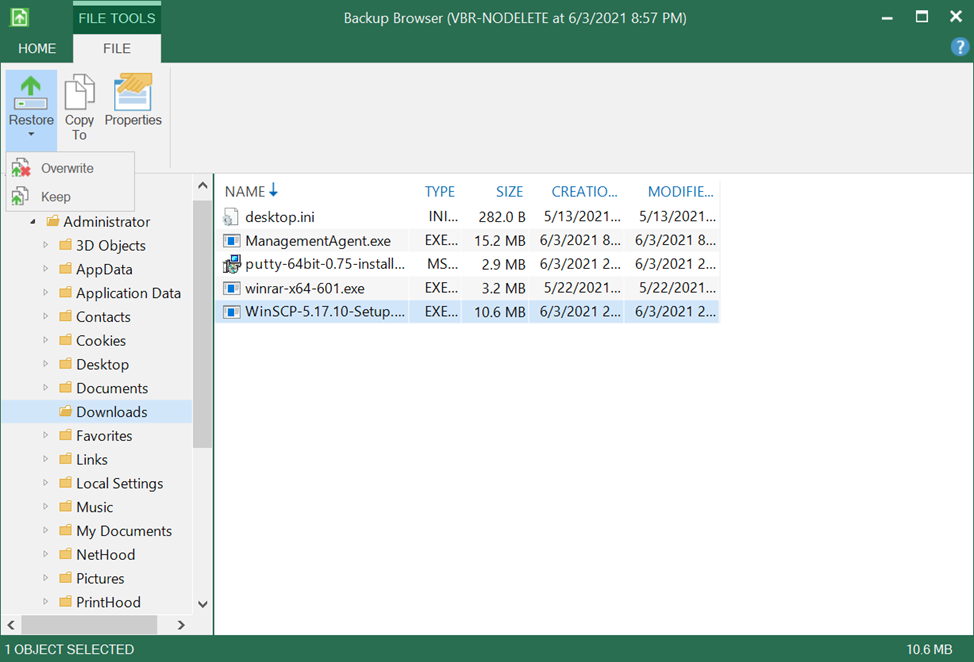
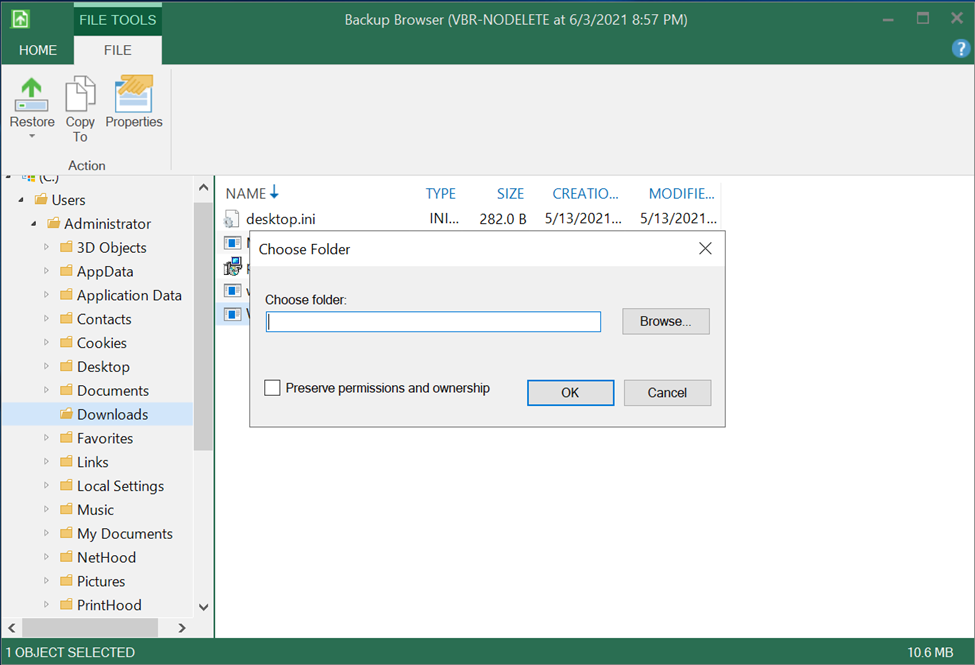
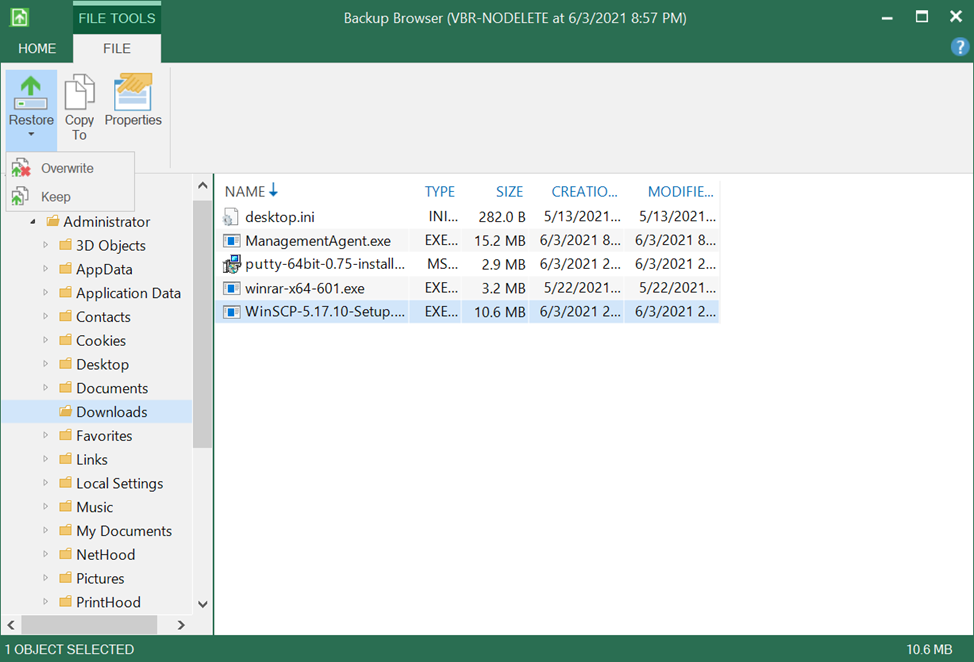
In the window that opens, select the file or folder to restore. Choose Restore Overwrite to overwrite the current file, or Keep to keep the current file and rename the restored copy.
-
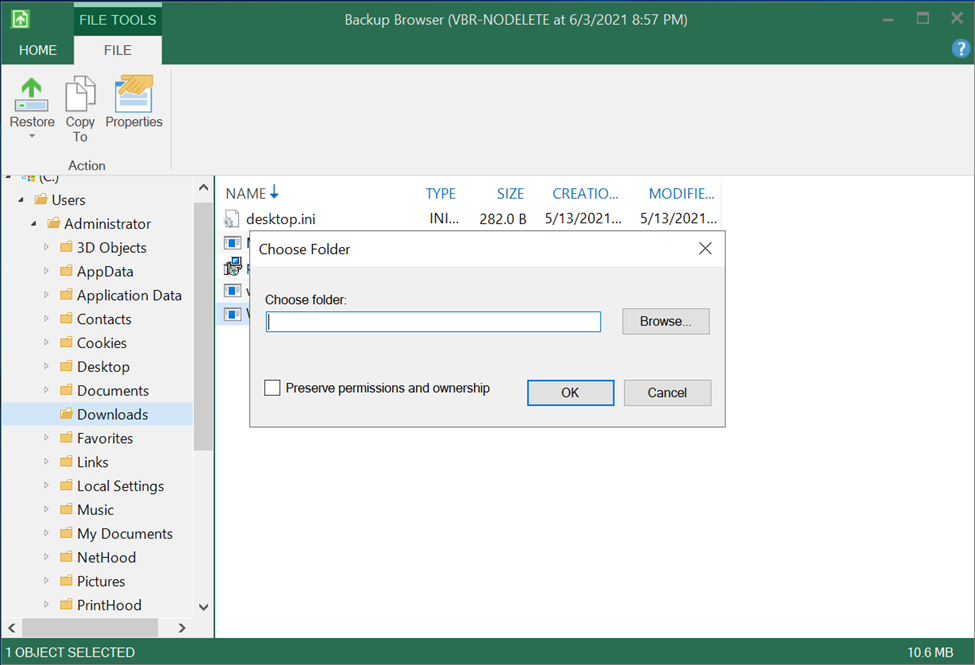
Alternatively, select Copy To to restore to a different location. Choose the destination folder and click OK.
-
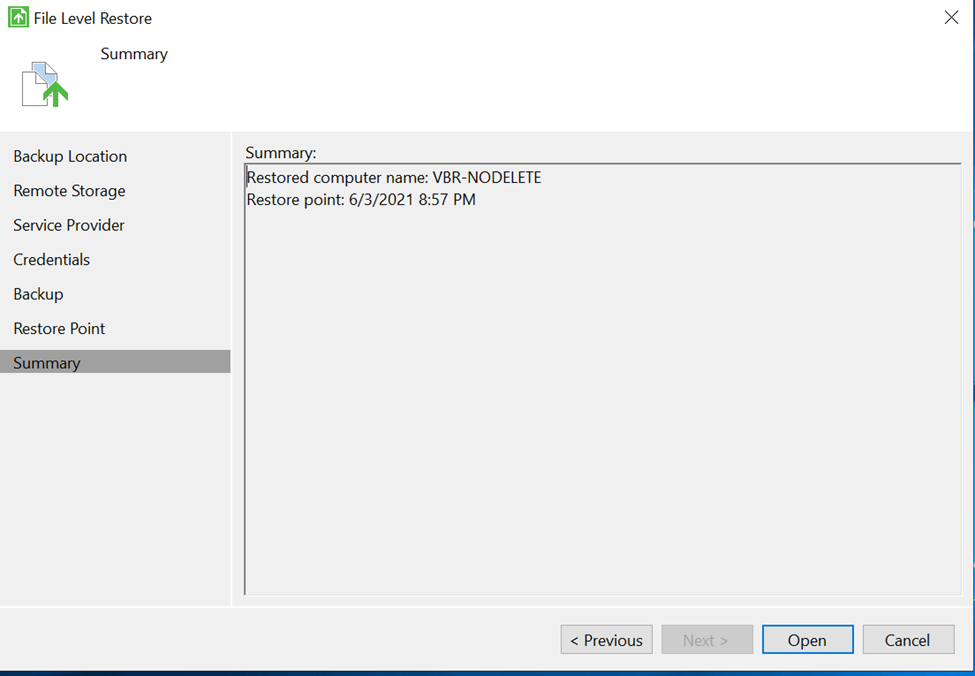
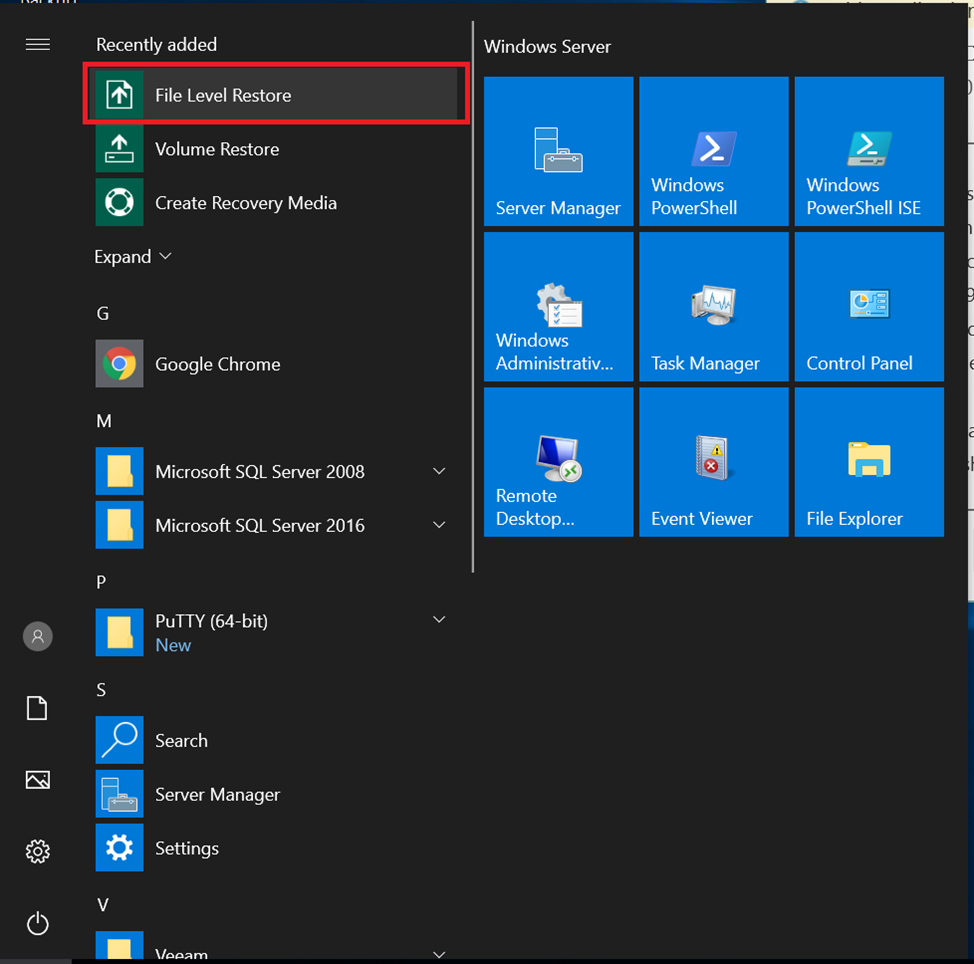
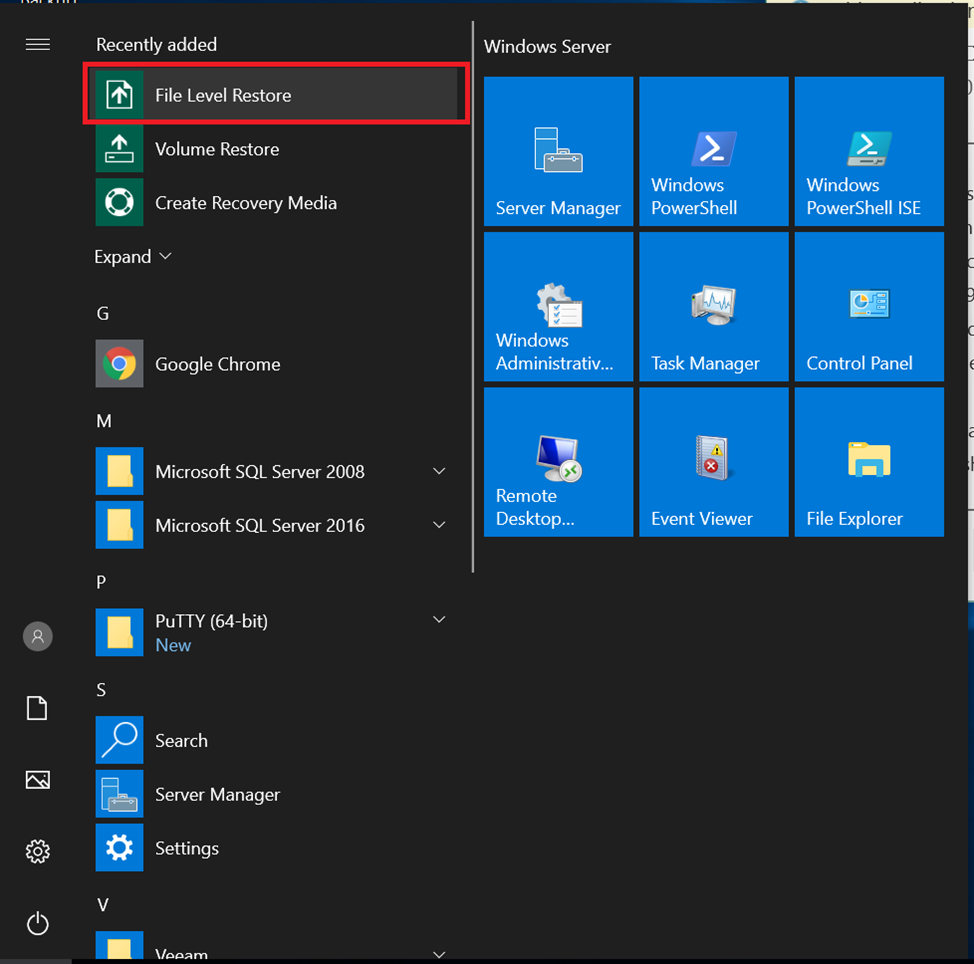
To restore from an older point, launch the File Level Restore tool included with Veeam Agent for Windows.
-
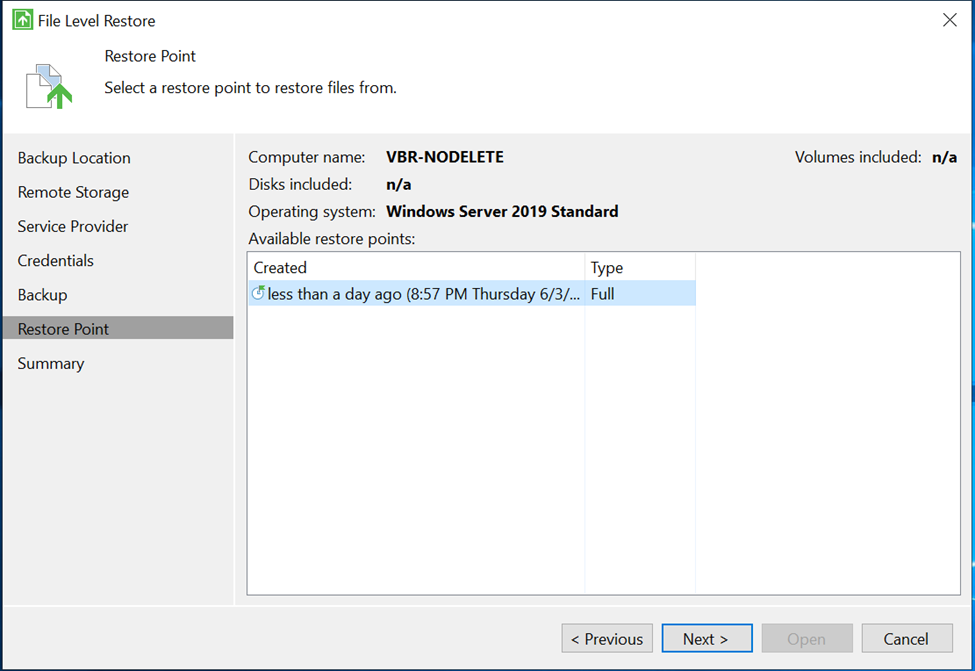
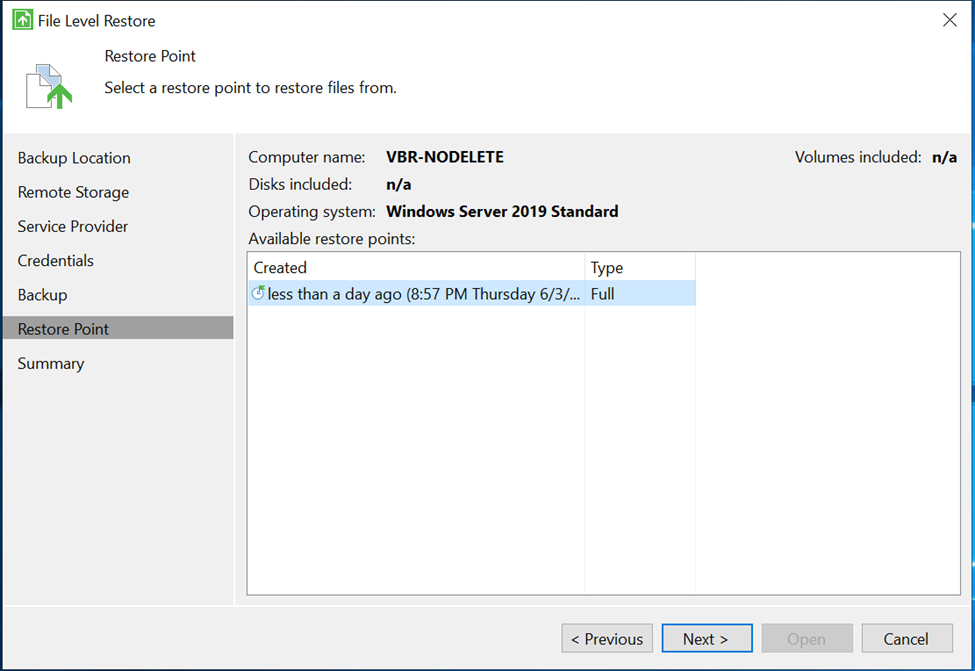
In the Restore Point section, select the point in time you want to restore from, then click Next.
-
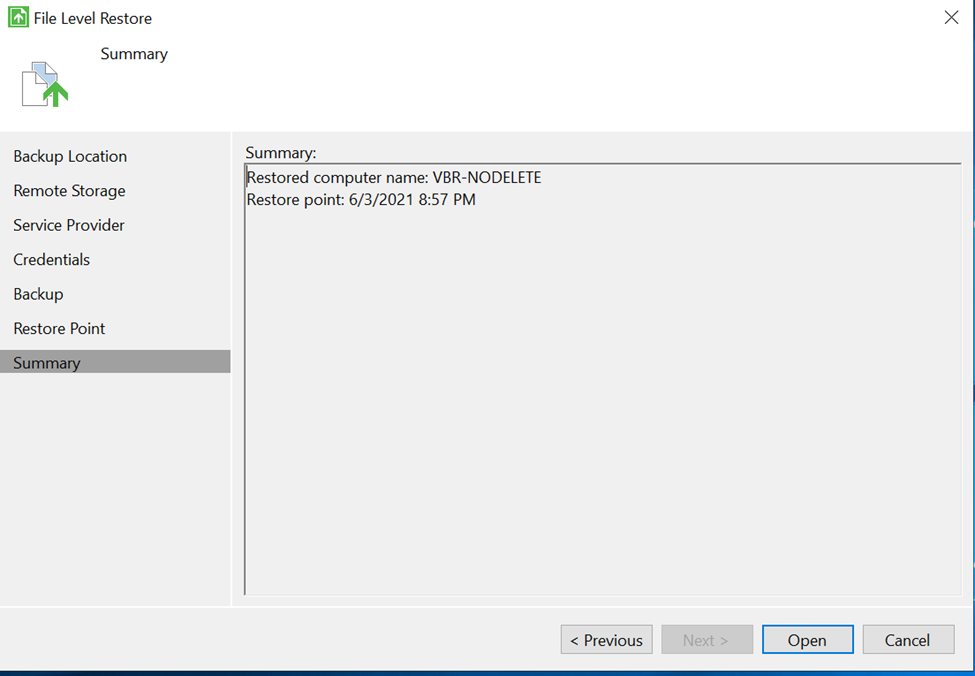
Click Open to continue. When the restore window appears, return to step 3 to select files and complete the restore.