1, Create relation
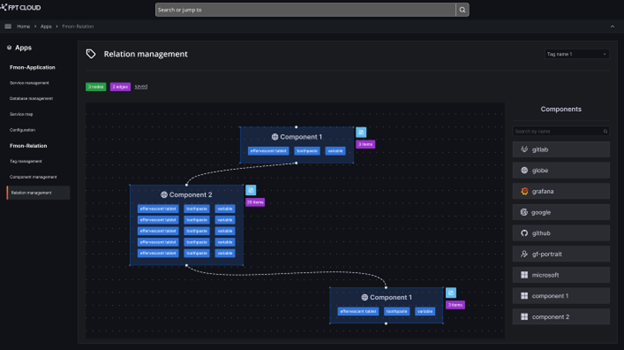
1, Create relation The relation screen allows users to visualize the relationships between components within a tag.
You can drag and drop components into the board area to establish relationships.
Each component corresponds to one node.
Example:
2, Update node
- Add value to a node
To add a value to a node, proceed as follows:
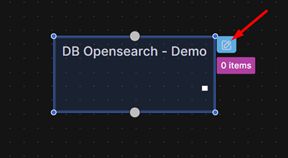
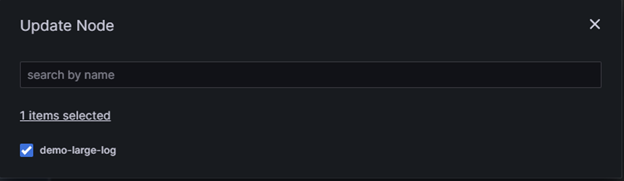
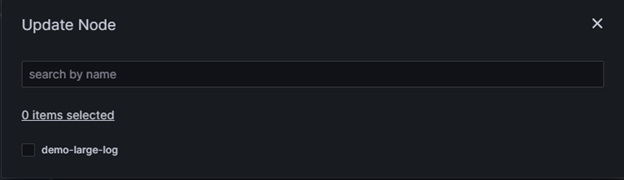
On that node, click the Pencil icon >> The Update node dialog is displayed. Tick the checkbox to add a value to the node.
Multiple values can be added at once.
- Remove value from a node
If you want to remove one or more items from a node, simply click the Pencil icon to open the Update node dialog and uncheck the selected items.
- Update description
To add or edit a description for a node, proceed as follows:
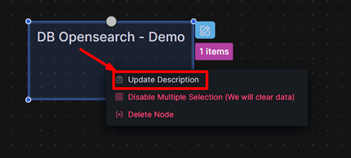
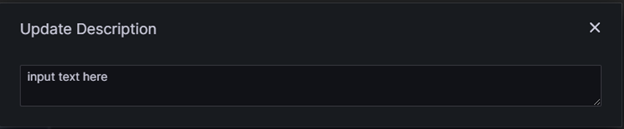
Right-click on the node and select Update Description. A textbox is displayed for you to enter the description.
- Disable multiple selection
If the user selects Disable multiple selection, items are added to the node as a dropdown list, allowing only 1 item per node.
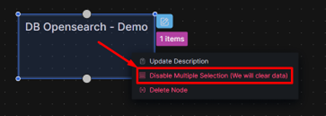
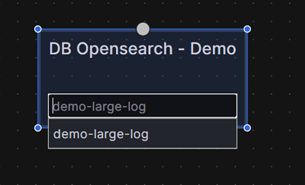
To allow multiple items in a node, right-click and select Enable multiple selection.
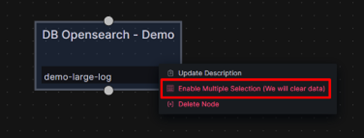
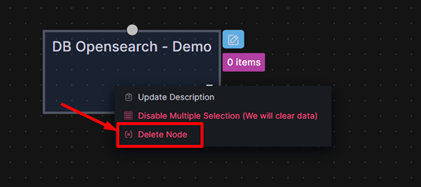
- Delete node
To delete a node, right-click on the node and select Delete node.