Tag Management
1, Create tag
Definition: A tag is an identifier name for a business flow or a business line.
Example: In FRT, there are system lines such as Long Chau, Vaccine, etc. Each of these lines is called a tag: tag Long Chau, tag Vaccine, etc.
To create a tag, follow these steps:
Step 1: Successfully access the Relation management service.
Step 2: In the service menu, click Tag management >> Button Create tag
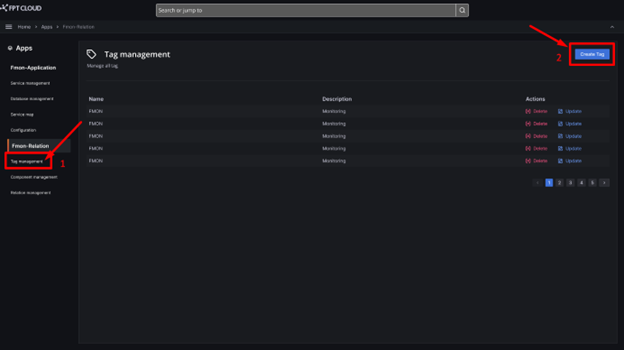
Step 3: The tag creation form is displayed. Fill in the following information:
- Name (required): tag name
- Description (optional): tag description
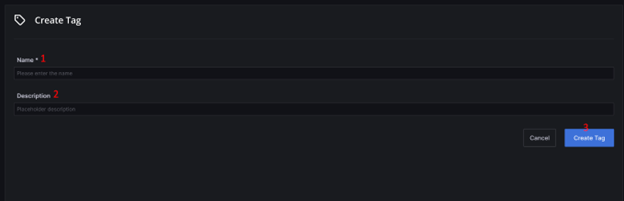
Note: The tag name can contain a maximum of 100 characters.
Step 4: After filling in all information, click Create to create the tag.
2, Update tag
To edit a tag, follow these steps:
Step 1: In the menu, select Tag management >> In the list screen, under the Action column, click the Update button.
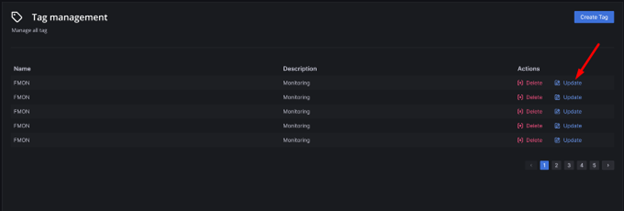
Step 2: Edit the tag information. The following fields can be modified: Description. The Name field cannot be edited.
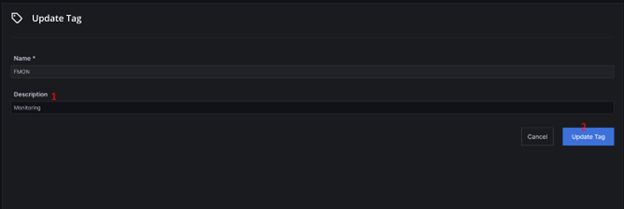
Step 3: Click the Update button to complete.
To cancel the operation, click Cancel to exit the edit screen.
3, Delete tag
To delete a tag, follow these steps:
Step 1: In the menu, select Tag management >> In the list screen, under the Action column, click the Delete button.
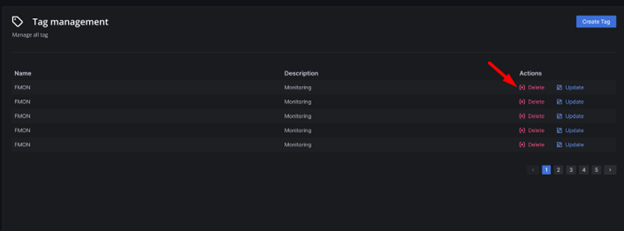
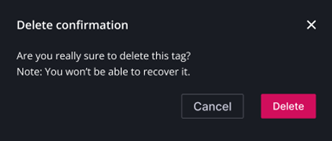
Step 2: The system will display a confirmation popup. To confirm deletion, click Delete in the popup.
To cancel the deletion, click Cancel.