Registering an FPT Console Portal account
To start using FPT Console Portal, you need to register a new account. Follow the steps below to complete the registration process.
Step 1: Access the registration page
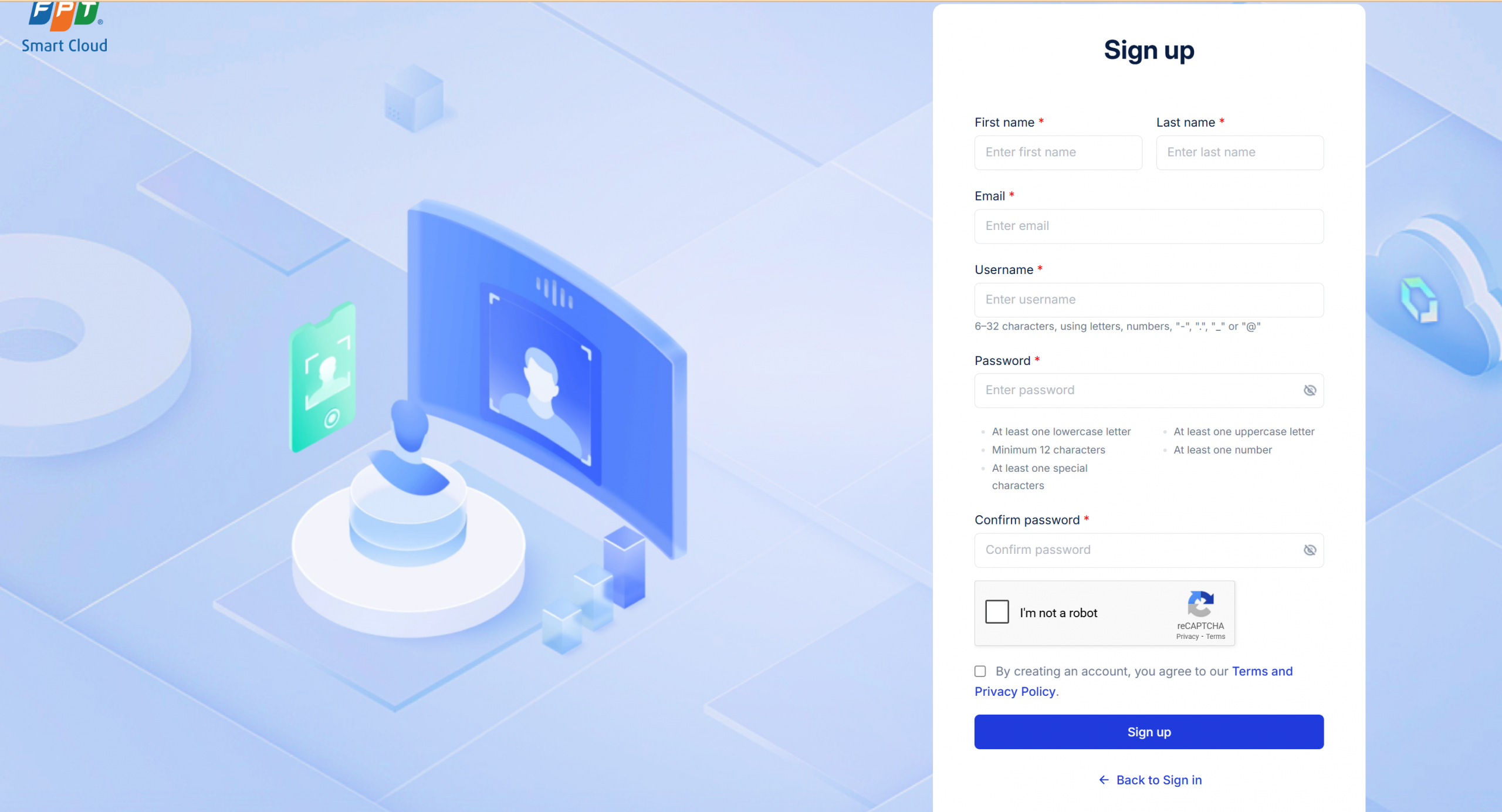
Go to the FPT Cloud homepage at https://fptcloud.com/ and click the Register button to begin the account registration process. The registration screen will appear as follows:
Step 2: Enter registration information
On the registration page, fill in the following information:
- First Name: Enter your first name.
- Last Name: Enter your last name.
- Email: Enter a valid email address. The system may use this address to send service-related notifications in the future.
- Username: Choose a unique username, 6 to 32 characters long, including: letters, numbers, "-", ".", "_", or "@".
- Password: Create a strong password meeting the following requirements:
- At least one lowercase letter.
- At least one uppercase letter.
- Minimum 12 characters.
- At least one special character (e.g., !, @, #, $, ...).
- At least one number.
- Confirm Password: Re-enter the password to confirm.
Step 3: Complete CAPTCHA verification
To confirm you are not a robot, check the "I'm not a robot" box and complete the reCAPTCHA challenge (if any).
Step 4: Accept terms and privacy policy
Read and accept the Terms of Use and Privacy Policy by checking the box.
Step 5: Confirm registration
After filling in and confirming all information, click the Sign Up button to create your account.
Step 6: Account confirmation
FPT Cloud support staff will contact you to verify the information and complete the account registration.
After your account is successfully created, you can log in to FPT Console Portal and start using the services.