Other Features Related to Gateway
Allocating a Floating IP (Allocate IP Address)
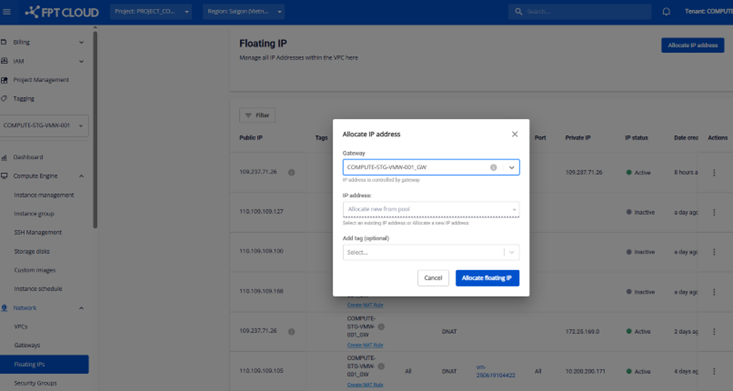
On the Floating IP screen, the system lets you select a Gateway when allocating an IP. Hover over the tooltip on the Gateway information to see whether it is Basic or Custom type.
- If you select a Custom type Gateway, the system only allows IP allocation without attaching it to any resource (the Resource, IP Port, and Instance Port fields are hidden).
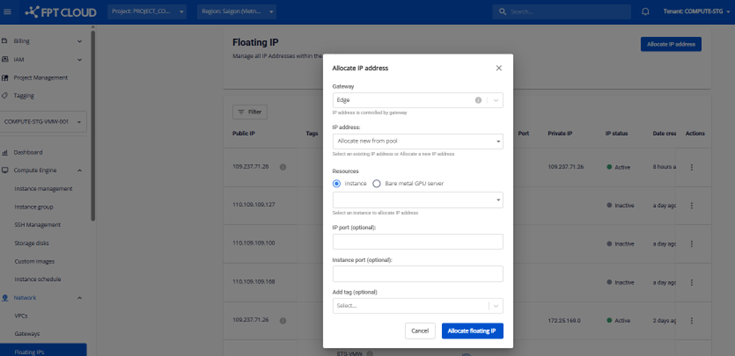
- If you select a Basic type Gateway, the system allows IP allocation and simultaneous attachment to a resource.
- On the Floating IP screen (Actions column), IPs belonging to a Custom type Gateway cannot be assigned to an Instance.
- On the Instance Detail screen, if an Instance has no IP assigned and you click Allocate IP, but the Instance belongs to a Custom type Gateway, you cannot assign the IP directly. To assign an IP, you need to create a NAT Rule.
Instance
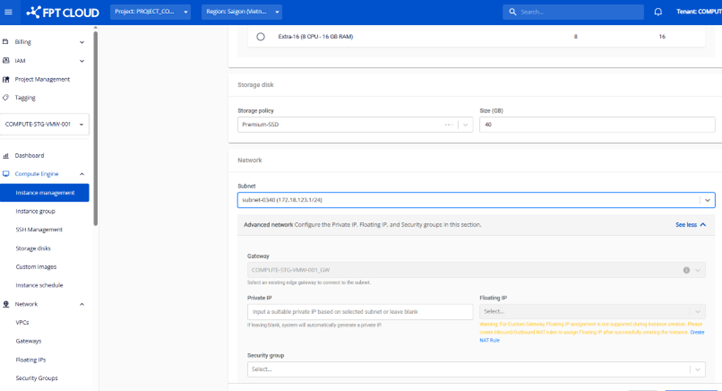
When creating an Instance, the system automatically fills in the Gateway information based on the selected Subnet (the Gateway is assigned to the Subnet). If the Gateway is of type Custom, you will not be able to select a Floating IP (the field will be disabled).
Subnet
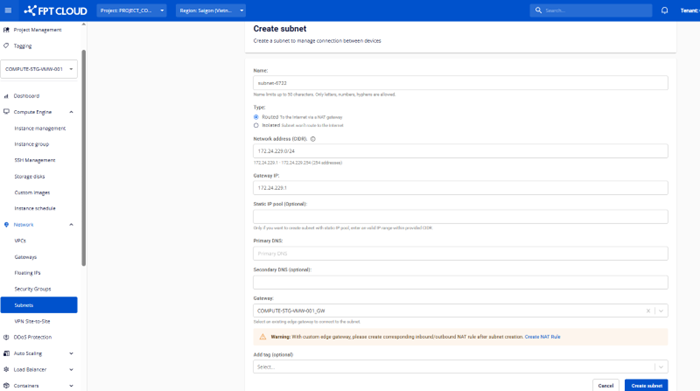
On the Subnet creation screen, the system allows you to select a Gateway. If the Gateway is of type Custom, the system will notify you that you need to create a NAT Rule manually.
Security Group
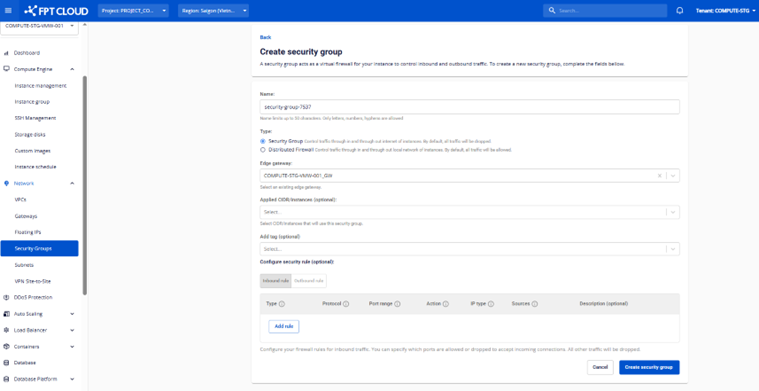
On the Security Group creation screen, the system allows you to select a Gateway. The Security Rules created will be managed by the selected Gateway.
Load Balancer
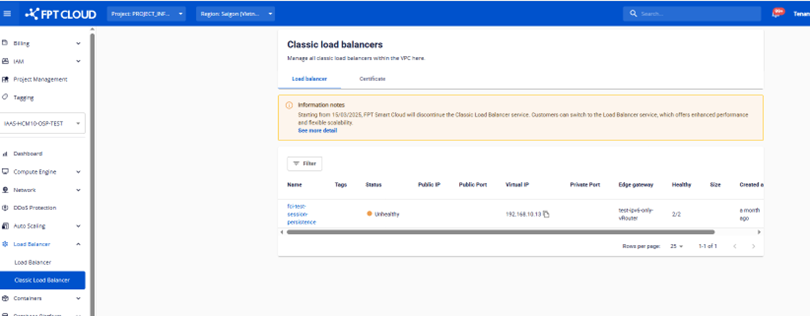
The system allows you to view Gateway information when using Load Balancer Classic.
VPN Site to Site
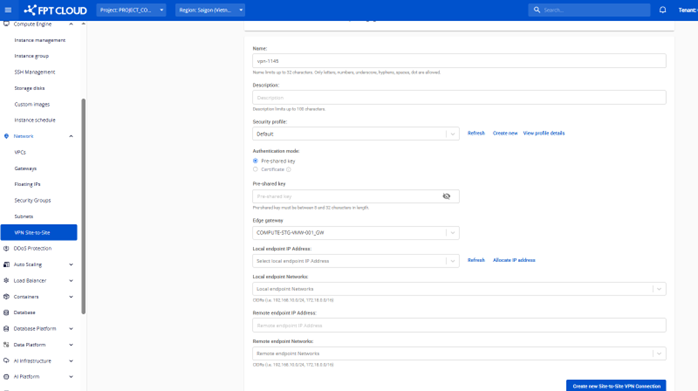
The system allows you to select a Gateway when creating and using the VPN Site to Site service.