Using GPU sharing modes
GPU sharing modes allow a physical GPU to be shared among multiple containers in order to optimize GPU utilization. The following GPU sharing strategies are supported:
| Multi-instance GPU | GPU time-sharing | NVIDIA MPS | |
|---|---|---|---|
| General | GPU be divided and sharing among multiple containers | Each container use GPU in a slice of time | Containers use GPU in parallel |
| Isolation | A GPU be divided in up to seven instances, each instance has its own dedicated compute, memory, bandwidth. Each partition is fully disparated with each other. | Each container accesses the full capacity of the underlying physical GPU by doing context switching between processes running on a GPU. However, time-sharing provides no memory limit enforcement between shared Jobs and the rapid context switching for shared access may introduce overhead. | NVIDIA MPS has limited resource isolation, but gains more flexibility in other dimensions, for example GPU types and max shared units, which simplify resource allocation. |
| Suitable for these workloads | Recommended for workloads running in parallel and that need certain resiliency and QoS. For example, when running AI inference workloads, multi-instance GPU allows multiple inference queries to run simultaneously for quick responses, without slowing each other down. | Recommended for bursty and interactive workloads that have idle periods. These workloads are not cost-effective with a fully dedicated GPU. By using time-sharing, workloads get quick access to the GPU when they are in active phases. GPU time-sharing is optimal for scenarios to avoid idling costly GPUs where full isolation and continuous GPU access might not be necessary, for example, when multiple users test or prototype workloads. Workloads that use time-sharing need to tolerate certain performance and latency compromises. | Recommended for batch processing for small jobs because MPS maximizes the throughput and concurrent use of a GPU. MPS allows batch jobs to efficiently process in parallel for small to medium sized workloads. NVIDIA MPS is optimal for cooperative processes acting as a single application. For example, MPI jobs with inter-MPI rank parallelism. With these jobs, each small CUDA process (typically MPI ranks) can run concurrently on the GPU to fully saturate the whole GPU. Workloads that use CUDA MPS need to tolerate the memory protection and error containment limitations. |
A. Multi-instance GPU (MIG)
Multi-instance GPU is a feature that allows your GPU to be divided into up to 7 separate partitions. These GPU partitions are called MIG instances and are fully isolated from each other in terms of compute capability, bandwidth, and memory.
Our GPU Kubernetes service supports the following MIG profiles:
| No. | GPU A100 Profile | Strategy | Number of instances | Instance resource |
|---|---|---|---|---|
| 1 | all-1g.10gb | single | 7 | 1g.10gb |
| 2 | all-1g.20gb | single | 4 | 4g.20gb |
| 3 | all-2g.20gb | single | 3 | 2g.20gb |
| 4 | all-3g.40gb | single | 2 | 3g.40gb |
| 5 | all-4g.40gb | single | 1 | 4g.40gb |
| 6 | all-balanced | mixed | 2 / 1 / 1 | 1g.10gb / 2g.20gb / 3g.40gb |
| 7 | none with operator | none | 0 | 0 (Entire GPU) |
| 8 | none | none | 0 | 0 |
| No. | GPU A30 Profile | Strategy | Number of instances | Instance resource |
|---|---|---|---|---|
| 1 | all-1g.6gb | single | 4 | 1g.6gb |
| 2 | all-2g.12gb | single | 2 | 2g.10gb |
| 3 | all-4g.24gb | single | 1 | 4g.24gb |
| 4 | all-balanced | mixed | 2 / 1 | 1g.6gb / 2g.12gb |
Example: If you select strategy single: all-1g.6gb, the GPU A30 card on the worker is divided into 4 MIG devices, each with GPU resources equal to 1/4 of the physical GPU and 6 GB of GPU RAM.
Notes:
- MIG config applies to all cards attached to the worker.
- The MIG strategy across all worker groups in the same cluster must be the same type (single / mixed / none).
- For strategy "none with Operator", a pod can use 1 GPU device containing the resources of the entire GPU.
- For strategy "none", the GPU is already connected to the machine; users can manually deploy the GPU Operator or GPU device plugin with their desired configuration. It is strongly recommended that users have a solid understanding of GPU sharing fundamentals before using this strategy.
B. Configuring MIG on the GPU Kubernetes service
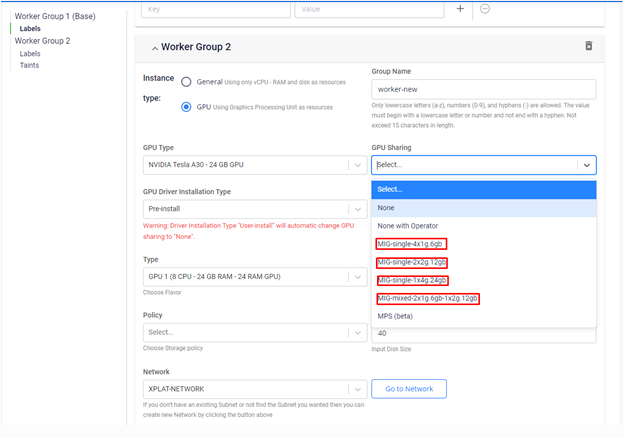
At the worker group GPU initialization step, you can select MIG sharing mode profiles from the interface and our GPU Kubernetes service will handle the configuration for you:
Notes:
- If you select profiles of the "MIG single" type, subsequent worker groups can only select sharing modes from "MIG single" profiles. The same applies for "MIG mixed", "None", and "None with Operator" profiles.
- Sharing mode "None" means we give you full control of the GPU Kubernetes cluster. You can manually install the GPU Operator or NVIDIA device plugin to run sharing modes as needed.
- Sharing mode "None with operator" means we manage the GPU Operator for you. However, one GPU can only be assigned to a maximum of one container at any given time.
Verify MIG:
After our portal reports the cluster status as success, you can check the GPU resources of a GPU node with:
kubectl describe nodes
Output:
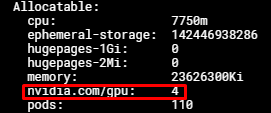
At this point you can request up to 4 nvidia.com/gpu resources for your pod, with each nvidia.com/gpu resource corresponding to 1/4 of the original physical GPU's compute capability and memory.
If your node uses 2 GPUs, 8 nvidia.com/gpu resources will be displayed.
You can also combine MIG with other GPU sharing strategies such as time slicing (supported) and MPS (not yet supported) to maximize GPU utilization.
C. Multi-Process Service (MPS)
- MPS is an NVIDIA GPU feature that allows multiple containers to share the same physical GPU.
- MPS has an advantage over MIG in terms of GPU resource partitioning — up to 48 containers can use the GPU simultaneously.
- MPS is based on NVIDIA's Multi-Process Service for CUDA, allowing multiple CUDA applications to run concurrently on a single GPU.
- With MPS, users can pre-define the number of replicas for a GPU. This value tells us the maximum number of containers that can access a single GPU.
- Additionally, GPU resources for each container can be limited by setting the following environment variables in the container:
CUDA_MPS_ACTIVE_THREAD_PERCENTAGECUDA_MPS_PINNED_DEVICE_MEM_LIMIT
- For more details on how MPS works, visit: https://docs.nvidia.com/deploy/mps/
Configuring MPS on FPTCloud K8s GPU service:
You can configure your GPU worker group to use MPS during the worker group initialization as shown below:
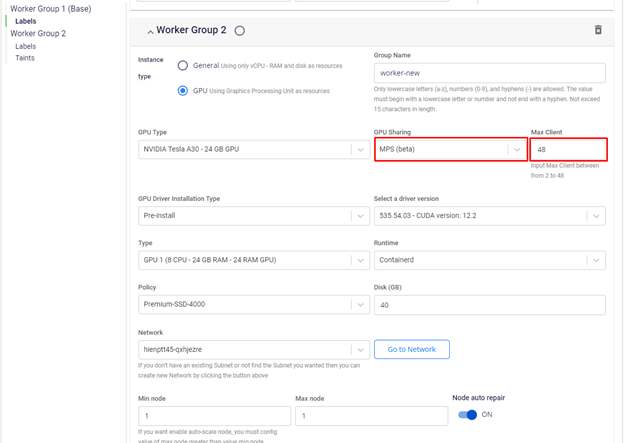
With this configuration, the GPU is "divided" into 48 parts, each with compute capability and memory equal to 1/48 of the original physical GPU.
Verify MPS:
You can check the MPS configuration on your GPU node with:
kubectl describe nodes $NODE_NAME
Output:
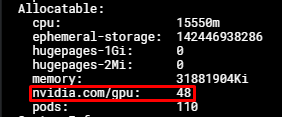
At this point you can request up to 48 nvidia.com/gpu resources for your pods, with each nvidia.com/gpu resource corresponding to 1/48 of the original physical GPU's compute capability and memory.
If your node uses 2 GPUs, 96 nvidia.com/gpu resources will be displayed.
Important notes:
- The
nvidia.com/gpuresource requested by a container must equal 1. - The maximum number of clients is 48 and the minimum is 2; physical GPU resources are divided equally among the max clients.
- Each container runs one process to ensure the MPS sharing mode does not encounter errors.
- The
hostIPC: truefield is required in the workload deployment manifest. - MPS has limitations regarding error containment and workload isolation — review these carefully before use.
D. Time slicing
- Time slicing is a primitive GPU sharing feature where each process/container uses the GPU for equal time slices.
- Time slicing implements GPU sharing via CPU-style context switching — each process/container has its context saved when the GPU is being used by another process.
- Time slicing does not support parallel GPU sharing like MPS.
Configuring time slicing on the GPU Kubernetes service:
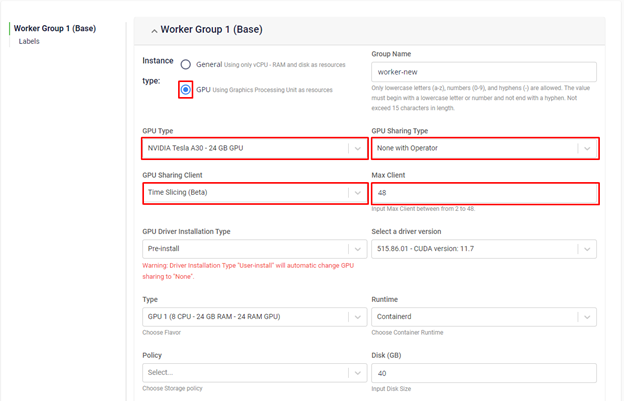
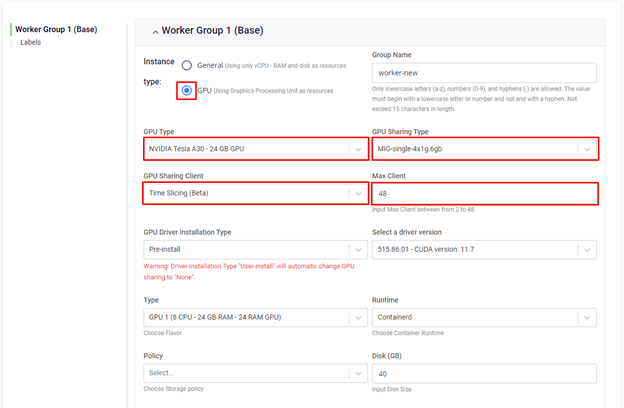
Time slicing is a primitive GPU sharing feature and can be used across all MIG sharing modes (except MIG-mixed profiles) and the "None with Operator" mode.
At the worker group GPU initialization step, you select whether to combine time slicing with MIG or use time slicing on a GPU with MIG mode enabled, and we will handle the configuration for you:
Verify time slicing:
You can check the time slicing configuration on your GPU node with:
kubectl describe nodes $NODE_NAME
Output:
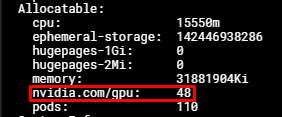
At this point you can request up to 48 nvidia.com/gpu resources for your pods. However, unlike MPS, each pod is not limited in the amount of resources it can consume, which can lead to out-of-memory conditions.
If you are using MIG mode, the number of nvidia.com/gpu resources equals the number of MIG instances multiplied by the time slicing max client count you define. For example, if you use MIG mode 2x2g.12gb and the time slicing client count is 48, there will be 96 nvidia.com/gpu resources displayed.
Important notes:
- The
nvidia.com/gpuresource requested by a container can be equal to or greater than 1. However, requesting more than 1nvidia.com/gpudoes not grant the container access to more resources. - When using time slicing, containers are not limited in their use of compute or memory resources.
- The maximum number of clients is 48 and the minimum is 2.
- Each container runs one process.
- Clearly define the GPU resource amount a container needs to avoid OOM errors that could disrupt GPU operation.