User group management
The User Group management feature allows grouping multiple users and assigning appropriate roles to the group. This feature is part of IAM on FPT Cloud Portal, helping organize users by role, reducing administrative workload, and ensuring access permissions are applied consistently in the DBaaS environment.
To create a new user group, follow these steps:
Step 1: Access the user group management page
Log in to FPT Cloud Portal. After logging in successfully, from the main menu, select IAM > User groups. The User Group Management interface will display the list of existing user groups, along with options to create new, edit, or delete a user group.
Step 2: Create a new user group
In the User Group Management page, click Create user group. The create new user group screen appears as follows:
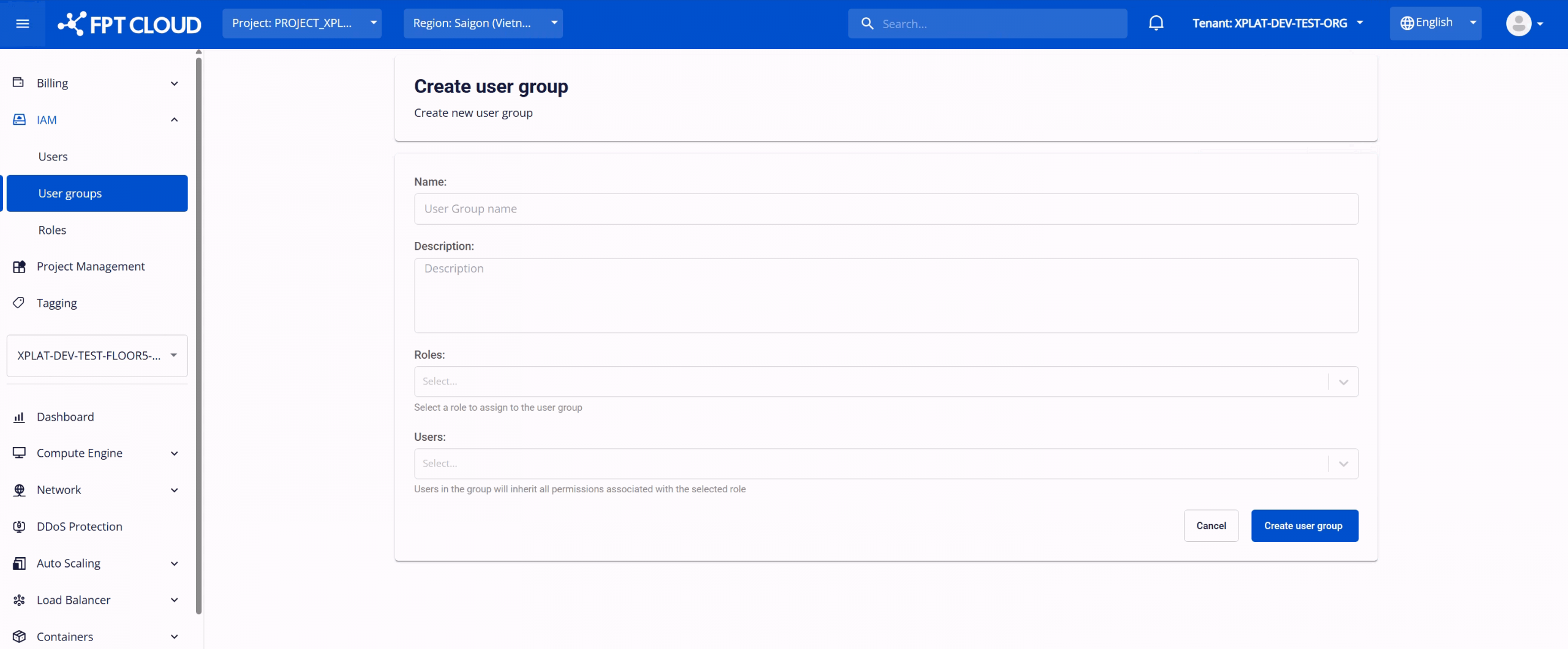
Enter the following information:
- Name: The name used to identify the user group in the IAM system, up to 100 characters. The name should clearly reflect the purpose or scope of the group's responsibilities.
- Description: Additional description about the user group, for example the scope of use or managed services. This field makes administration and auditing clearer.
- Roles: Select one or more roles to assign to the user group. These roles define the set of permissions applied to all users in the group.
- Users: Select users to add to the group. Users will inherit all permissions of the roles assigned to the group. Any changes to the group's roles will be applied to all members of the group.
After entering all information, select Create user group to complete the user group creation process.
After successful creation, the new user group will appear in the management list with Active status. Users in this group will be able to access the features and operations corresponding to the permissions assigned by role.
When needed, you can perform the following operations on a created user group:
- Edit user group: Allows updating group information or changing the Roles assigned to the group. To do this, on the User Group Management page, select Edit user group corresponding to the user group to be edited. Make changes and click Edit user group to save.
- Delete user group: When a group is no longer needed (e.g., organizational restructuring), you can delete the group to prevent permission confusion and ensure consistent security policies. On the User Group Management page, select Delete corresponding to the user group to be deleted. Confirm the action in the warning dialog to complete. Warning: Deleting a user group immediately removes all role-based access permissions assigned through that group. Users in the group will lose inherited permissions and may no longer be able to access or manage DBaaS resources and other cloud services. Before deleting the group, ensure that:
- The group is no longer used for database operational or administrative tasks.
- Users in the group have been reassigned to another user group or granted an alternative role if they still need access.
- No important DBaaS operational processes, automations, or workflows depend on the group's permissions.