Create a Threat Alert
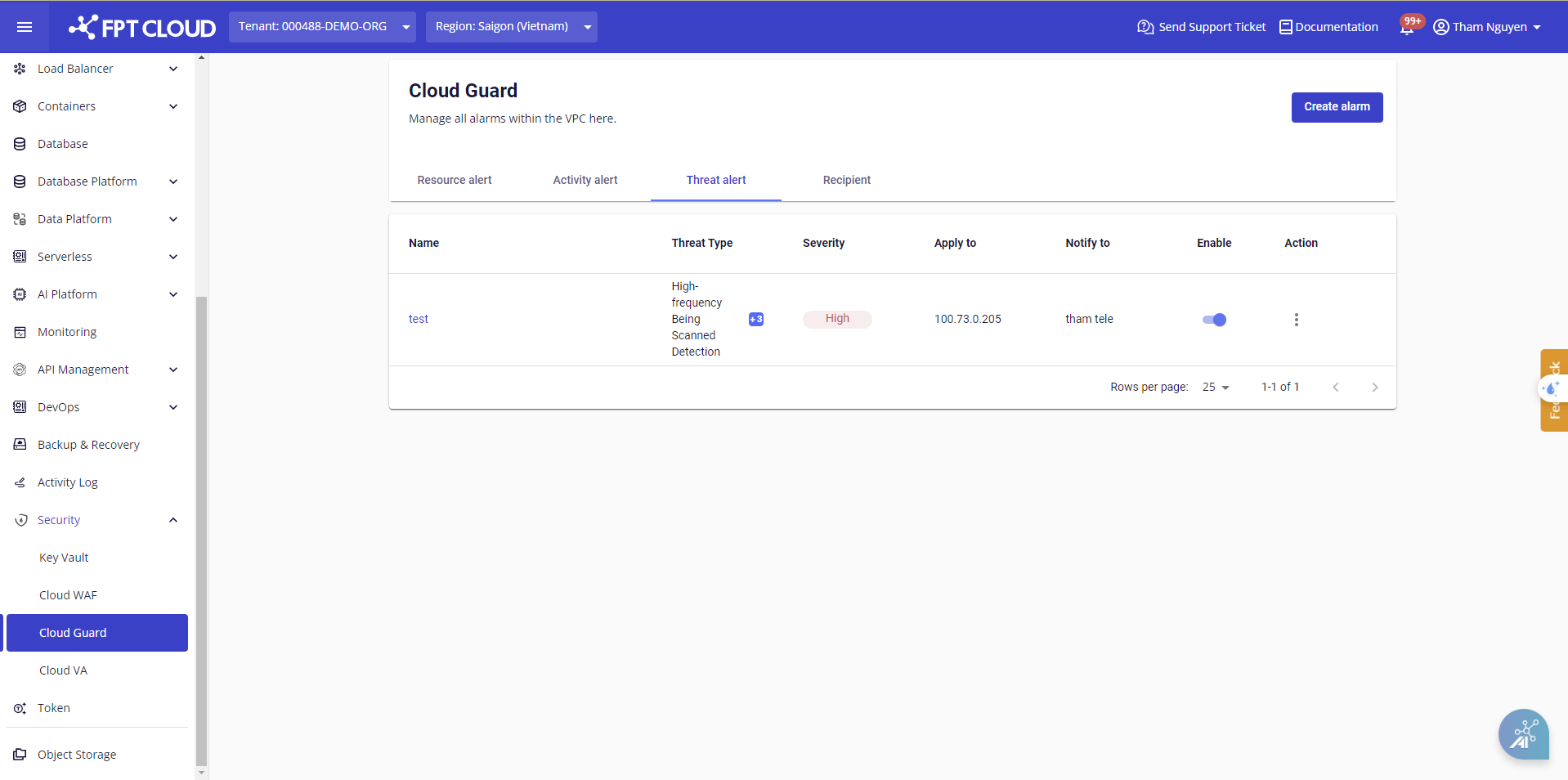
Step 1: In the menu, go to Security > Cloud Guard, open the Threat Alerts tab, and click Create Alert.
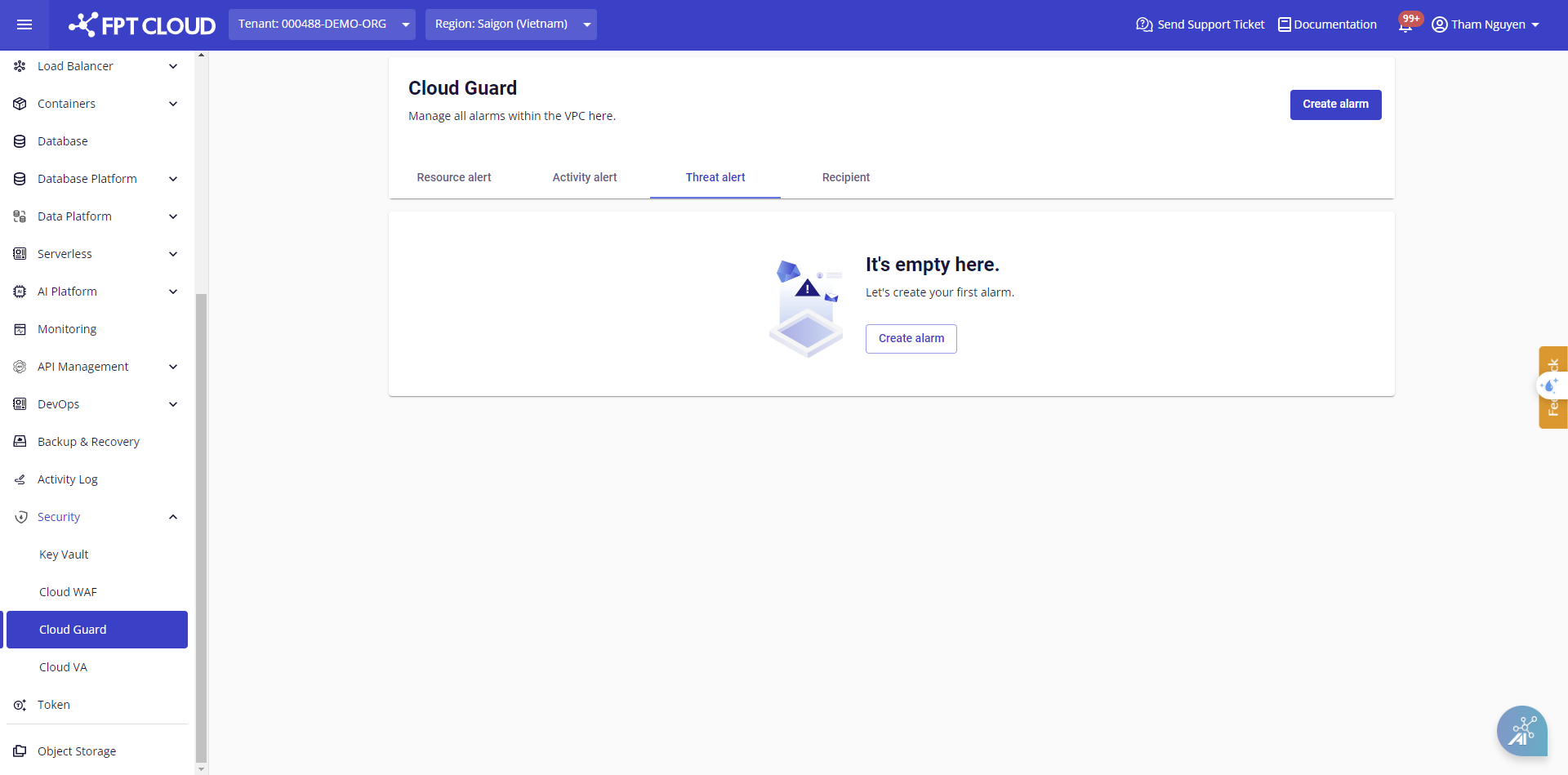
A dialog box appears to guide you through the configuration.
Step 2: Configure the alert by filling in the corresponding fields:
| Field | Description |
|---|---|
| Name | Enter the alert name |
| Threat Type | Select the type of attack to monitor |
| Apply to | Select the IP addresses to enable alerting for |
| Severity | Select the severity level: Critical, High, Medium, or Low |
| Notify to | Select the notification recipients |
Supported threat types:
- High-frequency Being Scanned Detection: Your IP is being scanned from external sources at an abnormally high frequency through dangerous ports such as 22, 3389, 445, etc.
- High-frequency Scanning Detection: Your IP is scanning external internet addresses at an abnormally high frequency through dangerous ports.
- Malware Infected Detection: Your IP may be infected with malware, detected through a connection to a C&C site.
- Potential DDoS Attack Detection: Your IP may be under a DDoS attack, detected when a large number of hosts are sending packets to a single destination IP within one minute.
note
IPs available for alerting are those listed in the Floating IP section.
Step 3: Click Create to create the alert. The system validates the configuration and begins the creation process.
After creation, the new alert appears in the management table.