Connect CheckPoint R8120
This guide explains how to build a Router device to connect VPN S2S with the FPT Smart Cloud VPN Site-to-Site service.
- Step 1: Build CheckPoint for Cloud/
- Step 2: Configure VPN Site-to-Site/
- Step 3: Configure CheckPoint/
- Step 4: Debug — Tracert/
Ensure the following prerequisites are met:
- VPN Site-to-Site on the portal
- CheckPoint R81.20 downloaded and booted from the image named: Check_Point_R82.10_T462_Gaia
- SmartConsole version R81.20 integrated with CheckPoint R81.20
- A public IP — for simplicity, assign it directly to the VM rather than using a Floating IP
- One PfSense VM for debugging (optional)
Step 1: Build CheckPoint for Cloud
- Build the image on Horizon with 2C4G — one public IP assigned directly, one local network IP for the VPN
Run the following commands to boot the VM from the image:
Openstack command
Copyopenstack volume create --type Premium-SSD --image Check_Point_R82.10_T462_Gaia --size 20 --bootable DISK-CD -- Output ID {`DISK-CD`}
Openstack command
Copyopenstack volume create --type Premium-SSD --size 100 --bootable DISK-OS-- Output ID {`DISK-OS`}
Openstack command
Copyopenstack network list
--output ID {'IP PUBLIC'}
Openstack command
Copynova boot --availability-zone nova --flavor 2C4G --nic net-id={`IP PUBLIC`} --block-device id=`DISK-OS`},source=volume,dest=volume,bus=virtio,device=/dev/vda,shutdown=preserve,bootindex=0 --block-device id= {`DISK-CD`},source=volume,dest=volume,bus=ide,device=/dev/hda,type=cdrom,bootindex=1 CheckpointServer
- To boot the VM via NoVNC, follow these steps:
- Select Install Gaia on this system.
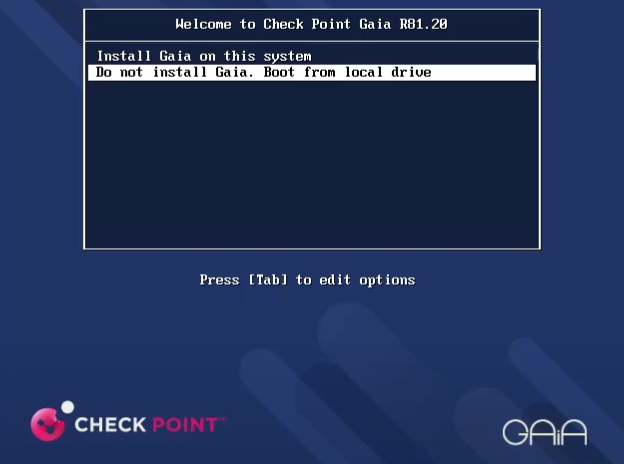
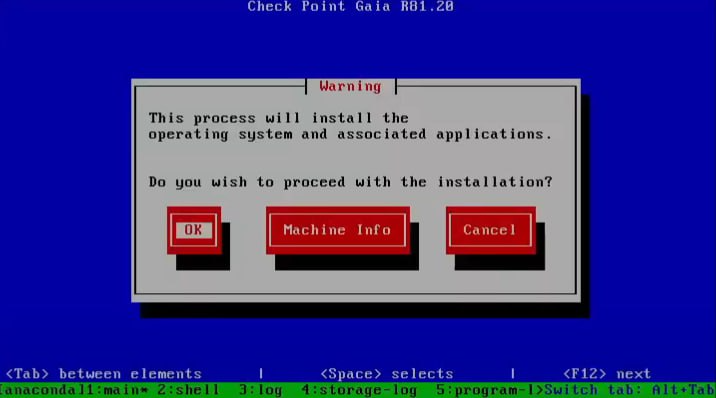
- Select OK.
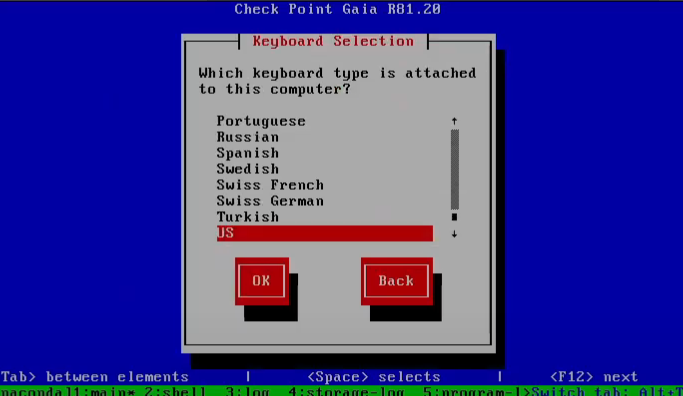
— On the Keyboard Selection screen, select US → OK.
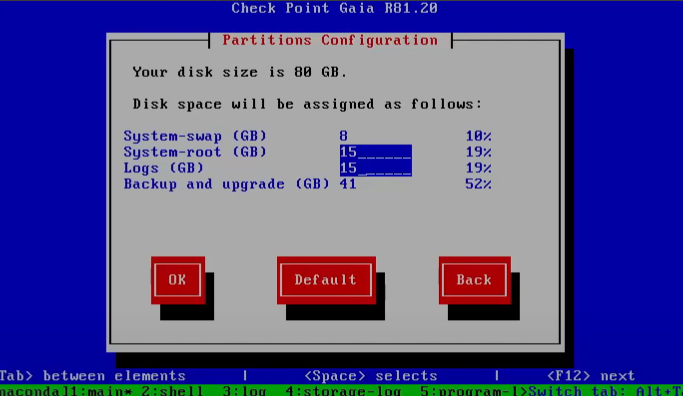
— Select OK. (You can enter a custom configuration or keep the default values.)
— Enter the login password for the VM console.
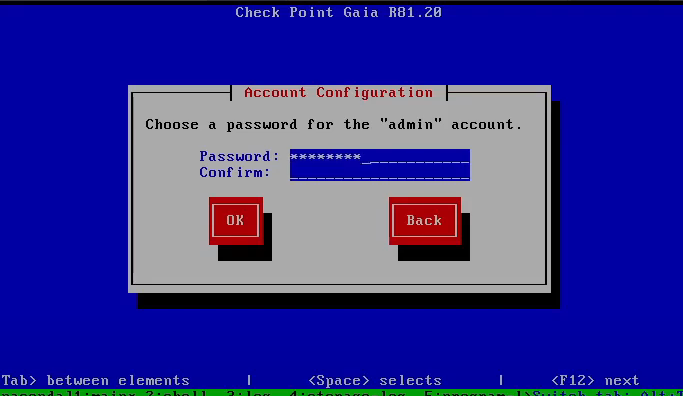
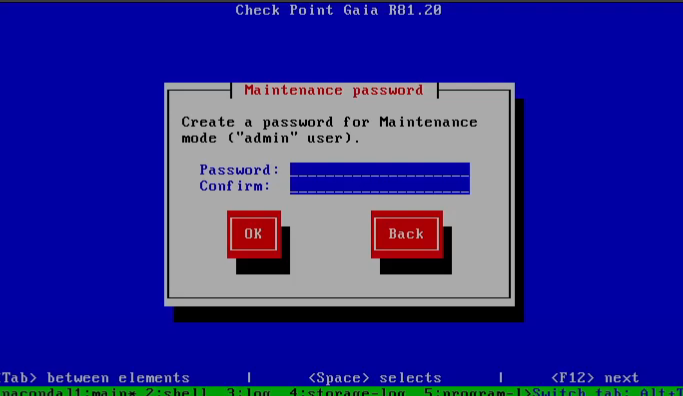
- Enter the password for SmartConsole.
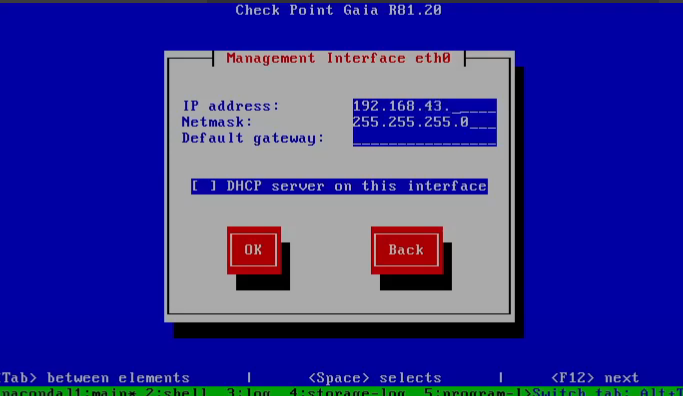
— Enter the public IP assigned directly at the start of this section with Netmask "255.255.255.255", then select OK.
— Installation complete. 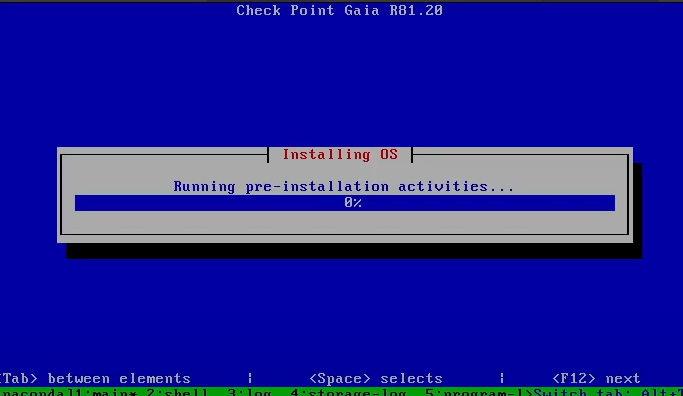
Step 2: Configure VPN Site-to-Site
Go to https://console.fptcloud.com/ and create a VPN Site-to-Site connection.
- Create a Customer Gateway: - Remote private network: the LAN Subnet range to peer with from CheckPoint. - Remote IP public: the public IP of CheckPoint.
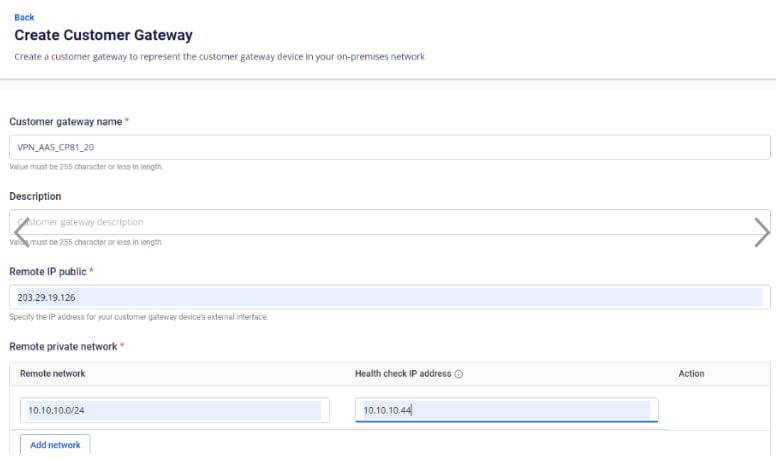
- Create a VPN Connection.
The VPN Connection parameters consist of three main sections:
- General information (general connection details)
- Remote VPN Information (encryption settings and customer-side information)
- Dead Peer Detection (number of automatic retries when a connectivity issue occurs)
Section 1: General information
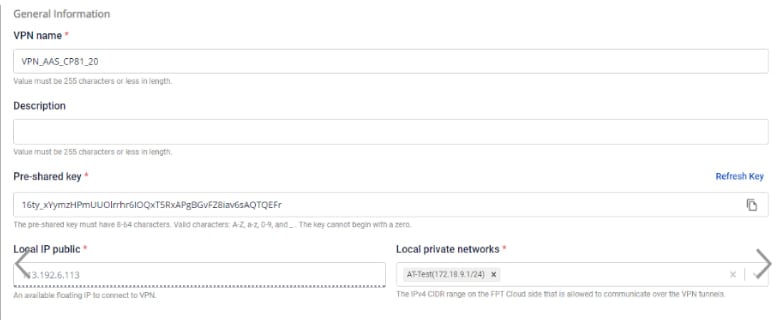
Note the Pre-shared key value — you will need it when configuring CheckPoint.
Section 2: Remote VPN information
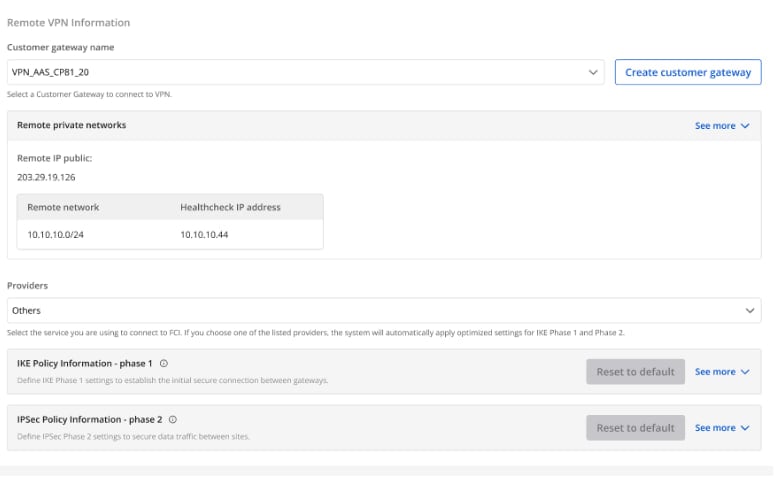
Select Providers = "others", then follow these steps:
- Step 1: Enter providers name = "checkpoint".
- Step 2: Enter the IKE and IPSec settings as follows:
For IKE:
- Authorization algorithm: sha256
- Encryption algorithm: aes 256
- IKE version: ikev2
- DH group: group14
- Lifetime: 3600 seconds
- Phase 1 negotiation mode: main
For IPSec:
- Authorization algorithm: sha256
- Encryption algorithm: aes 256
- Encapsulation mode: tunnel
- Transform protocol: esp
- Perfect Forward Secrecy (PFS): group14
- Lifetime: 3600 seconds
Section 3: Dead Peer Detection
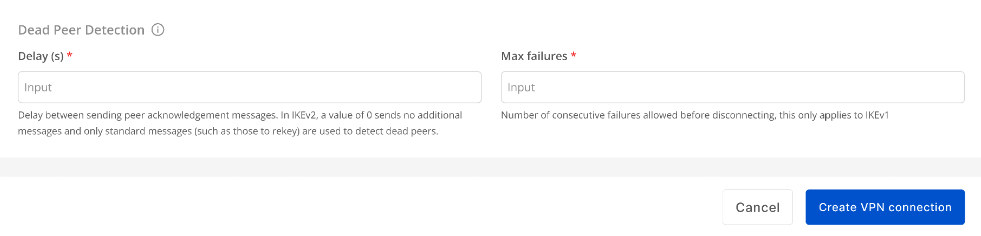
Enter the Delay and max failure values, then select Create VPN Connection.
Step 3: Configure CheckPoint
- Sign in to the VNC console of the CheckPoint VM using the account created above and run the command: "Cpstart".
- Sign in to the web interface at https://{
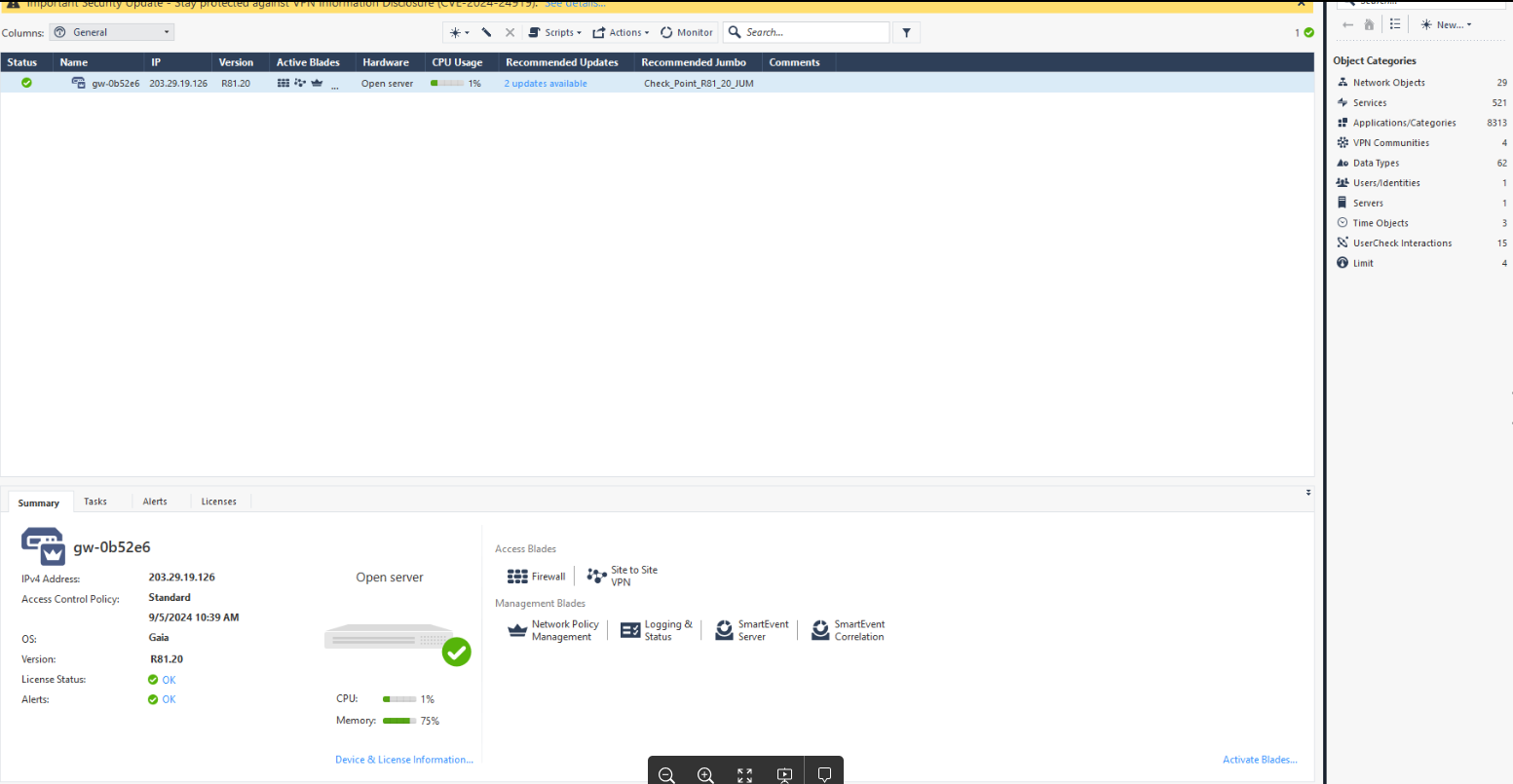
IP} and download SmartConsole using the link and version recommended by the page. - Install and sign in to the SmartConsole app using the provided credentials. Note: an activated license is required to access SmartConsole. A successful login looks like the image below:
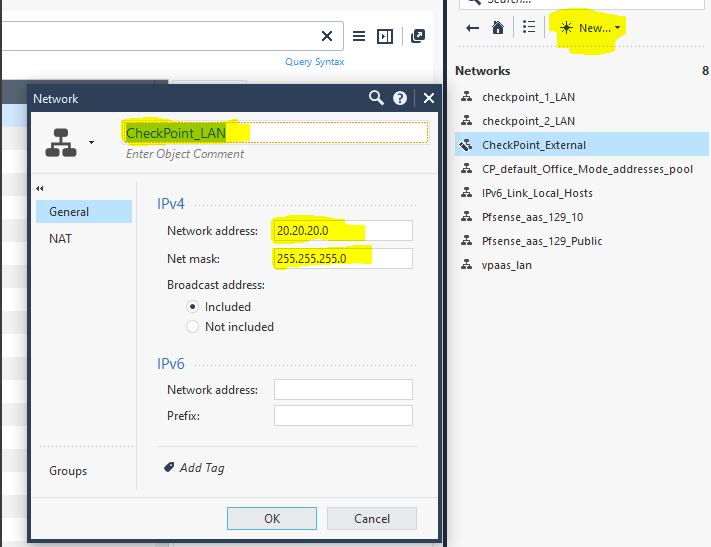
— Create a LAN network.
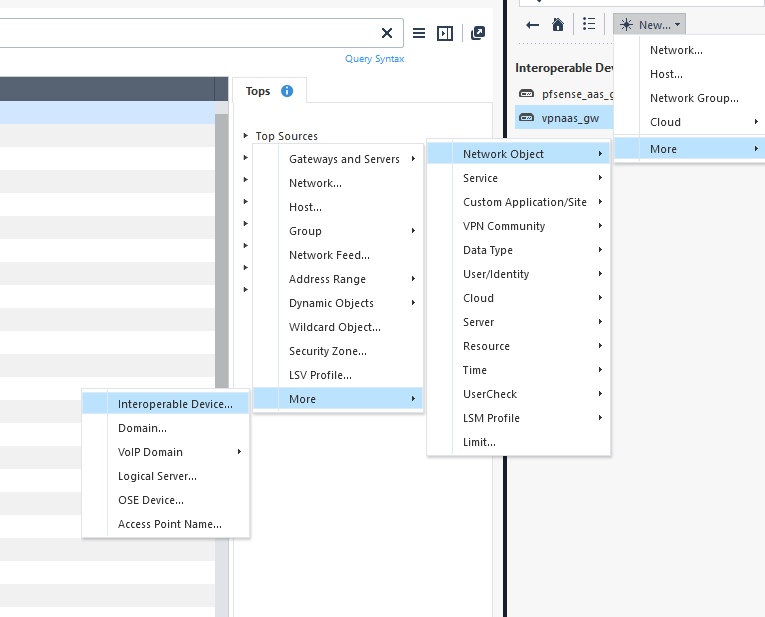
— Create an Interoperable Device with the public IP of the VPN Site-to-Site as follows: Go to New → More → Network Object → More → Interoperable Device.
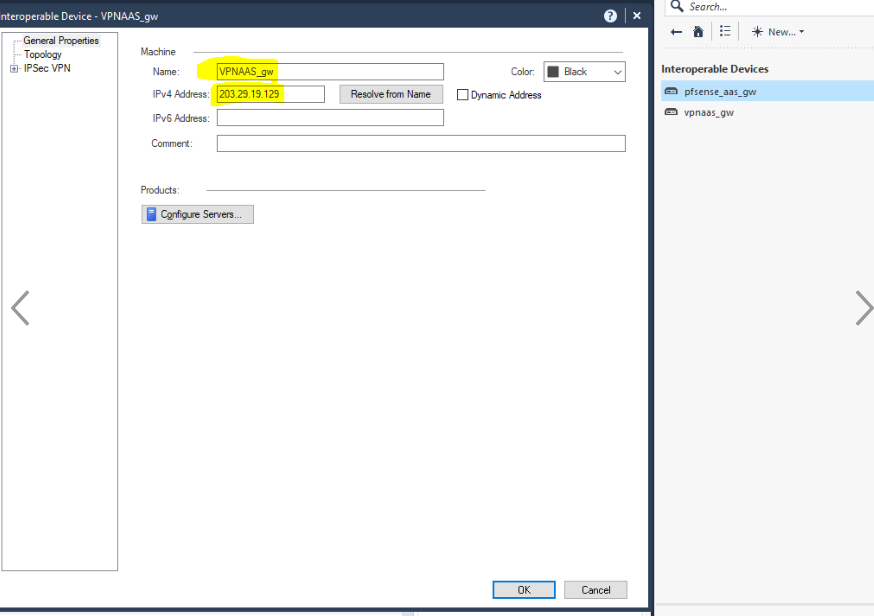
Fill in the Name, IPv4 Address, and select OK.
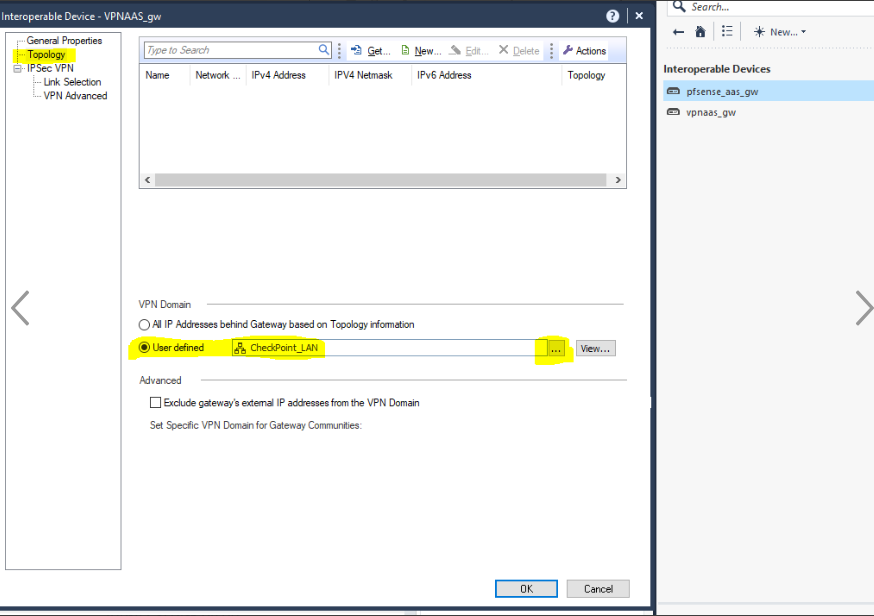 — Create a VPN Star Community as follows:
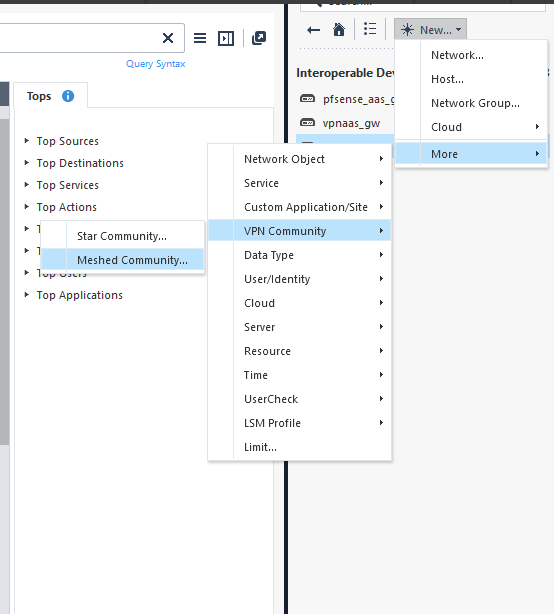
Go to New → More → VPN Community → Star Community.
— Create a VPN Star Community as follows:
Go to New → More → VPN Community → Star Community.
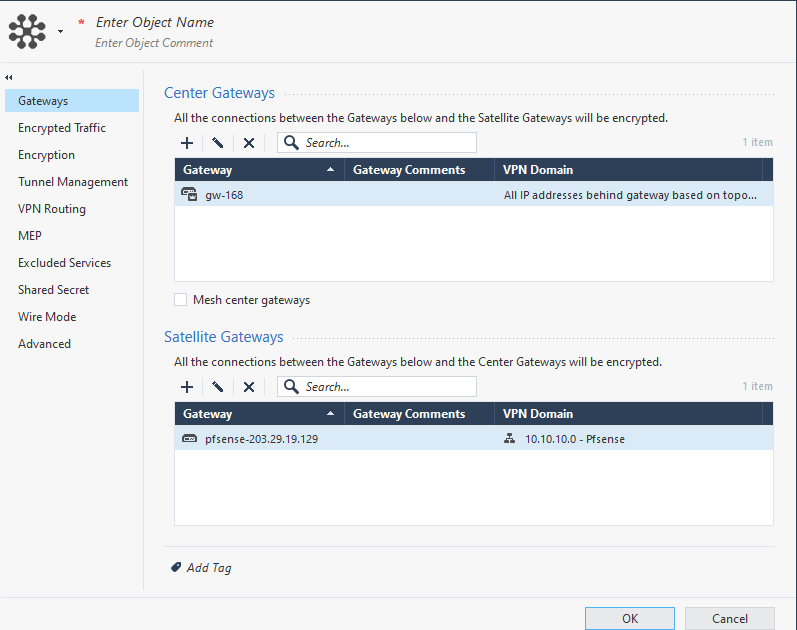
— Configure with the following settings:
- Select Center Gateway named: CheckPoint (created above).
- Select Satellite Gateway as the Interoperable Device.
- Select VPN Domain with the corresponding LAN/local and Remote/peer network ranges.
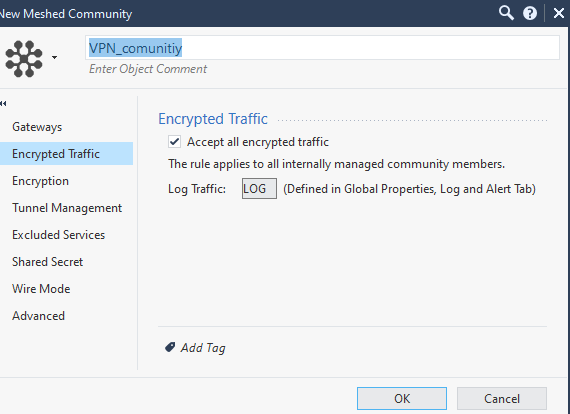
- Select the Encryption configuration matching what was chosen on the FPT Smart Cloud portal, for example:
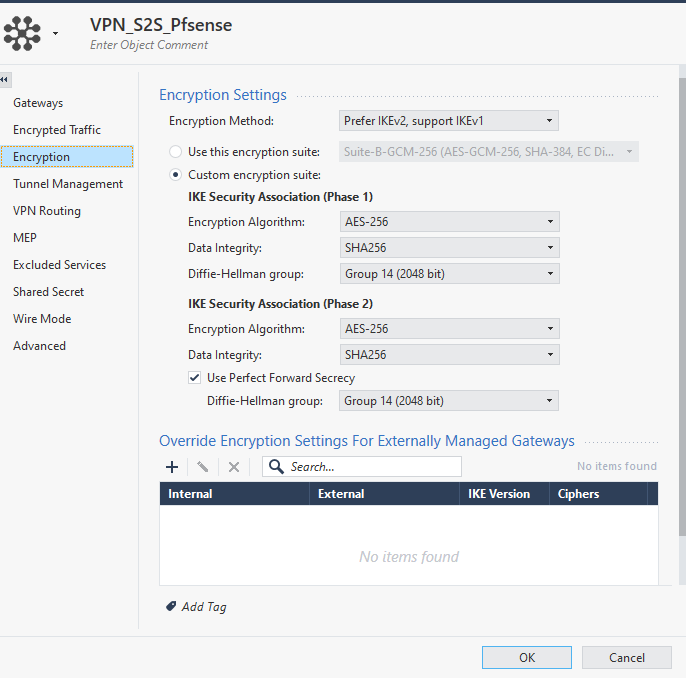
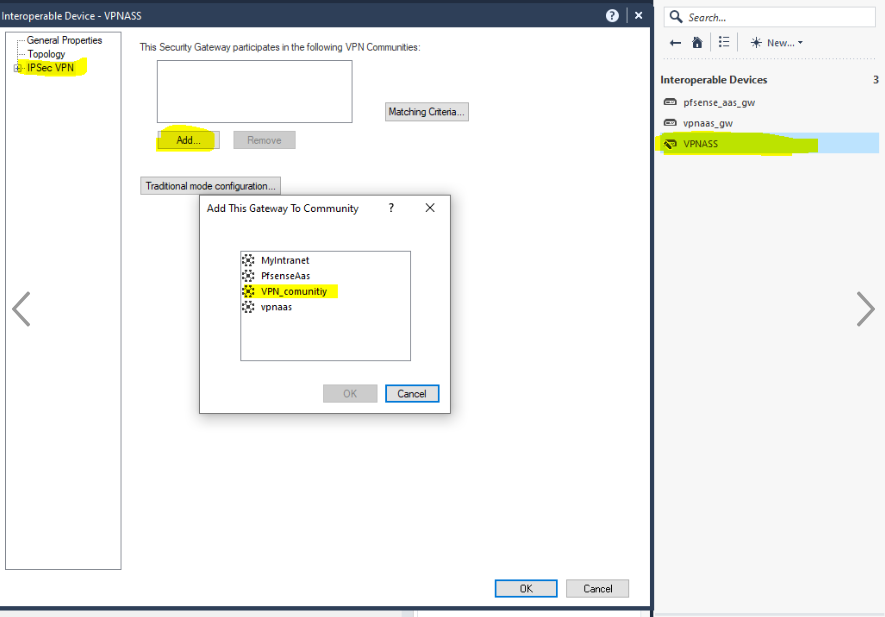
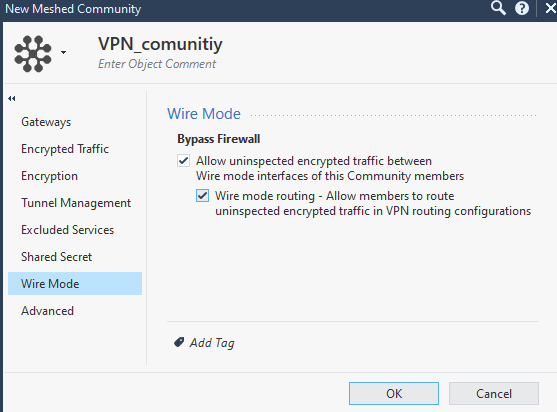 — After creating the VPN Community, go back to Interoperable Devices to update it.
  — Return to VPN Communication Meshed and use the Pre-Shared Key created on the VPN Site-to-Site portal.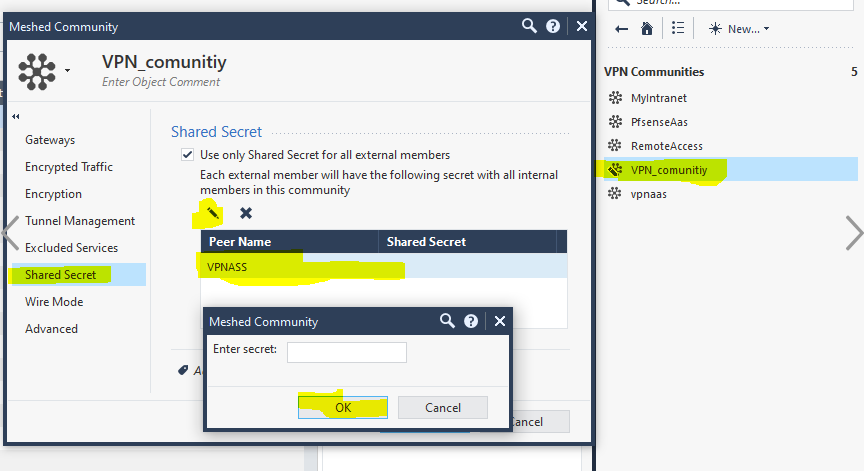
- Then select "Publish" to create the VPN Community on CheckPoint.
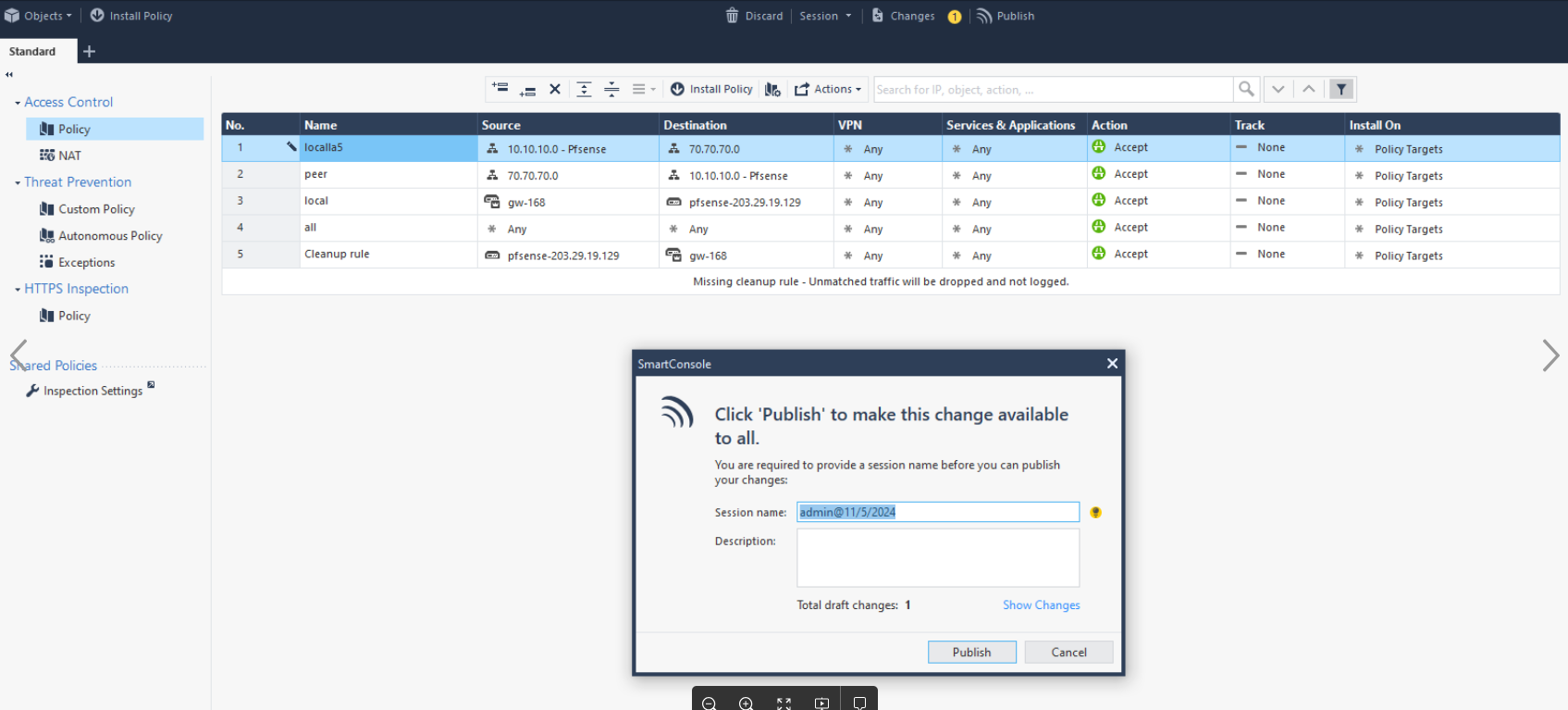
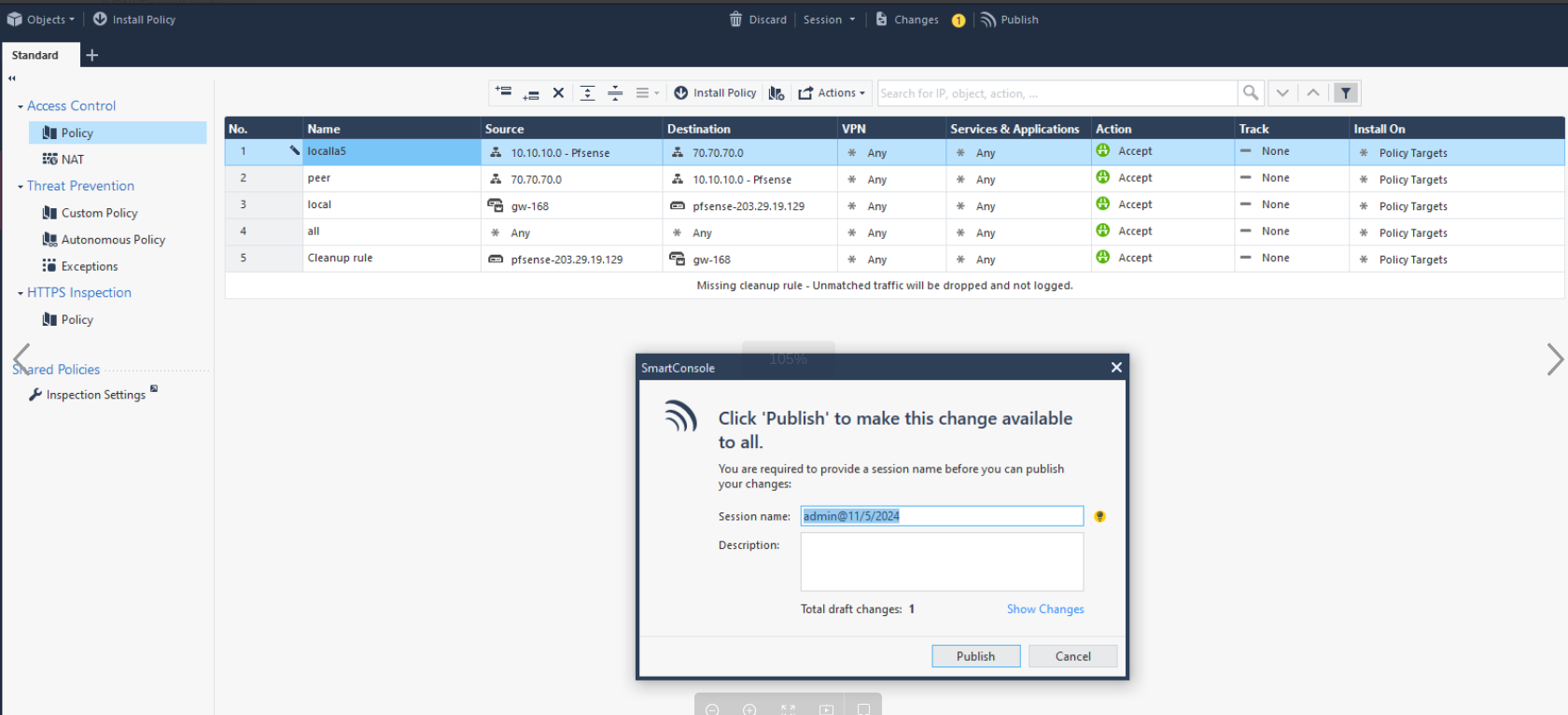
— Set up the firewall to allow bidirectional traffic between the two subnets and bidirectional traffic between the two gateway IPs as shown below, then select "Publish".
- Finally, set the route for the internal network inside CheckPoint (the VPN Site-to-Site side is already pre-configured).
On CheckPoint Gaia OS, use the set static-route command to add a route. Syntax and example:
Openstack command
Copyset static-route <destination-network> nexthop gateway address <gateway-ip> on
Example: To route traffic to the network 192.168.1.0/24 through gateway 10.0.0.1:
Openstack command
Copyset static-route 192.168.1.0/24 nexthop gateway address 10.0.0.1 on
After adding the route, run the following command to save the configuration:
Openstack command
Copysave config
Step 4: Debug — Tracert
- From a machine inside the network, ping each side. If connectivity is established, the configuration is complete.