Connect VyOS 1.5
This guide explains how to build a Router device to connect VPN S2S with the FPT Smart Cloud VPN Site-to-Site service.
- Step 1: Build VyOS 1.5 for Cloud/
- Step 2: Configure VPN Site-to-Site/
- Step 3: Configure VyOS/
Ensure the following prerequisites are met:
- VPNaaS on the Portal
- VyOS 1.5 downloaded and booted from the image named: Vyos 1.5
- A public IP — for simplicity, assign it directly to the VM rather than using a Floating IP
- One PfSense VM for debugging (optional)
Step 1: Build VyOS 1.5 for Cloud
- On Horizon, create a VM from the image using your user keypair and any provider network {
IP PUBLIC}.
Step 2: Configure VPN Site-to-Site
Go to https://console.fptcloud.com/ and create a VPN Site-to-Site connection.
-
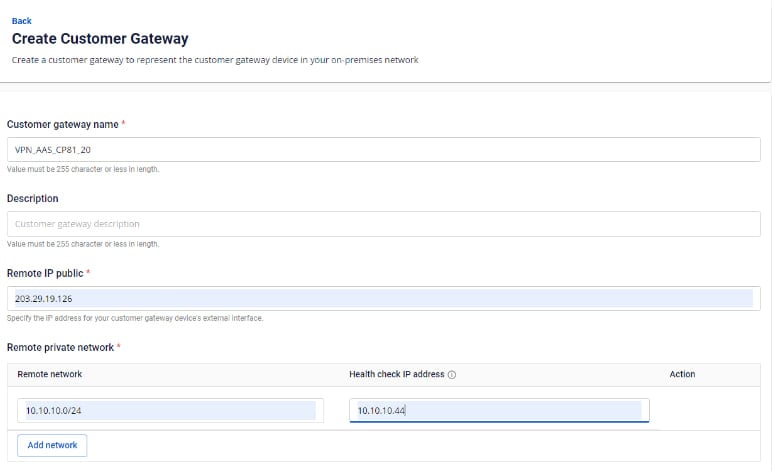
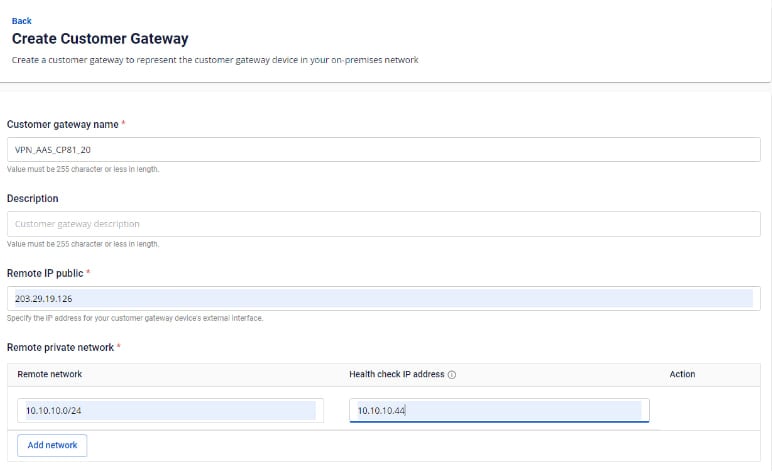
Create a Customer Gateway:
- Remote private network: the LAN Subnet range to peer with from VyOS.
- Remote IP public: the public IP of VyOS.
-
Create a Customer Gateway:
-
Create a VPN Connection: The VPN Connection parameters consist of three main sections:
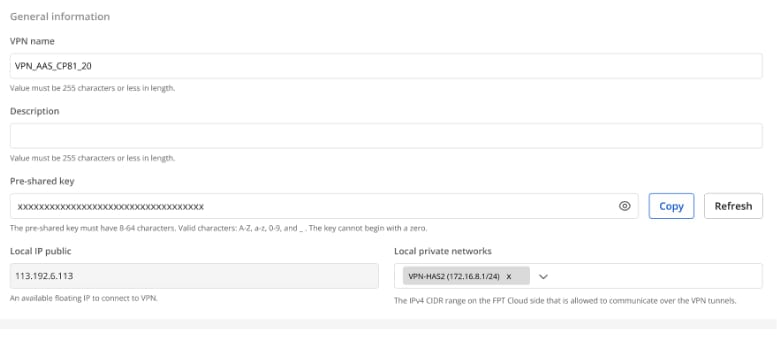
- General information (general connection details)
- Remote VPN Information (encryption settings and customer-side information)
- Dead Peer Detection (number of automatic retries when a connectivity issue occurs)
Section 1: General information Note: Save the Pre-shared key value — you will need it to connect with VyOS.
Section 2: Remote VPN information
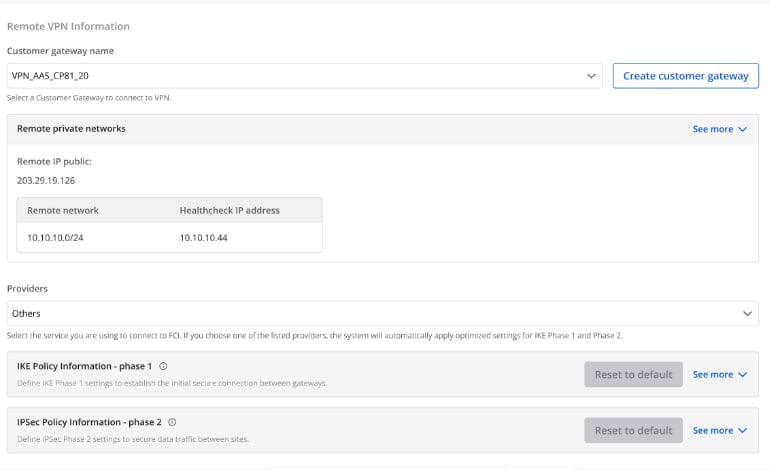
Select Providers = "others", then follow these steps:
- Step 1: Enter providers name = "Vyos".
- Step 2: Enter the IKE and IPSec settings as follows:
For IKE:
- Authorization algorithm: sha256
- Encryption algorithm: aes 256
- IKE version: ikev2
- DH group: group14
- Lifetime: 3600 seconds
- Phase 1 negotiation mode: main
For IPSec:
- Authorization algorithm: sha256
- Encryption algorithm: aes 256
- Encapsulation mode: tunnel
- Transform protocol: esp
- Perfect Forward Secrecy (PFS): group14
- Lifetime: 3600 seconds
Section 3: Dead Peer Detection
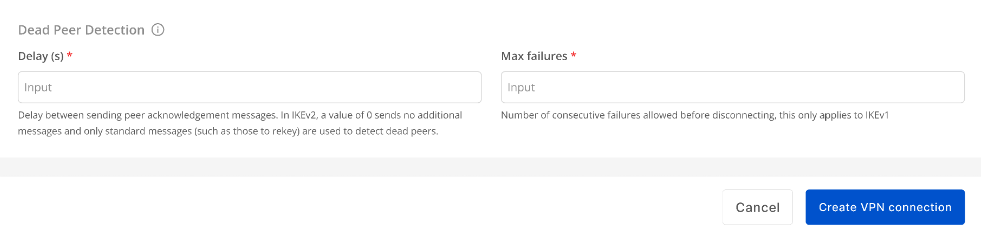
Enter the Delay and max failure values, then select Create VPN Connection.
Step 3: Configure VyOS
- SSH into VyOS using the key created above.
- SSH to the IP address {
IP PUBLIC} with user: "vyos". Example: ssh vyos@{IP PUBLIC}.
Run the following commands (replace parameters with your actual values):
Copyconfigure
Copyset interfaces ethernet eth0 address '{`IP Public Vyos`}'
set interfaces ethernet eth1 vif 111 address '{`IP LAN Vyos`}/24'
set protocols static route 0.0.0.0/0 next-hop {`IP-Remote`}
set vpn ipsec authentication psk RIGHT id '{`IP Public Vyos`}'
set vpn ipsec authentication psk RIGHT id {`IP-Remote`}
set vpn ipsec authentication psk RIGHT secret ' {`Pre-Share-Key`}'
set vpn ipsec esp-group ESP-GROUP mode 'tunnel'
set vpn ipsec esp-group ESP-GROUP proposal 1 encryption 'aes256'
set vpn ipsec esp-group ESP-GROUP proposal 1 hash 'sha256'
set vpn ipsec ike-group IKE-GROUP key-exchange 'ikev2'
set vpn ipsec ike-group IKE-GROUP proposal 1 dh-group '14'
set vpn ipsec ike-group IKE-GROUP proposal 1 encryption 'aes256'
set vpn ipsec ike-group IKE-GROUP proposal 1 hash 'sha256'
set vpn ipsec interface 'eth0'
set vpn ipsec site-to-site peer RIGHT authentication mode 'pre-shared-secret'
set vpn ipsec site-to-site peer RIGHT connection-type 'initiate'
set vpn ipsec site-to-site peer RIGHT default-esp-group 'ESP-GROUP'
set vpn ipsec site-to-site peer RIGHT ike-group 'IKE-GROUP'
set vpn ipsec site-to-site peer RIGHT local-address '{`IP Public Vyos`}'
set vpn ipsec site-to-site peer RIGHT remote-address {`IP-Remote`}
set vpn ipsec site-to-site peer RIGHT tunnel 0 local prefix '{`Sunet LAN Vyos`}/24'
set vpn ipsec site-to-site peer RIGHT tunnel 0 remote prefix '{`Sunet LAN Remote`}/24'
Save and commit:
Copycommit
save