Connect PfSense
This guide explains how to build a PfSense device to connect VPN S2S with the FPT Smart Cloud VPN Site-to-Site service.
- Step 1: Build PfSense for Cloud/
- Step 2: Configure VPN Site-to-Site/
- Step 3: Configure PfSense/
Ensure the following prerequisites are met:
- VPNaaS on the Portal
- PfSense downloaded and booted from the image named: Pfsense
- A public IP — for simplicity, assign it directly to the VM rather than using a Floating IP
- The corresponding network range
- Two PfSense VMs for debugging (2C4G)
Step 1: Build PfSense for Cloud
- Build the PfSense image on Horizon with 2C4G — one public IP assigned directly, one local network IP for the VPN.
- You can access the VM console via SSH.
Step 2: Configure VPN Site-to-Site
Go to https://console.fptcloud.com/ and create a VPN Site-to-Site connection.
- Create a Customer Gateway:
- Remote private network: the LAN Subnet range to peer with from PfSense.
- Remote IP public: the public IP of PfSense.
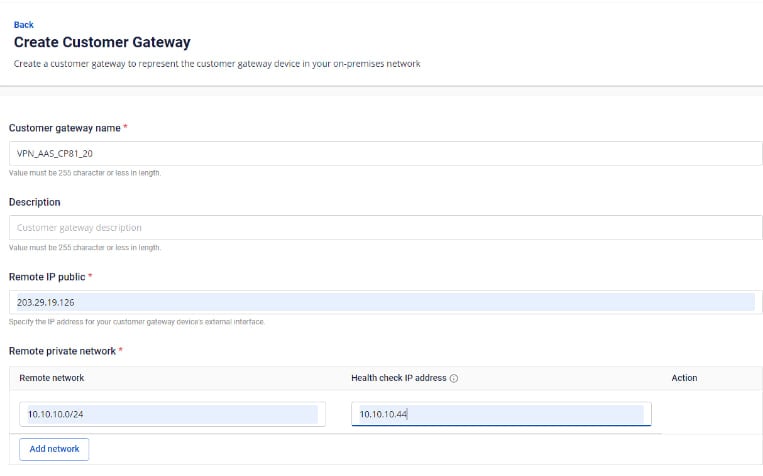
- Create a VPN connection: The VPN Connection parameters consist of three main sections:
- General information (general connection details)
- Remote VPN Information (encryption settings and customer-side information)
- Dead Peer Detection (number of automatic retries when a connectivity issue occurs)
Section 1: General information 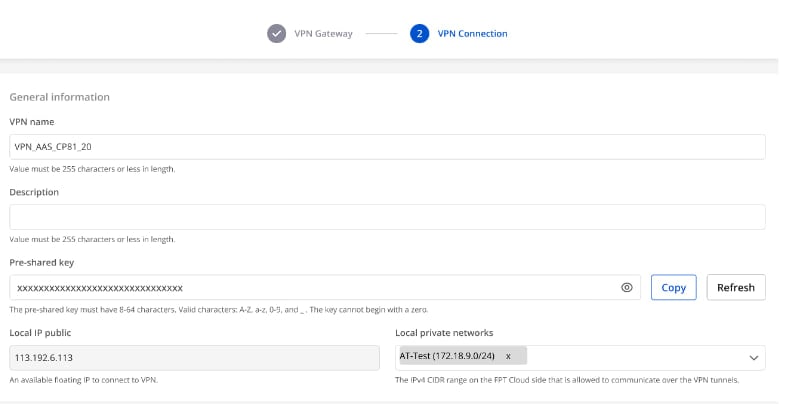 Note: Save the Pre-shared key value — you will need it to connect with PfSense.
Section 2: Remote VPN information 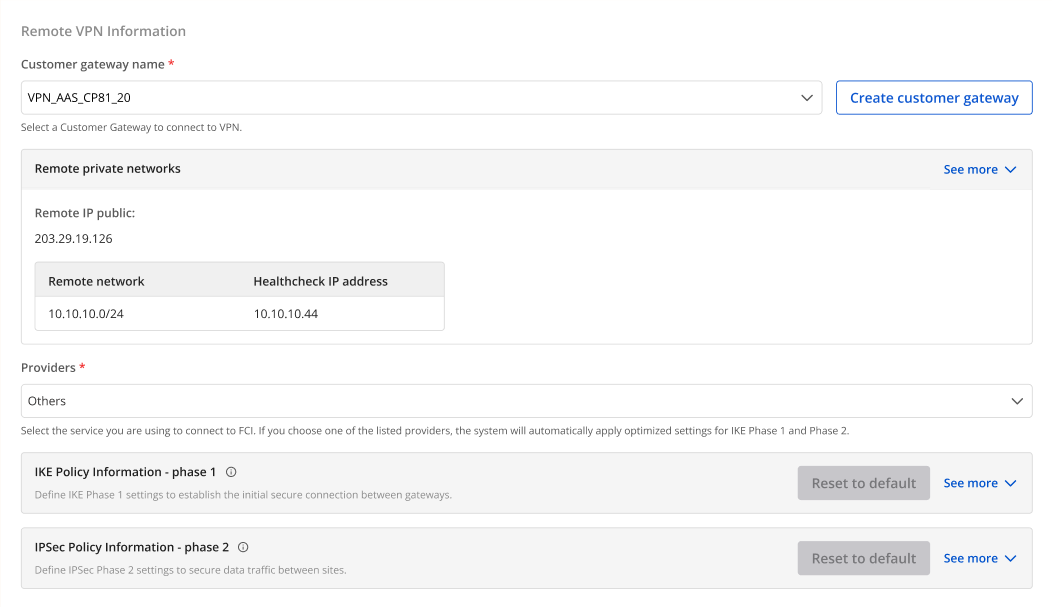 Select Providers = "others", then follow these steps:
- Step 1: Enter providers name = "pfsense".
- Step 2: Enter the IKE and IPSec settings as follows:
For IKE:
- Authorization algorithm: sha256
- Encryption algorithm: aes 256
- IKE version: ikev2
- DH group: group14
- Lifetime: 3600 seconds
- Phase 1 negotiation mode: main
For IPSec:
- Authorization algorithm: sha256
- Encryption algorithm: aes 256
- Encapsulation mode: tunnel
- Transform protocol: esp
- Perfect Forward Secrecy (PFS): group14
- Lifetime: 3600 seconds
Section 3: Dead Peer Detection 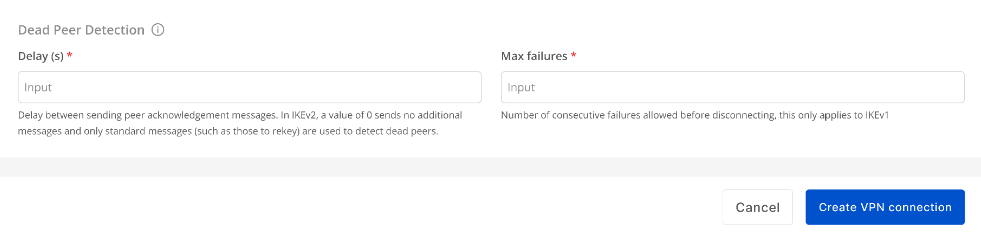 Enter the Delay and max failure values, then select Create VPN Connection.
Step 3: Configure PfSense
- Sign in to the VNC console of the PfSense VM using the account created above.
- Sign in to the web interface at https://{
IP}. You may see an SSL warning like the following: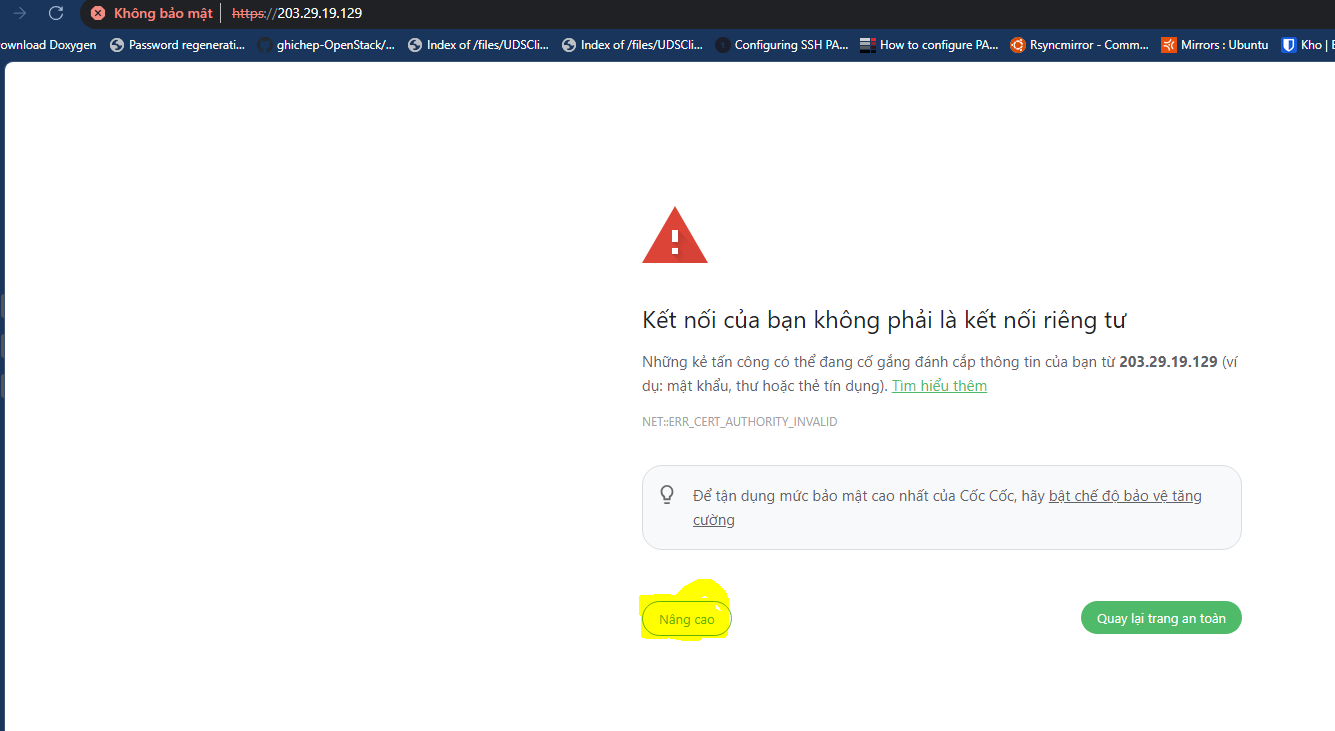
- Default login credentials:
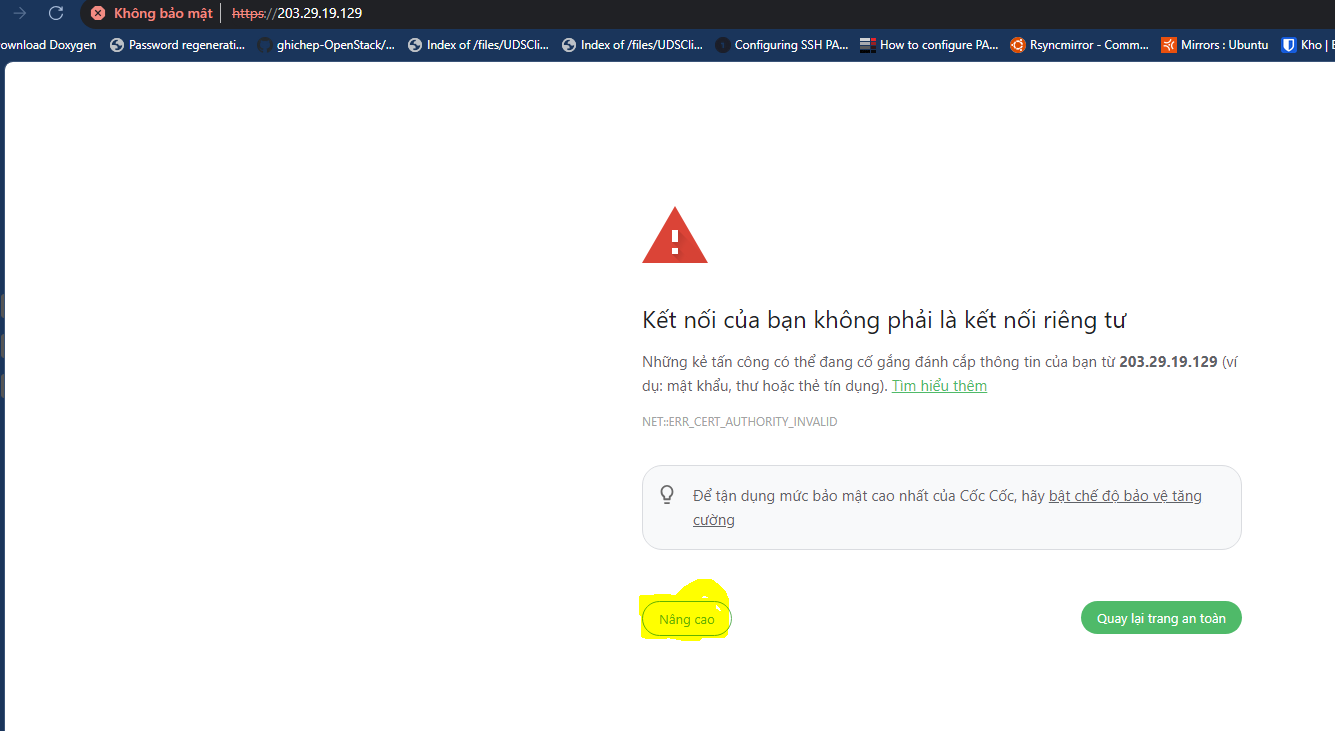
User: Admin Password: Pfsense (You can change the password on first web login.)
- If you do not have a LAN configured yet, go to Interfaces → select LAN to add one:
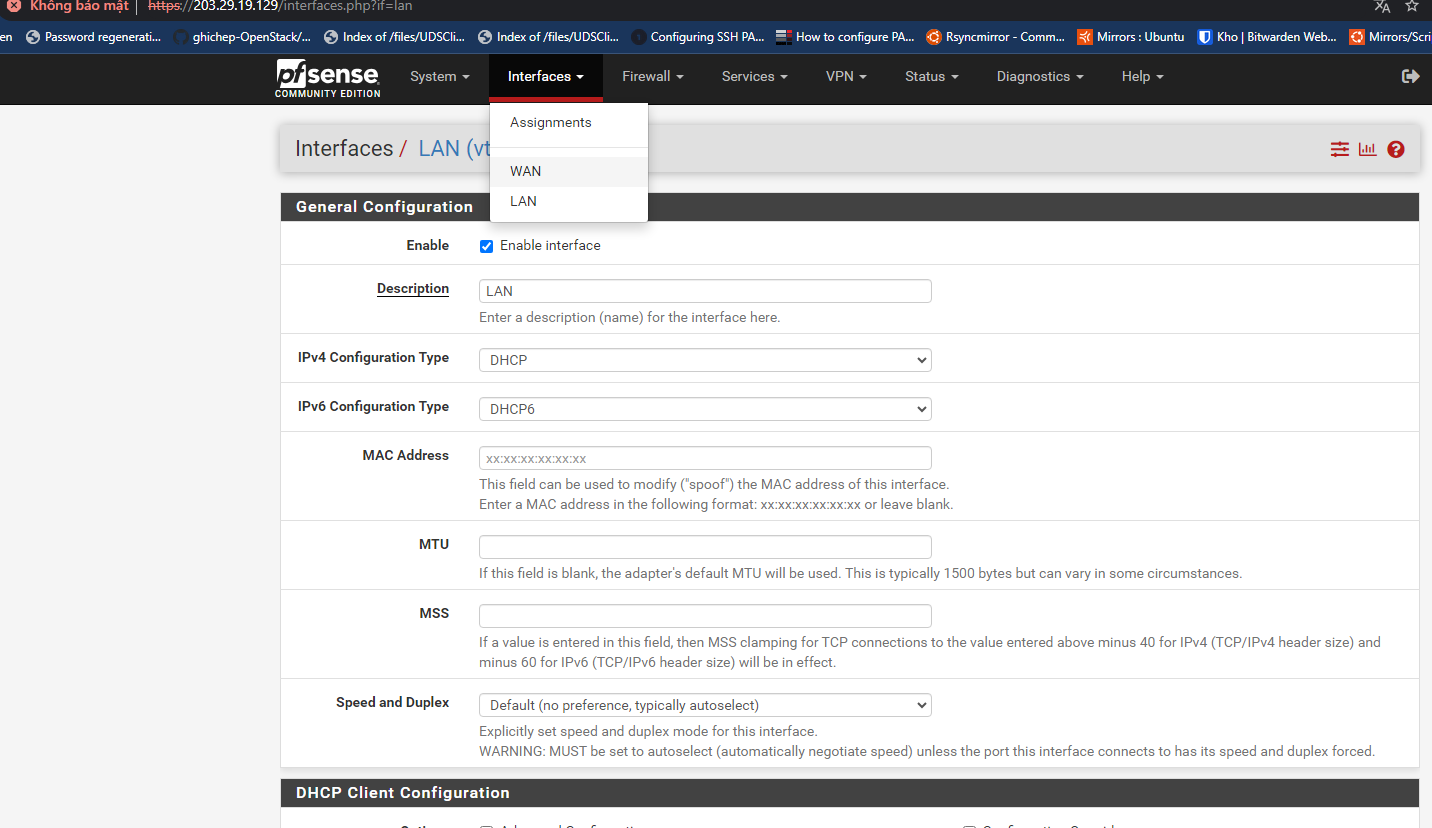
- Configure the Tunnel for PfSense:
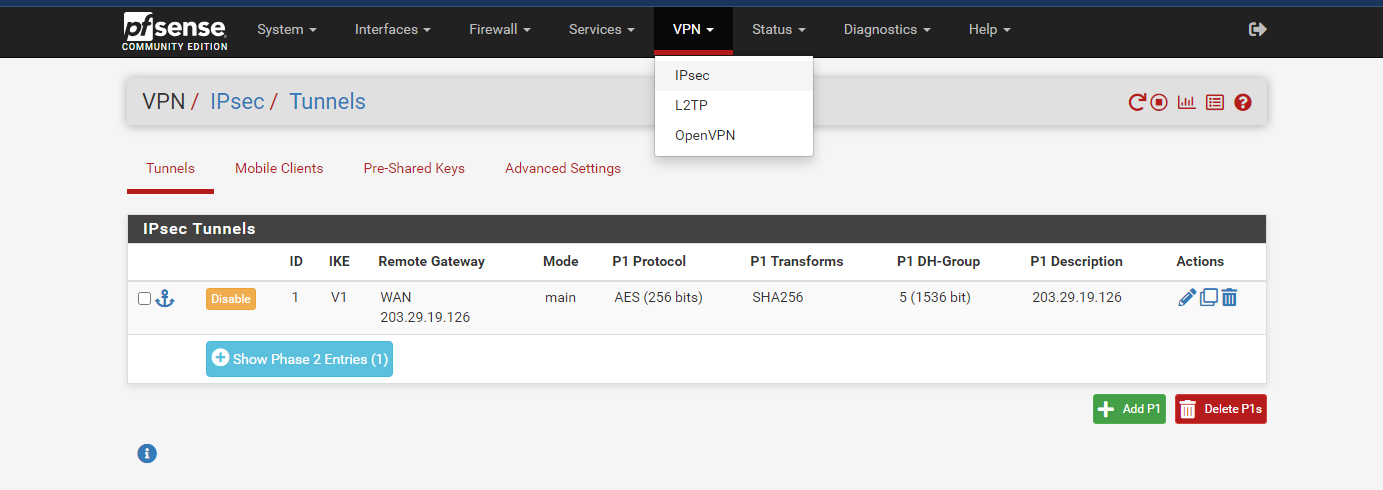
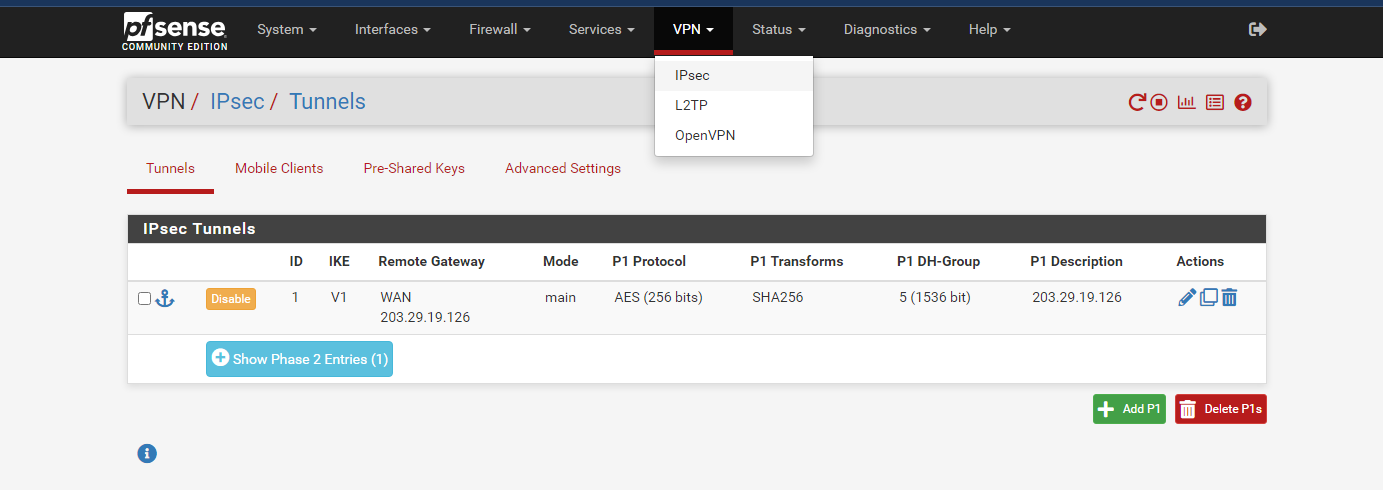 On the VPN tab, select IPsec → Tunnels and select Add P1.
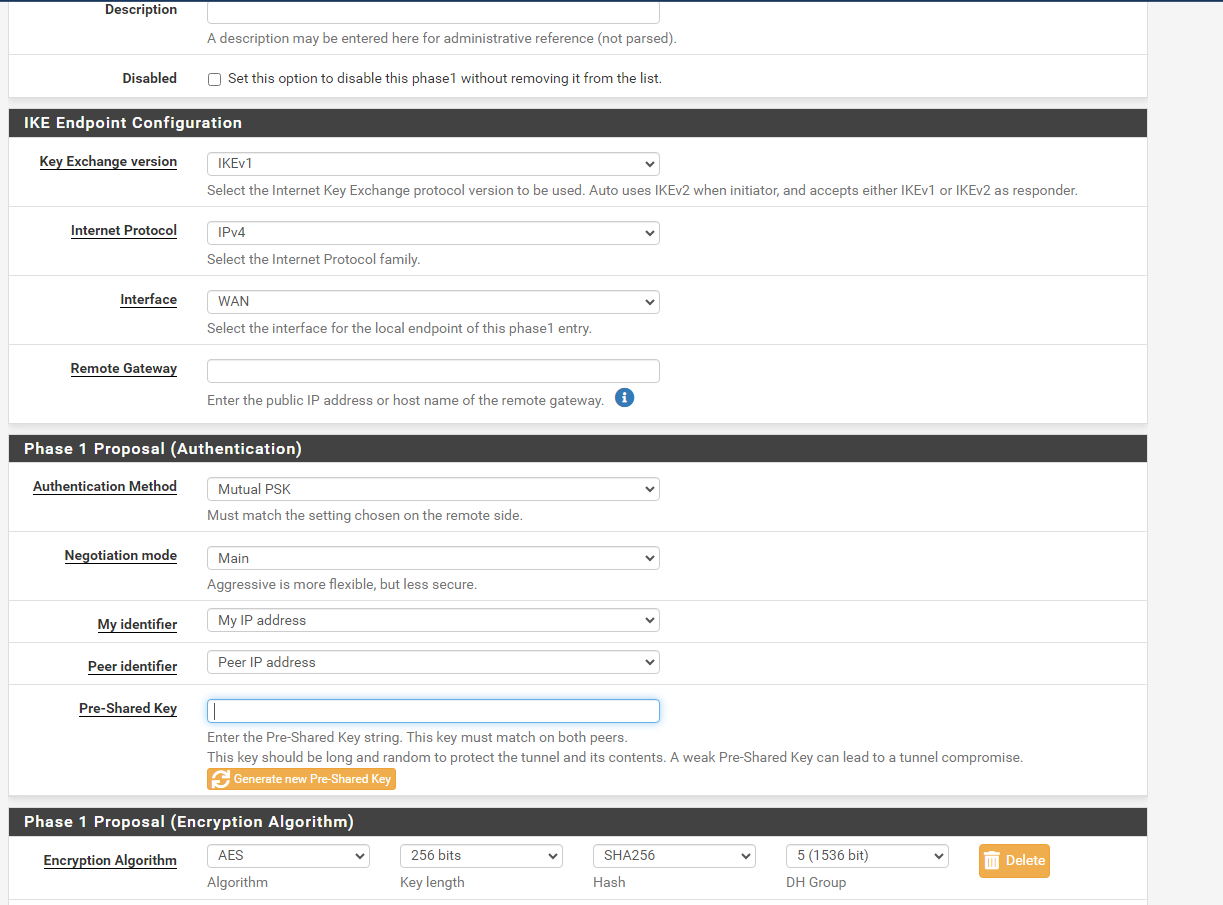
- Set up Phase 1 as shown below:
Note:
- Pre-Shared Key: enter the key from the VPNaaS created on the portal earlier.
- Remote Gateway: enter the public IP of the VPNaaS created on the portal earlier.
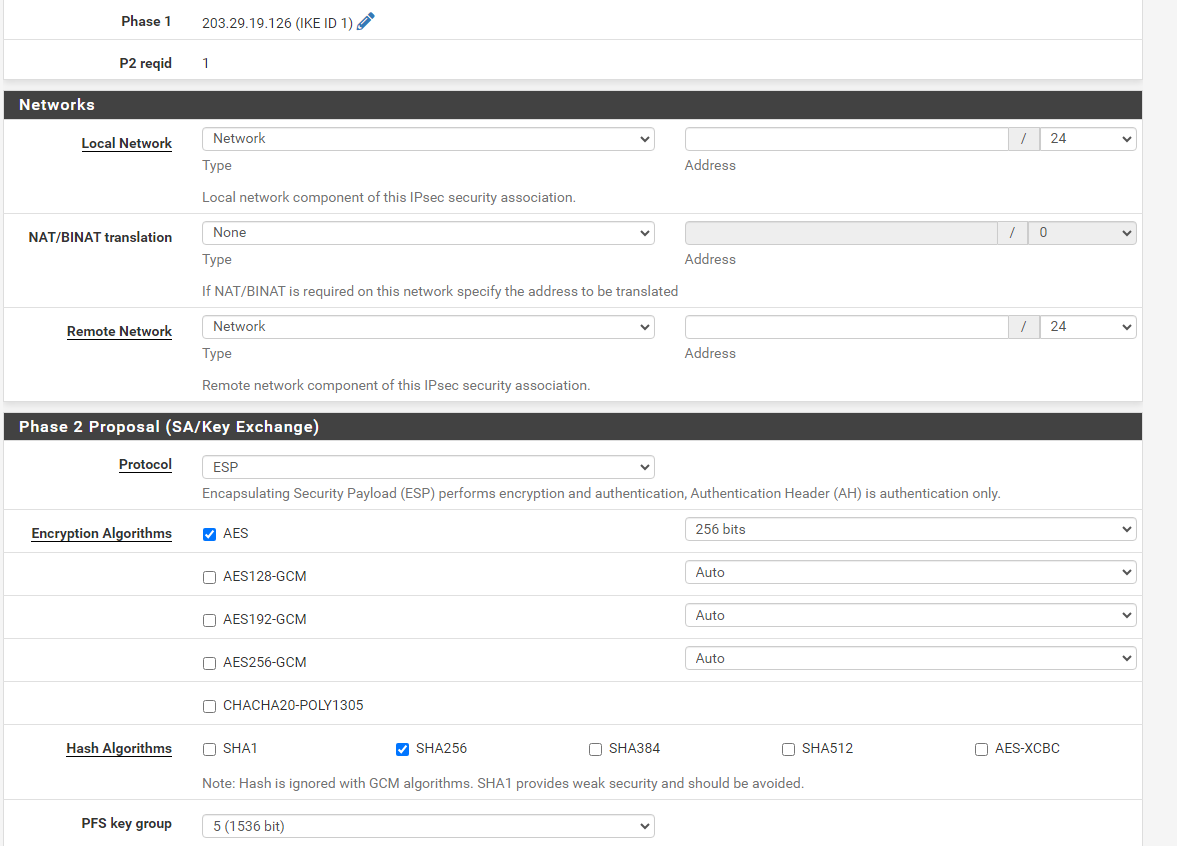
- Set up Phase 2 as follows:
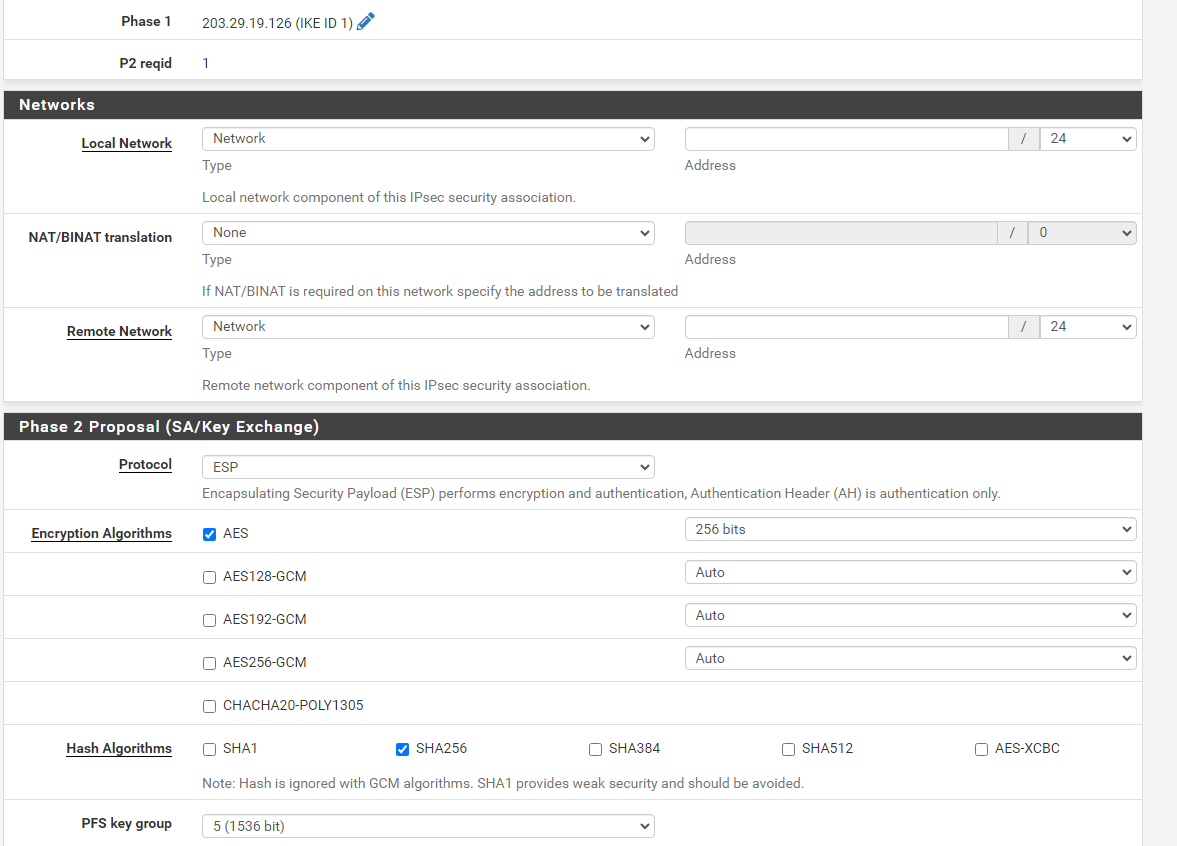
- Set up Phase 2 as follows:
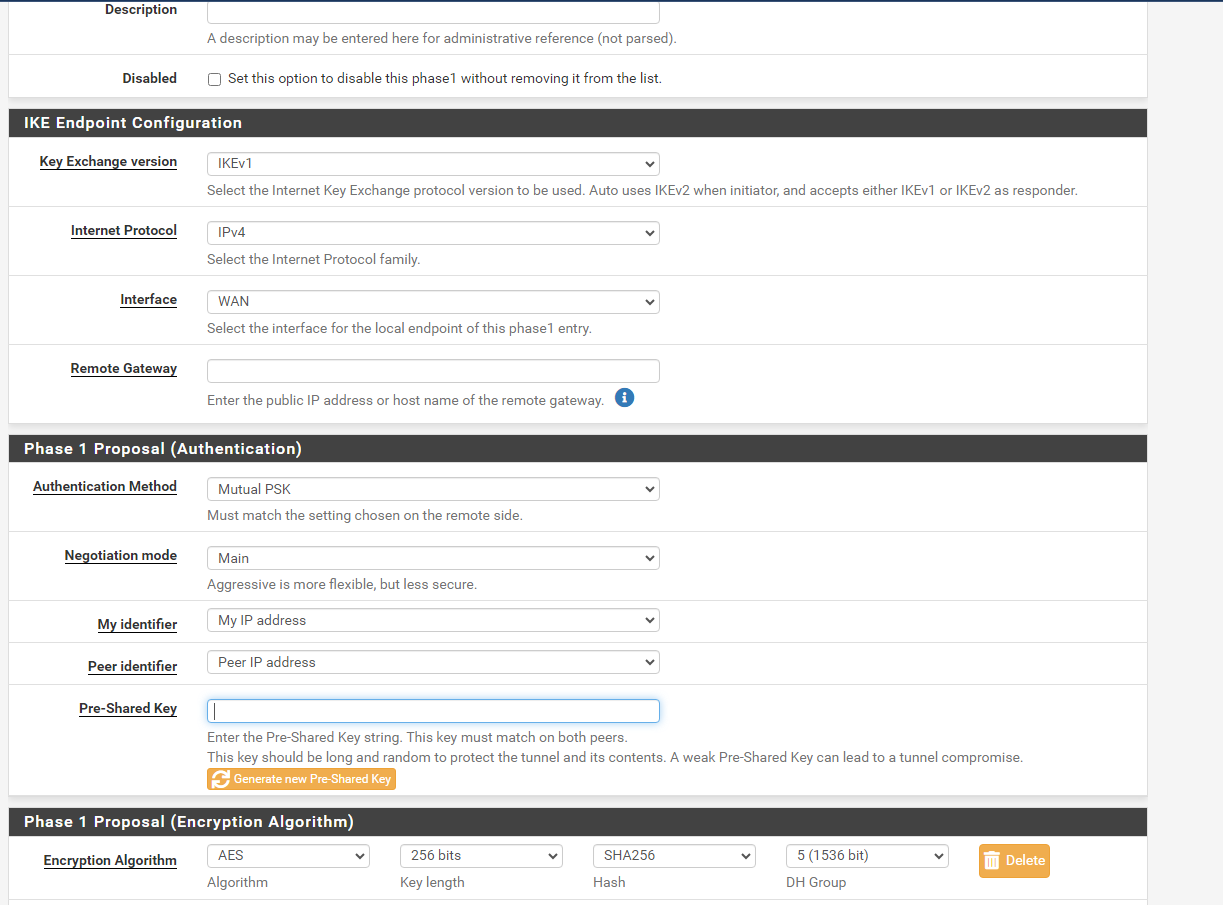
You can now open a Terminal or command line to test network connectivity with ping.