Change Server Configuration
Change server information and configuration
1. Resize
Resize is a feature that allows you to change the RAM and CPU configuration of an existing virtual machine.
During the Resize process, the virtual machine will be temporarily shut down and will automatically restart once the process is complete.
If you do not want the virtual machine to shut down during a future Resize, enable the Hot-add feature. When Hot-add is activated, the virtual machine can continue operating normally with the new configuration without requiring a reboot.
Step 1: In the menu, select Instance Management. In the Actions section of the server whose configuration you want to change, select Resize VM.
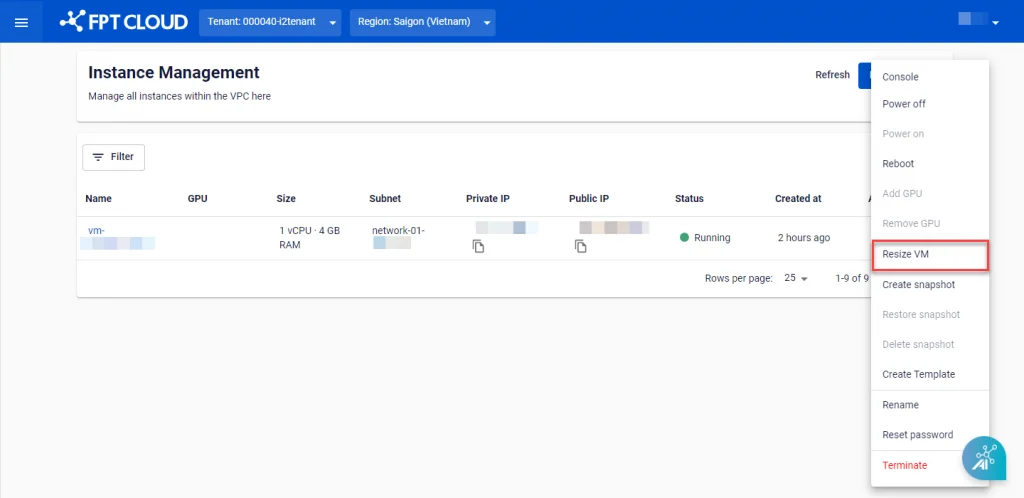
Step 2: Select the new size for the virtual machine. You can choose from an available template or define a custom configuration under Custom.

After filling in the information, click Resize to confirm.
The system will verify available resources, apply the new configuration to the virtual machine, and notify you of the result.
2. Rename
Users can rename an existing virtual machine using the Rename function.
Step 1: In the menu, select Instance Management. In the Actions section of the server you want to rename, select Rename.
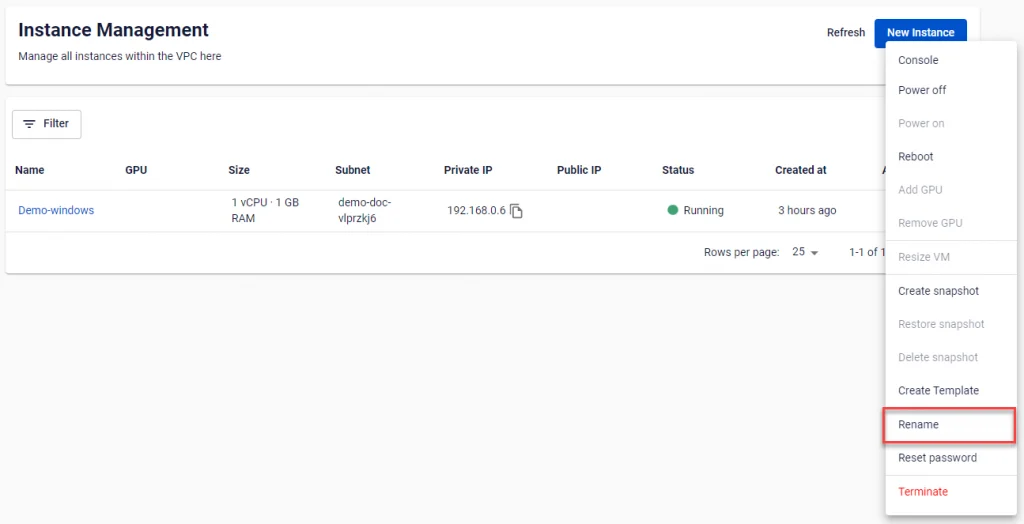
Step 2: Enter the new name for the virtual machine and click Rename.

The system will apply the new name to the virtual machine and notify you of the result.
3. Reset Password
For virtual machines created with Password as the authentication method, FPT Cloud allows users to reset the Password for the root account directly on the FPT Portal.
Step 1: In the menu, select Instance Management. In the Actions section of the server whose password you want to change, select Reset Password.
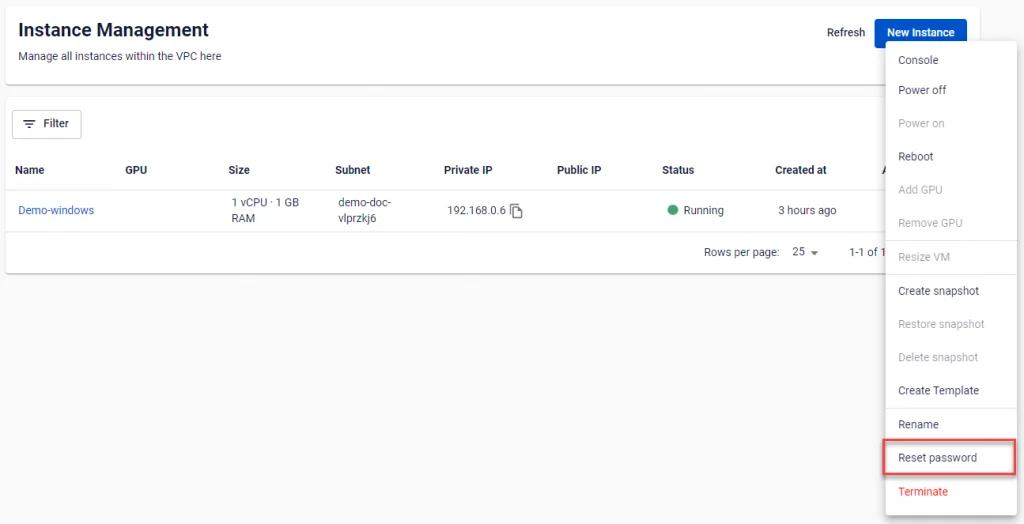
Step 2: Click Reset Password. The system will send the new password to the user's email address.