Connect to a Linux Virtual Machine
Connect to a Linux Virtual Machine
When a Linux-based virtual machine (Ubuntu, CentOS, Debian) is successfully created on the FPT Portal, users can access it by default using the built-in Web Console.
In addition, users can log in remotely using SSH Clients or third-party software such as PuTTY or Bitvise.
Connect to a Linux Virtual Machine via Web Console
Web Console supports controlling all Linux virtual machines on FPT Cloud, including virtual machines that do not have a Public IP assigned.
In the menu, select Instance Management. In the Actions section of the virtual machine you want to connect to, select Console.
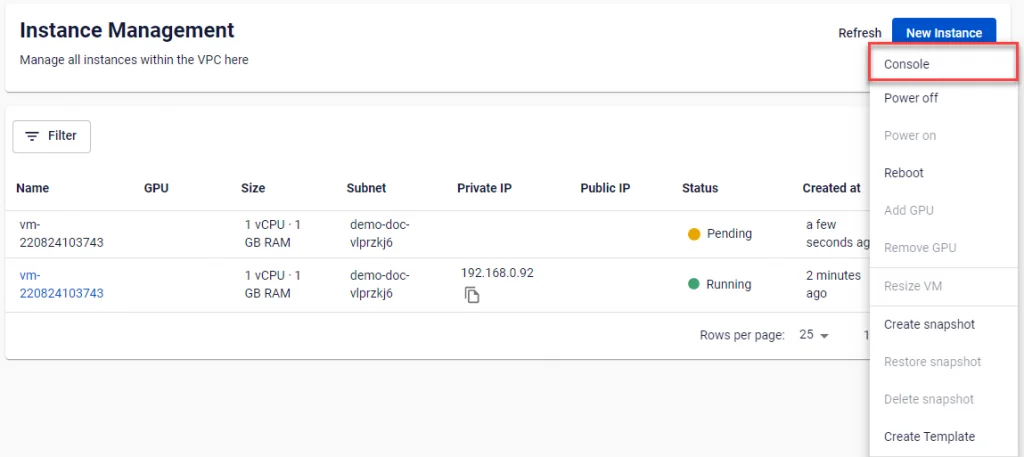
The browser will immediately open a new window containing the server screen. From this screen, users have full control over and can interact with the connected server.
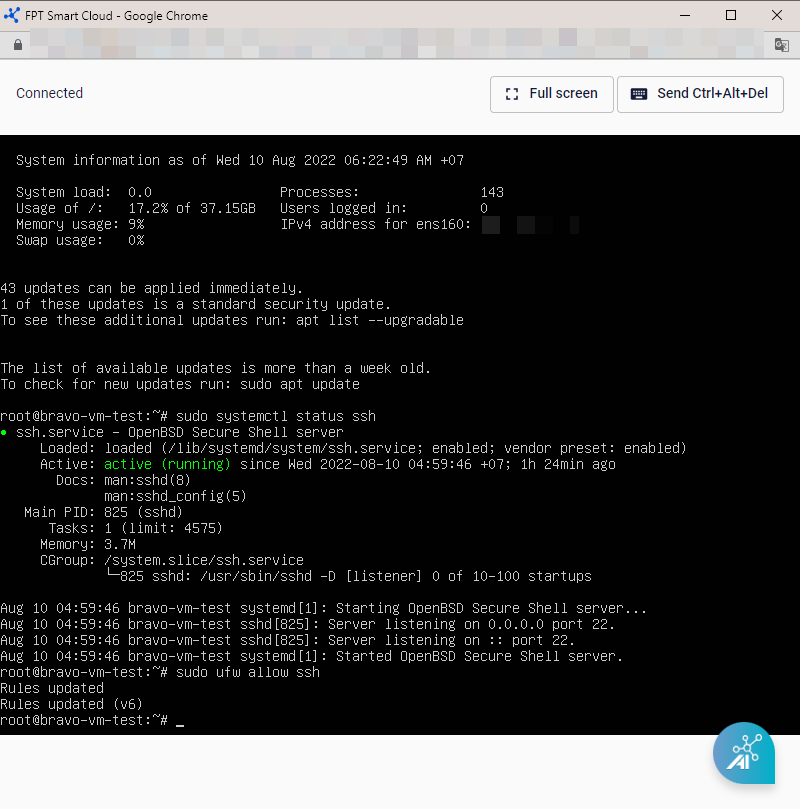
Configure Remote Connection to a Linux Virtual Machine
To connect to Linux virtual machines (Ubuntu, CentOS, etc.) using SSH Client, Bitvise, PuTTY, etc., the virtual machine must have a Floating IP assigned and the SSH port must be open for SSH Connection. FPT Cloud supports opening ports for virtual machines by attaching a Security Group.
Step 1: Create a Linux OS virtual machine, assign a Floating IP following the instructions in Floating IP Management, and start it.
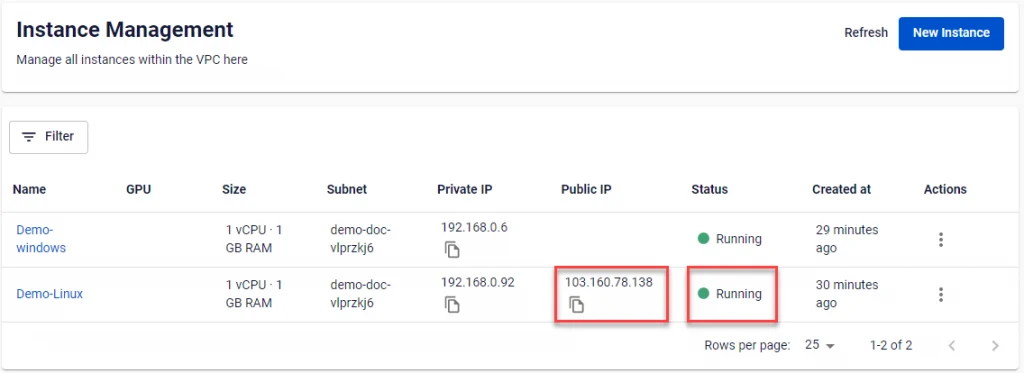
Step 2: Attach a Security Group with the SSH port open to the virtual machine. If no such Security Group exists, you can create one following the instructions in Security Group Management.
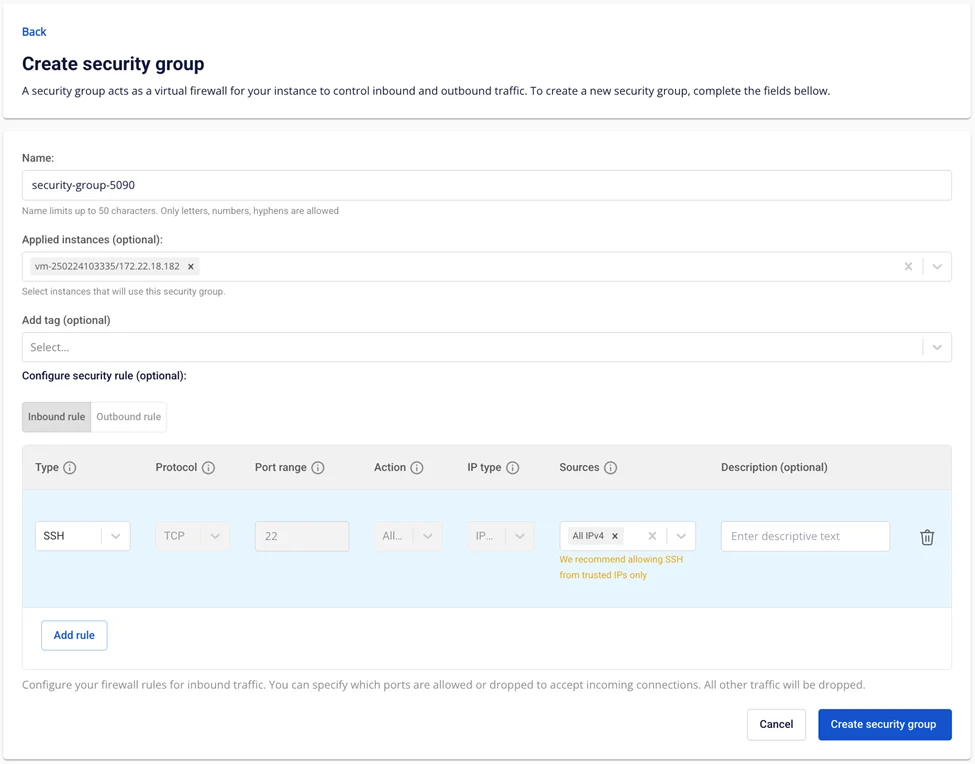
Step 3: After successful configuration, users can connect to the virtual machine from SSH Clients using: Floating IP, SSH Port, SSH Key file, or Password.
If you are still unable to connect, check whether the virtual machine is powered on, verify that the Floating IP is correct, and re-open the SSH port following the instructions in Security Group Management.
Connect to a Linux Virtual Machine Using SSH Client
Users can use built-in SSH clients on Windows such as cmd.exe or PowerShell to SSH into the virtual machine.
Step 1: Open CMD or PowerShell on Windows.
Step 2: If connecting with a Password, use the following command:
ssh <>@<>

If connecting via an SSH Key pair, first navigate to the directory containing the SSH key file using the cd command:
cd <<Path to the directory containing the pem file>>
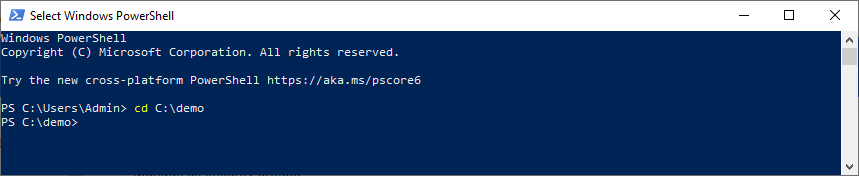
Then connect to the virtual machine with the following command:
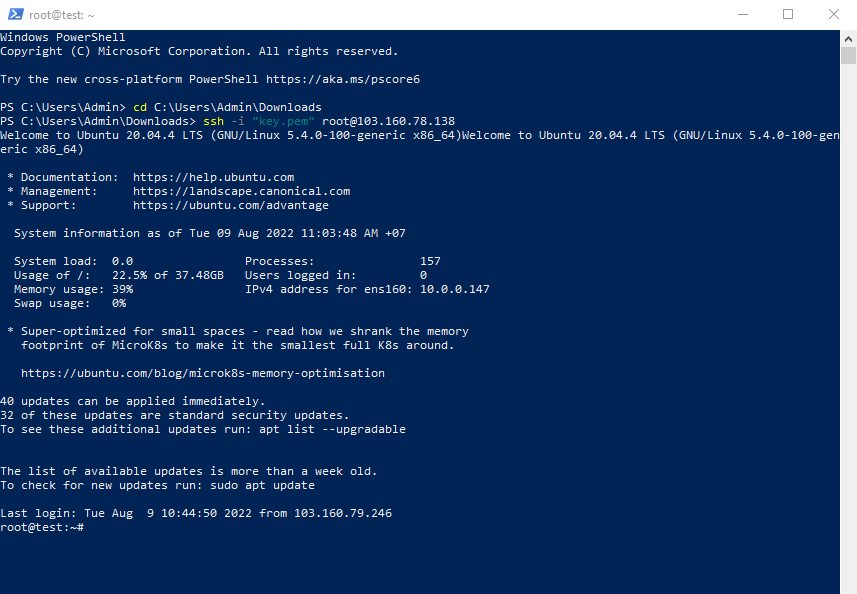
ssh -i "<>" << Username >>@<>
Step 3: If this is the first time connecting to the virtual machine, you will be prompted to verify the Hosts fingerprint. Type "yes" to agree and continue connecting.

Successfully connected to the server via SSH client.
Note: If you encounter the error WARNING: REMOTE HOST IDENTIFICATION HAS CHANGED!, use the following command to remove the previously saved Hosts fingerprint and start over:
ssh-keygen -R "<>"