Connect to a Windows Virtual Machine
Connect to a Windows virtual machine
When a Windows virtual machine is successfully created on the FPT Portal, users can by default use the built-in Web Console to access it. Users can also log in from outside using Remote Desktop Connection if the server has a Public IP attached.
Connect to a Windows virtual machine using Web Console
Web Console supports control of all Windows virtual machines on FPT Cloud, including virtual machines that do not have a Public IP attached.
In the menu, select Instance Management. In the Actions section of the virtual machine you want to connect to, select Console.
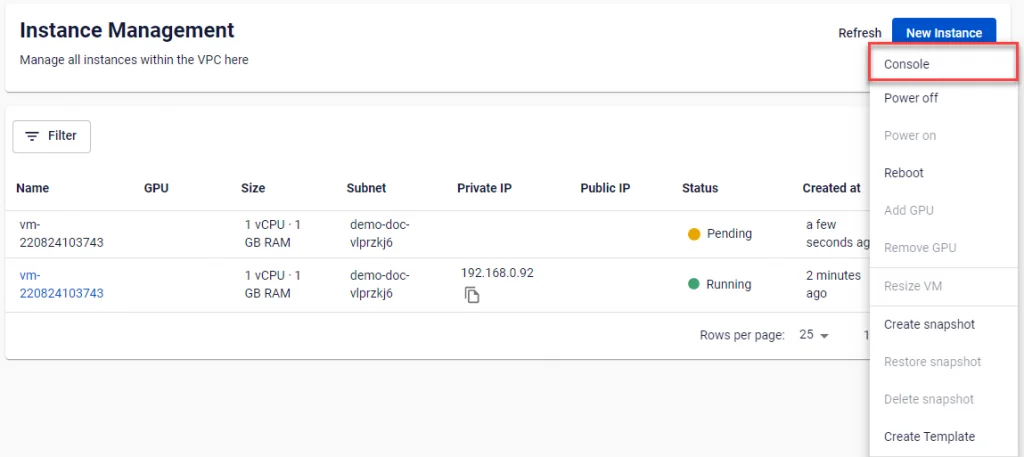
The browser will immediately open a new window displaying the server's screen. From this screen, users have full control to operate and interact with the connected server.

Connect to a Windows server using Remote Desktop Connection
To connect via RDC (Remote Desktop Connection), the virtual machine must have a Floating IP attached and port 3389 must be open for RDP Connection. FPT Cloud supports opening ports for virtual machines by attaching a Security Group.
Follow the steps below to configure the connection:
Step 1: Create a Windows OS virtual machine, attach a Floating IP as instructed in Attach Floating IP to Instance, and start it.
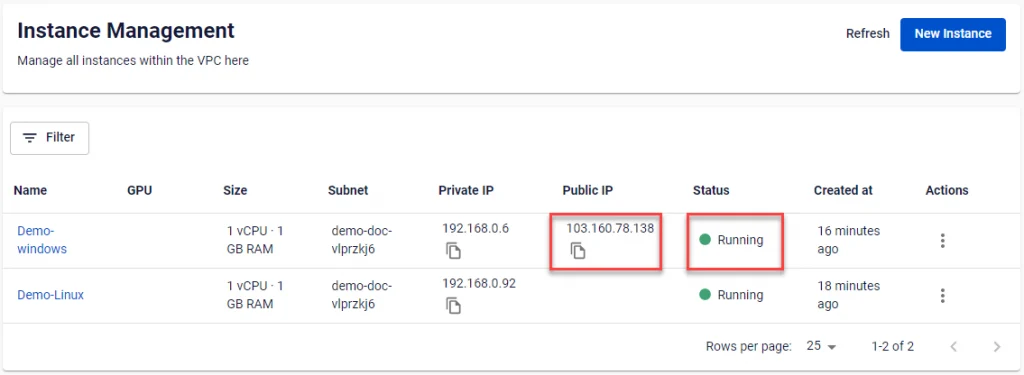
Step 2: Attach a Security Group with RDP port 3389 open to the virtual machine. If no such Security Group exists, you can create one as instructed in Manage Security Groups.
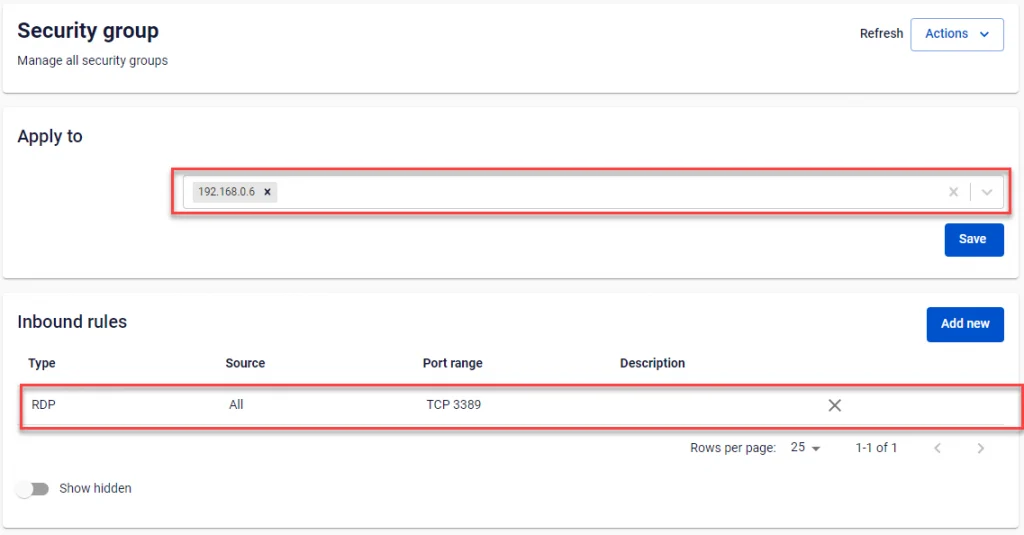
Step 3: After successful configuration, users can connect to the virtual machine using Remote Desktop Connection with the following parameters:
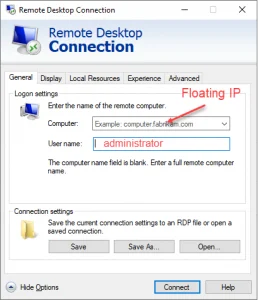
If Remote Desktop Connection reports that it cannot connect, users should verify that the virtual machine is running, confirm the Floating IP is correct, and re-open port 3389 as instructed in Manage Security Groups.