Runtime Security feature
1. Overview of Runtime Security
To ensure information security for FPT Cloud Managed Kubernetes clusters, FPT Cloud has developed a feature that integrates a Runtime Security tool to detect anomalous activity in Kubernetes clusters that may pose risks to the runtime layer and worker node kernel.
Falco is a powerful open-source tool for monitoring and detecting anomalous activity in container and Kubernetes environments. Falco is developed by Sysdig and is currently a CNCF (Cloud Native Computing Foundation) incubating project. Falco's main feature is providing "runtime security" — real-time security — by monitoring operating system and container behavior, then using predefined rules to detect anomalous or potentially risky activity.
FPT Cloud provides Runtime Security integration that allows users to configure detailed alert notifications via Telegram or Gmail. By using alert channels, Runtime Security ensures that security events are detected promptly and administrators can act quickly to protect the system.
2. Using the feature on Unify Portal
Note: Security enhancement features for Managed Kubernetes Cluster are integrated after the cluster is successfully created (status: Succeeded/Running).
A. Integrate Falco Engine
1. Enable Falco Engine
- Step 1: Go to FPT Cloud portal console.fptcloud.com and select Kubernetes.
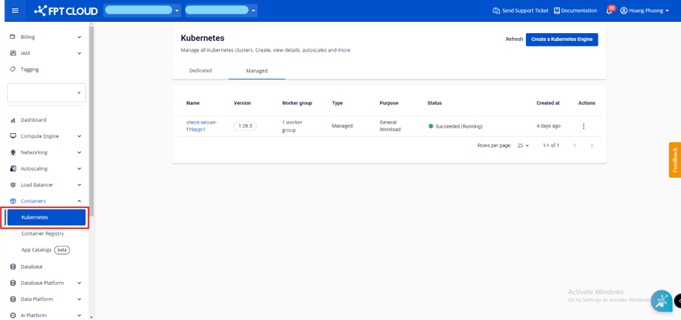
- Step 2: Select the cluster to integrate Runtime Security for.
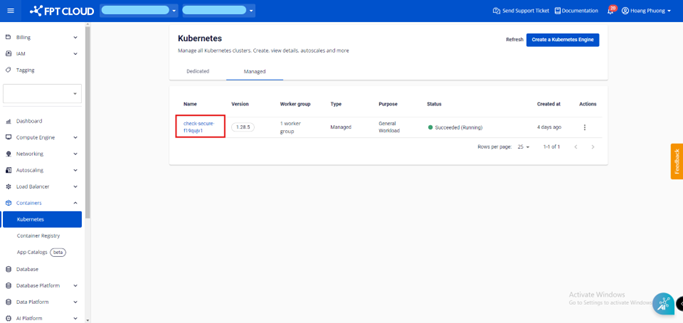
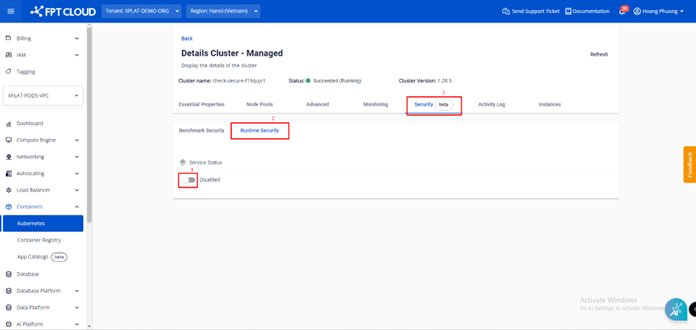
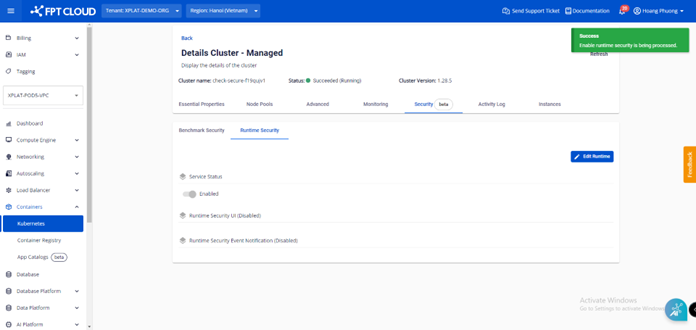
- Step 3: Select the Security tab > Runtime Security, then enable it.
- Step 4: Click Confirm to complete.
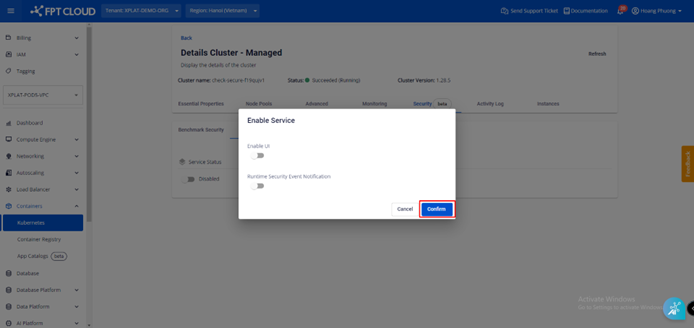
Runtime Security is enabled successfully, but you will not receive alerts yet since no alert channels have been configured.
B. Disable Falco Engine
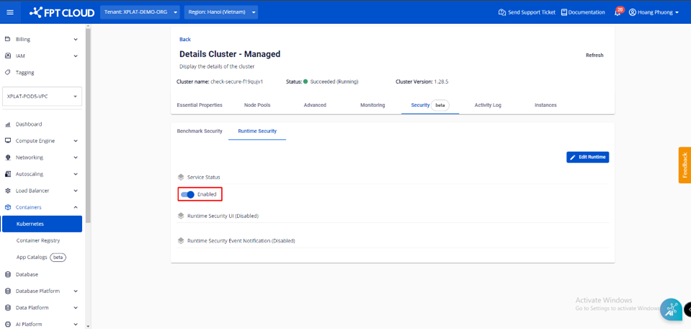
When you no longer need Runtime Security, you can disable it directly on the portal.
- Step 1: Click the button currently in the Enable state.
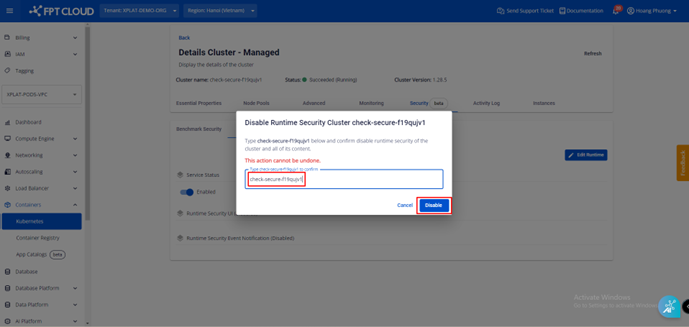
- Step 2: Enter the cluster name and click Disable.
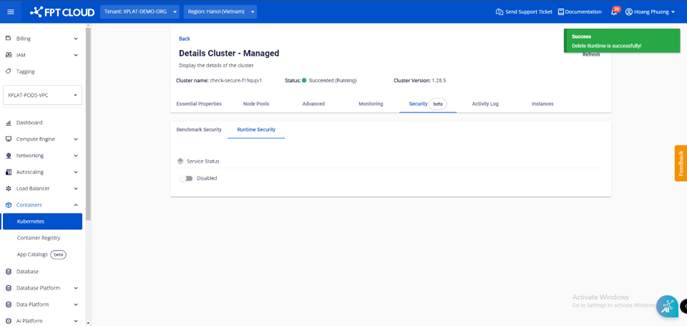
Result after disabling:
C. Integrate Falco UI
1. Enable Falco UI
- Step 1: Select the Security tab > Runtime Security, then enable it.
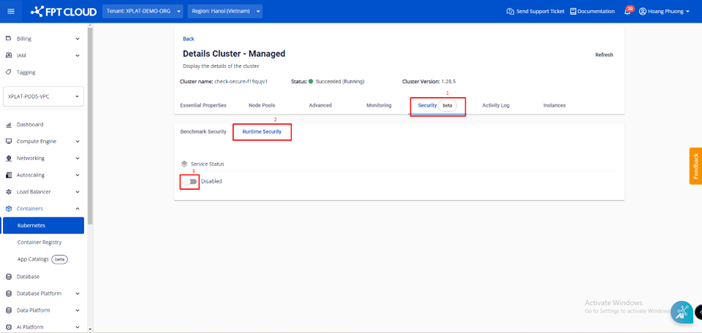
- Step 2: Enable the UI.
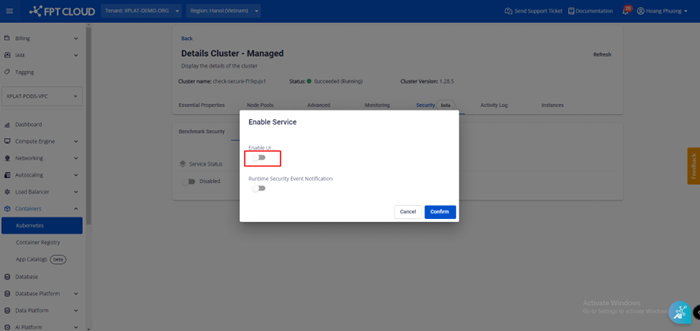
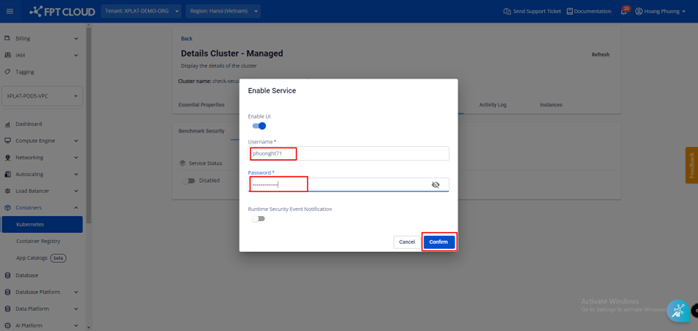
- Step 3: Enter a Username and Password to access Falco UI, then click Confirm.
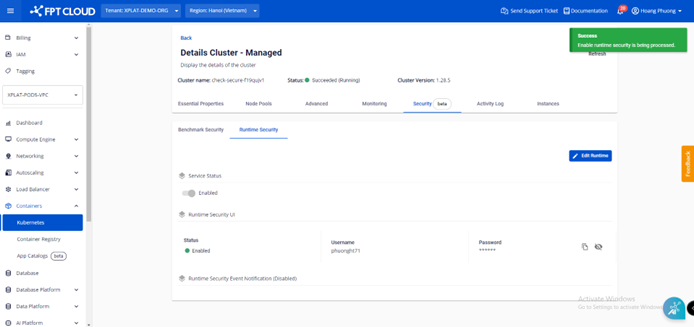
- Step 4: Download the kubeconfig file and perform a port-forward for the "falco-falcosidekick-ui" service. You can use Lens IDE to port-forward via the dashboard: go to Network > Services > filter by Namespace
fptcloud-runtime-security.
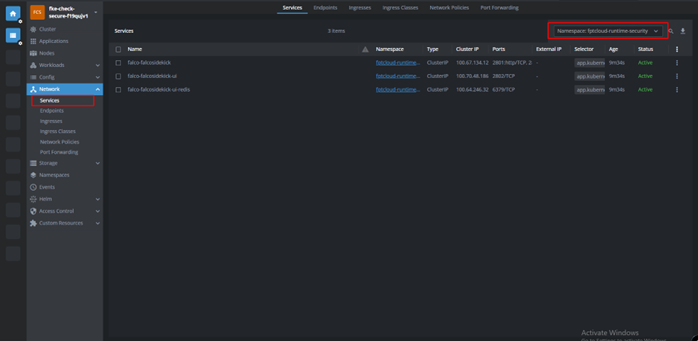
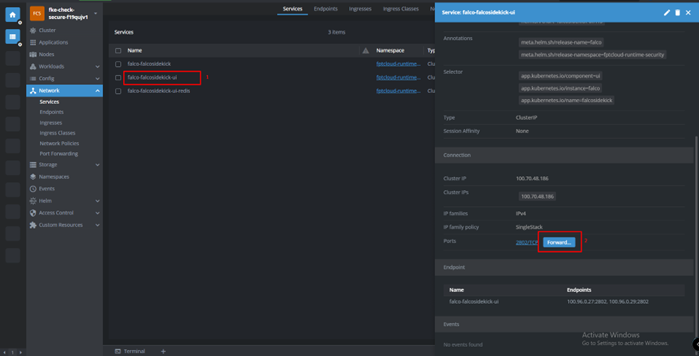
Select the falco-falcosidekick-ui service and click Forward.
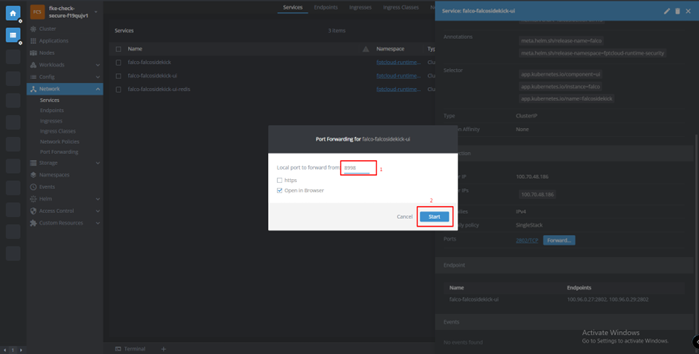
Enter the port to forward and click Start to access.
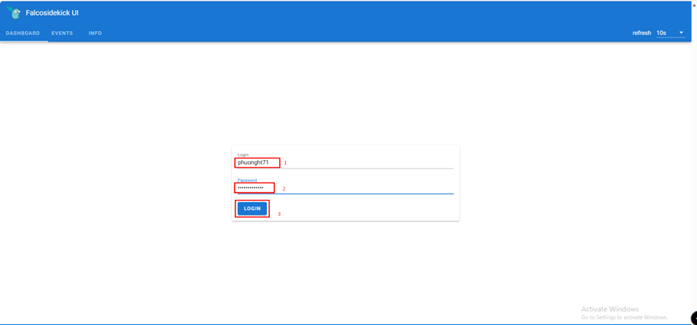
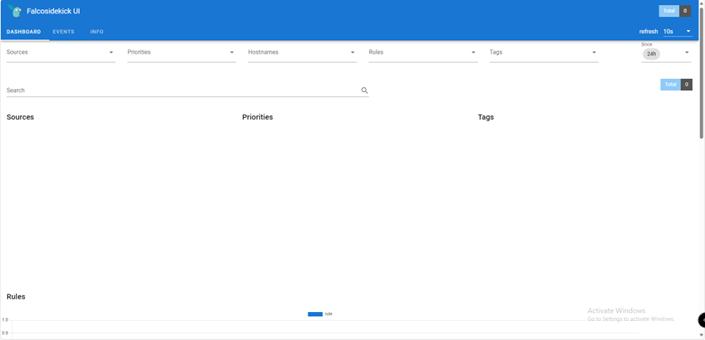
- Step 5: Enter the Username and Password configured when enabling the service.
Result after login:
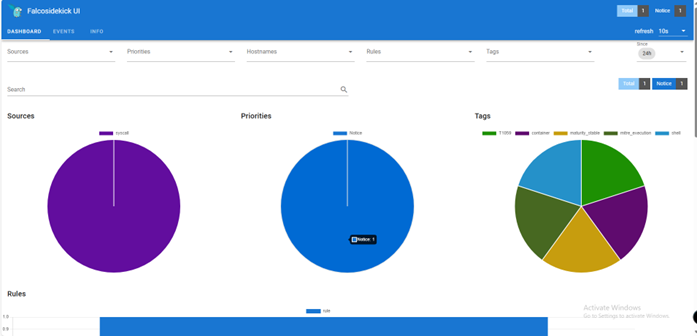
Dashboard with alerts:
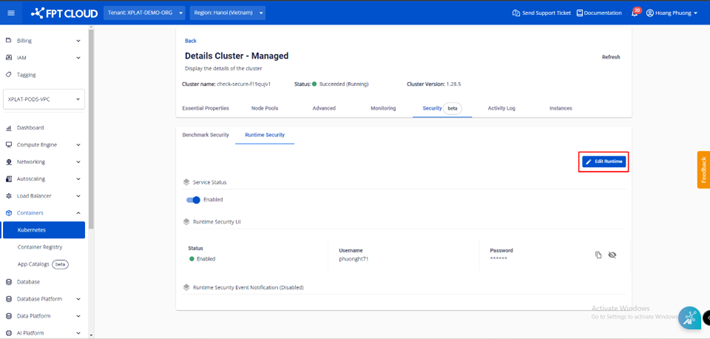
2. Update Username and Password
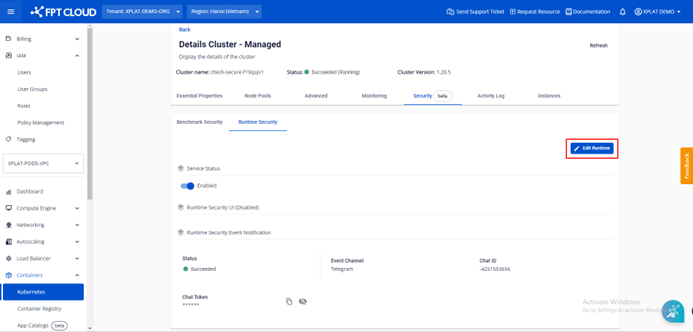
- Step 1: Click Edit Runtime.
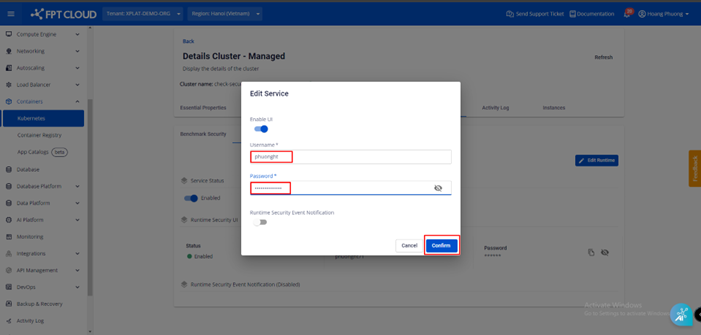
- Step 2: Edit the Username and Password, then click Confirm.
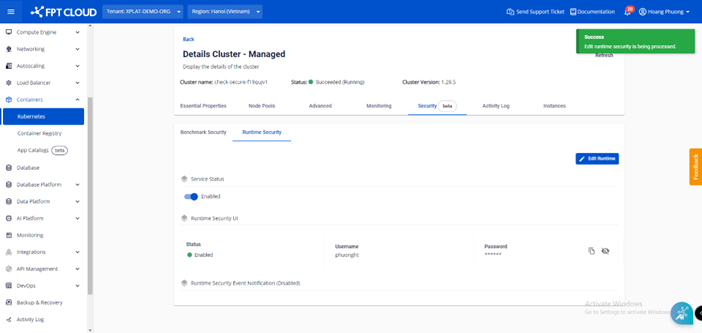
3. Disable Falco UI
To disable Falco UI: select Edit Runtime > click the Enable button to toggle it off > click Confirm.
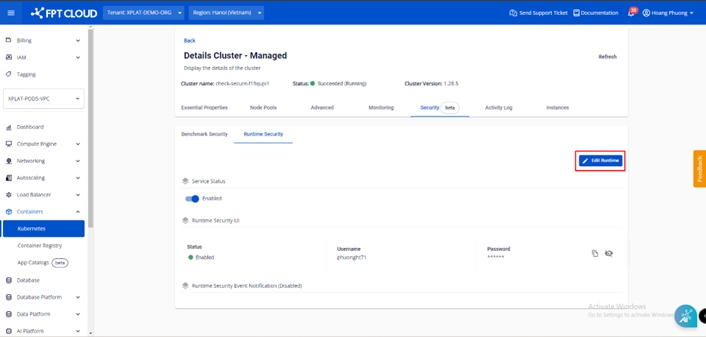
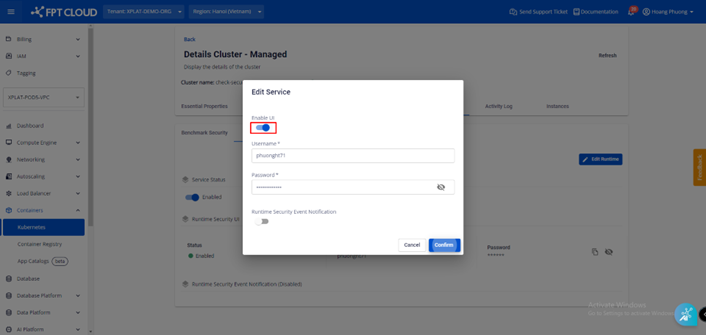
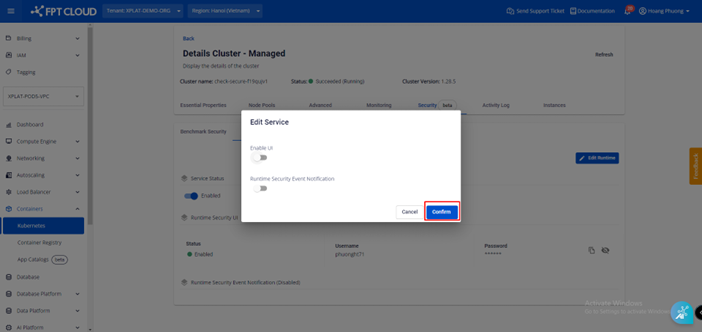
Result after disabling Falco UI:
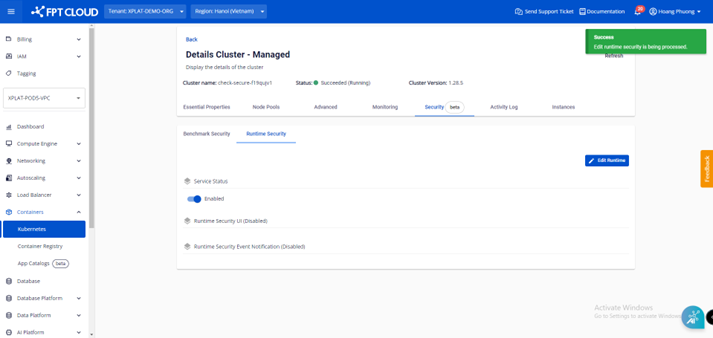
D. Integrate Runtime Security Event Notification
1. Telegram
1.1. Enable Runtime Security Event Notification
Step 1: Log in to Telegram and search for BotFather.
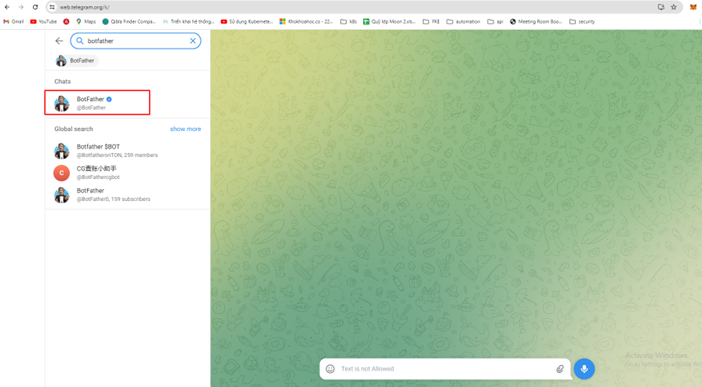
Step 2: Enter /newbot and set a name for the bot.
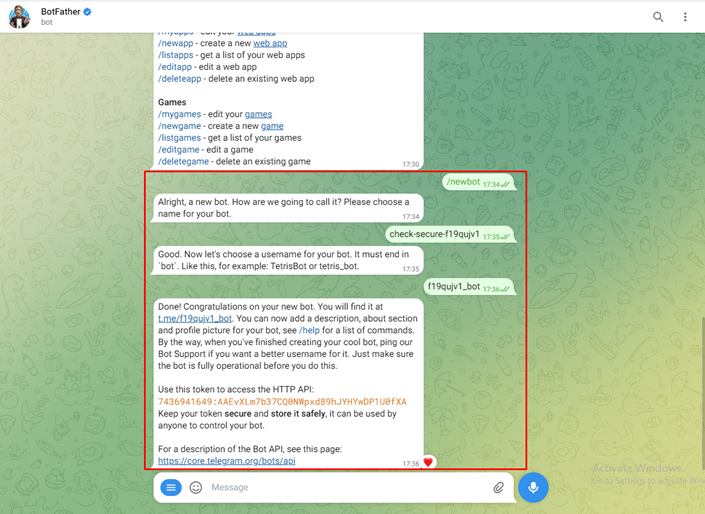
Step 3: Create a group chat to receive notifications.
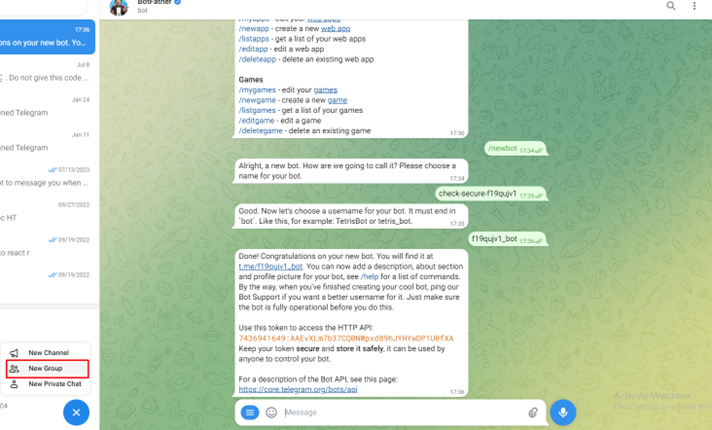
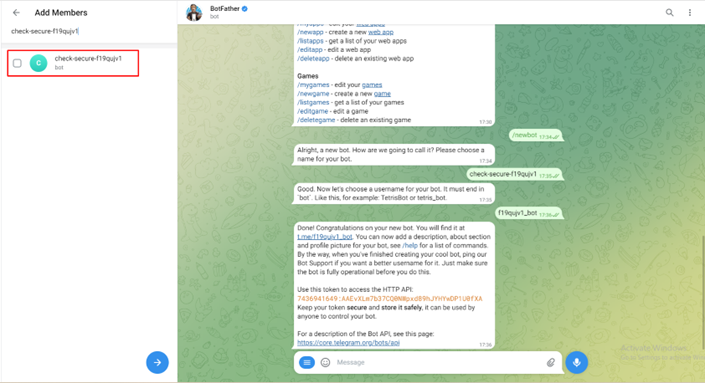
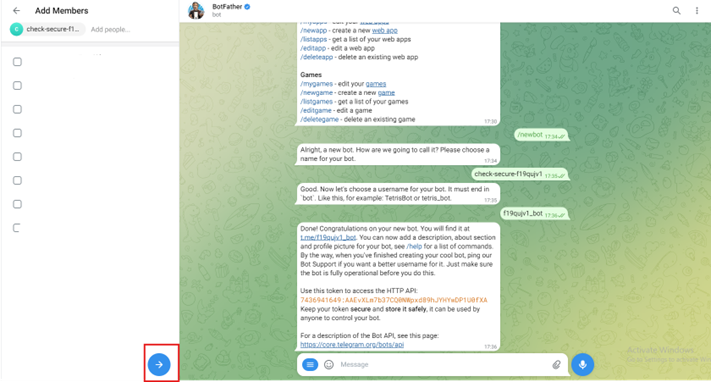
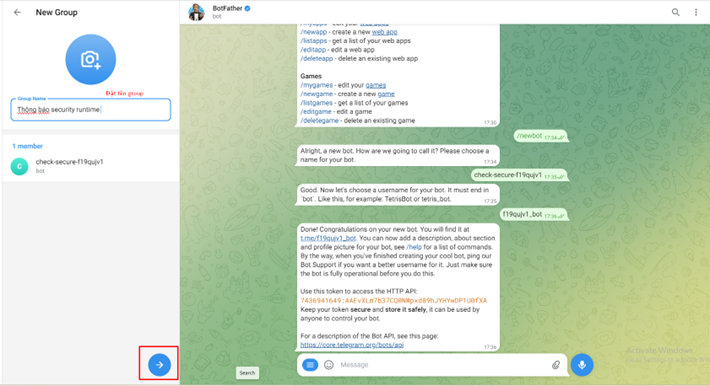
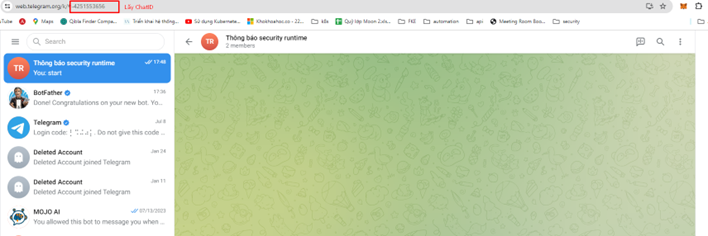
Step 4: On the Unify portal, enable Runtime Security Event Notification.
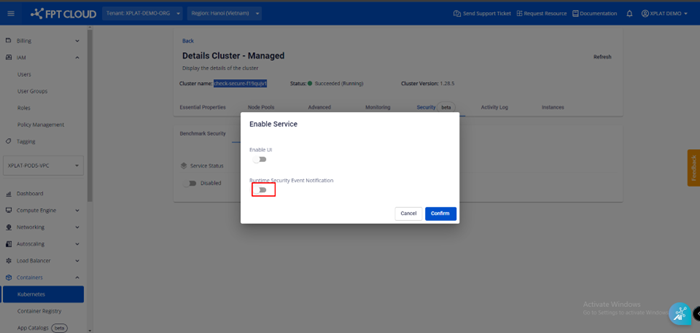
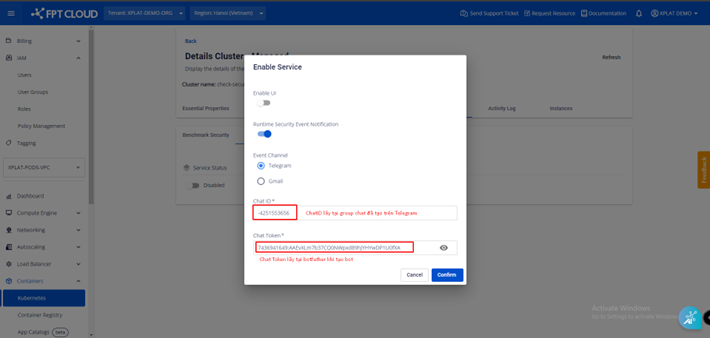
Step 5: Select Telegram as the alert channel, enter the ChatID and Token ID, then click Confirm.
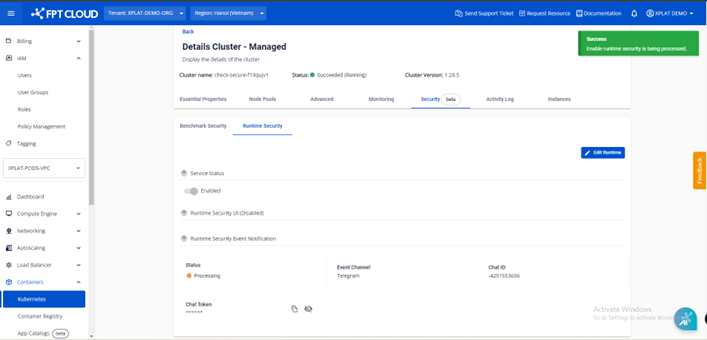
Result after configuration:
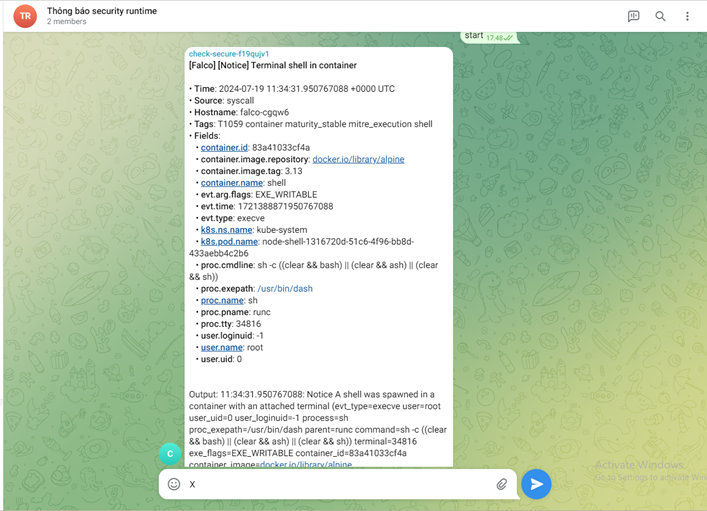
When an anomaly is detected, your Telegram will receive an alert like the example below:
1.2. Switch notification channel to Gmail
Note: Before creating an Application Token for Gmail, you must enable "2-Step Verification" on your Google Account.
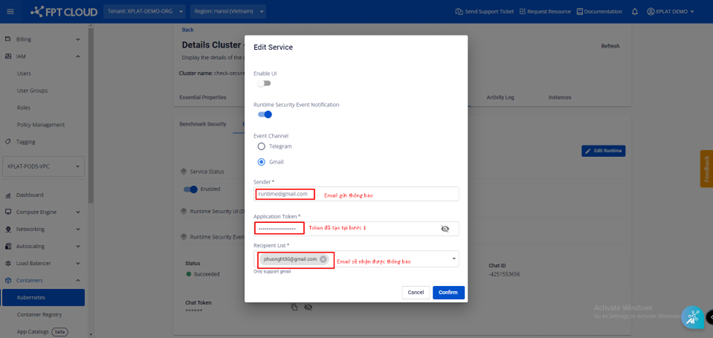
Step 1: Go to Google App Passwords to create an Application Token.
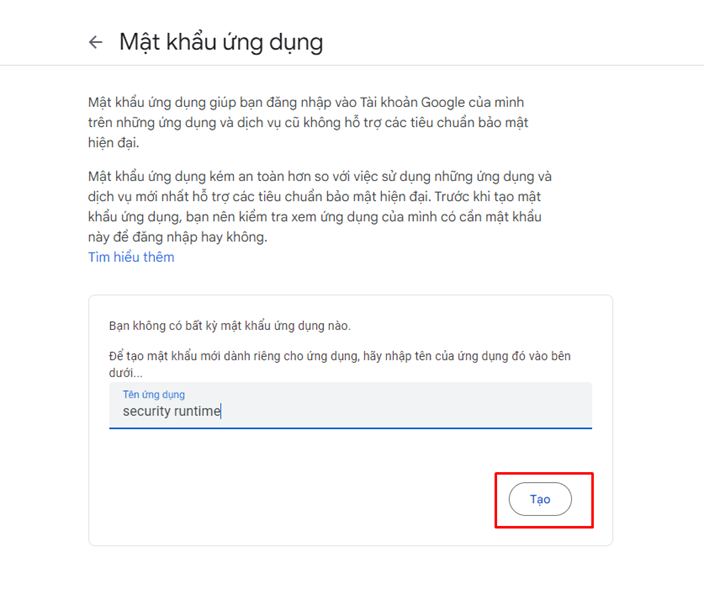
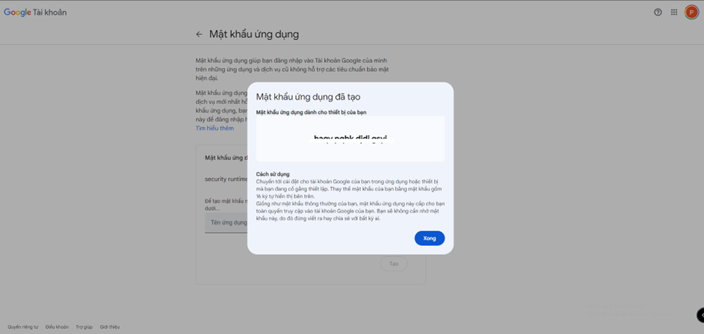
Step 2: Click Edit Runtime.
Step 3: Enter the information to receive notifications via Gmail and click Confirm.
Result after configuration:
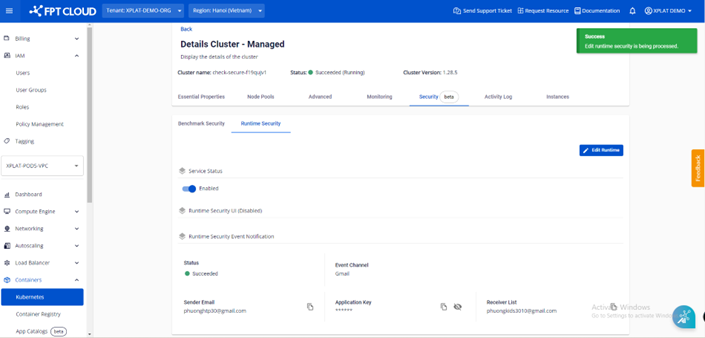
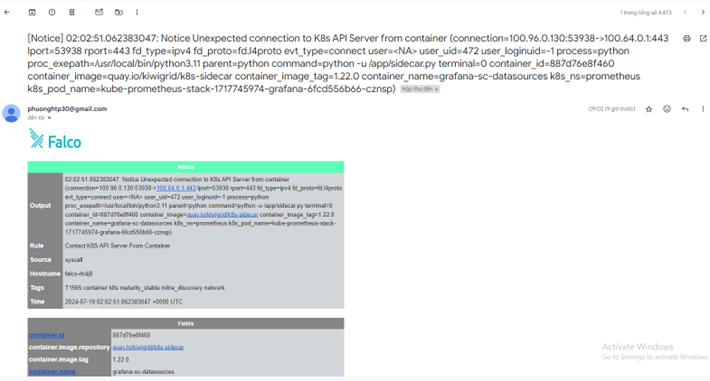
When an anomaly occurs, the system sends an alert to Gmail as shown below:
1.3. Disable Runtime Security Event Notification
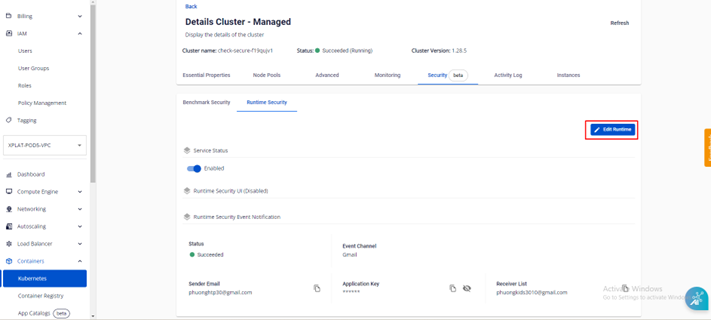
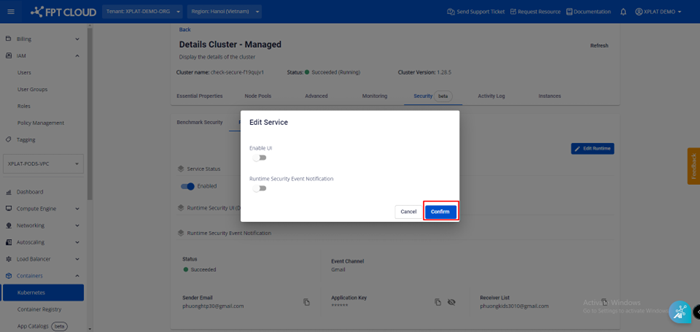
When you no longer want to receive notifications via Telegram or Gmail: go to the Security tab > select Edit Runtime > disable Runtime Security Event Notification > click Confirm.
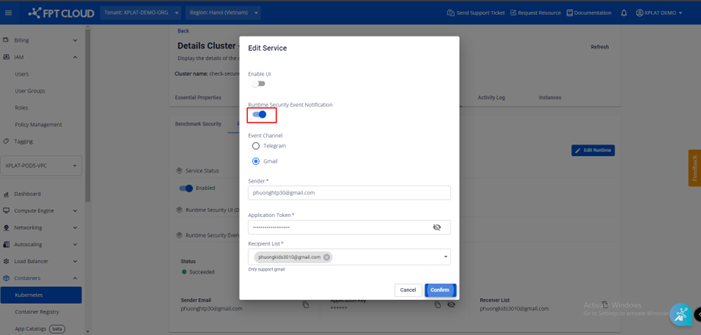
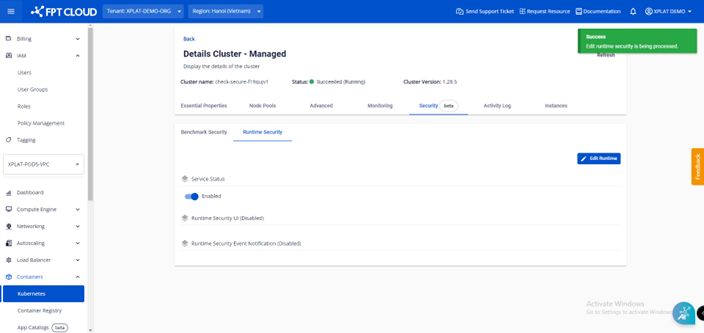
After disabling Runtime Security Event Notification, you will no longer receive any alerts when anomalies occur.