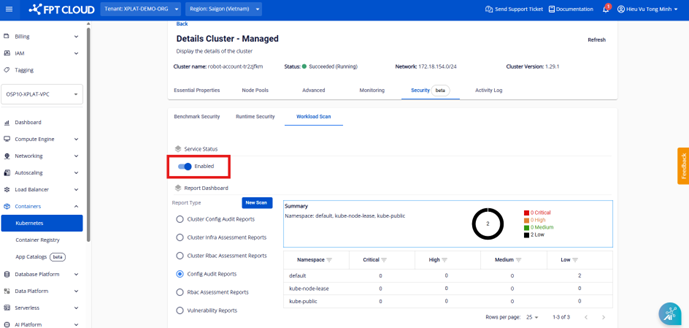
Workload Scan feature
1. Overview of Workload Security
1.1. Configuration Auditing Overview
When organizations deploy containerized workloads inside a Kubernetes environment, they face many configuration choices related to images, containers, control planes, and data planes. Incorrect configurations create potential security risks. DevOps and Platform owners need the ability to continuously evaluate tools, workloads, and infrastructure against configuration hardening standards to remediate any violations.
1.2. Vulnerability Report
A Vulnerability Report provides the latest vulnerabilities found in the container images of a given Kubernetes workload. It includes a list of OS package and application vulnerabilities, along with a summary grouped by Severity.
Each namespace has a corresponding Vulnerability Report that stores the scan results for workload images within that namespace.
The report contains the following fields:
- namespace: The namespace being scanned for container images in the Kubernetes workload.
- summary: Summary of scan report results:
- criticalCount: number of critical severity vulnerabilities
- highCount: number of high severity vulnerabilities
- lowCount: number of low severity vulnerabilities
- unknownCount: number of unassessed vulnerabilities
- vulnerabilities: Details of each vulnerability:
- ID
- Severity: urgency level of the vulnerability (Critical, High, Low, Unknown)
- Title: name of the vulnerability
- PrimaryLink: link to the detailed description of the vulnerability
- Score: CVE (Common Vulnerabilities and Exposure) score used to determine Severity:
- 0 → Unknown
- 0.1–3.9 → Low
- 4.0–6.9 → Medium
- 7.0–8.9 → High
- 9.0–10.0 → Critical
- Namespace
1.3. RBAC Assessment Report
An RbacAssessmentReport represents checks performed by configuration auditing tools such as Trivy against a Kubernetes RBAC assessment. For example, checking that a given Role does not grant secret access to all groups. Each report is owned by the underlying Kubernetes object and stored in the same namespace.
The report contains the following fields:
- namespace: The namespace being scanned for roles in the Kubernetes workload.
- summary: Summary of scan report results:
- criticalCount: number of critical severity vulnerabilities
- highCount: number of high severity vulnerabilities
- mediumCount: number of medium severity vulnerabilities
- lowCount: number of low severity vulnerabilities
1.4. Cluster RBAC Assessment Report
While the RBAC Assessment Report checks permissions of Roles within the same namespace, the Cluster RBAC Assessment Report aggregates all Roles across all namespaces.
1.5. Config Audit Report
A ConfigAuditReport represents checks performed by Trivy against the configuration of each Kubernetes object. For example, checking whether a container image is running as a non-root user, or whether the container has resource requests and limits configured. Checks can relate to Kubernetes workloads and other resources in the namespace, such as services, configmaps, roles, and rolebindings.
The report contains the following fields:
- Namespace: The namespace being scanned.
- Summary:
- CriticalCount: number of critical severity vulnerabilities
- HighCount: number of high severity vulnerabilities
- LowCount: number of low severity vulnerabilities
- MediumCount: number of medium severity vulnerabilities
1.6. Cluster Config Audit Report
While the Config Audit Report checks configurations within the same namespace, the Cluster Config Audit Report aggregates configurations across all namespaces.
1.7. Cluster Infra Assessment Report
The Cluster Infra Assessment Report checks critical configurations in the administrative section of the Kubernetes cluster, such as etcd, apiserver, scheduler, controller-manager, etc.
2. Using the feature on Unify Portal
Note: Security enhancement features for Managed Kubernetes Cluster are integrated after the cluster is successfully created (status: Succeeded/Running).
2.1. Enable Workload Security
Go to FPT Cloud portal console.fptcloud.com, select Kubernetes, click on the cluster, go to the Security tab, select the Workload Security tab, then enable it:
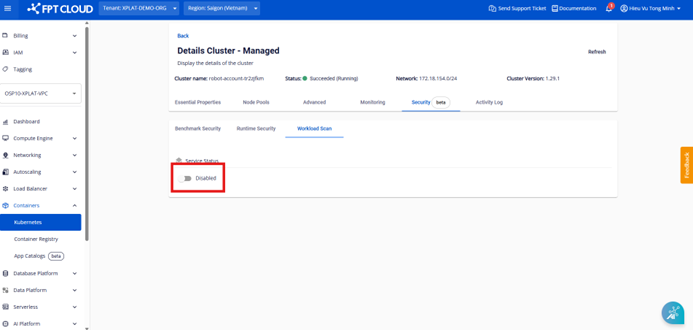
Figure 1. Enable Workload Scan service
After clicking the enable button, a form appears for you to select: namespaces to scan, TTL (Time-to-live) of reports, and scan types to export as reports displayed on the portal.
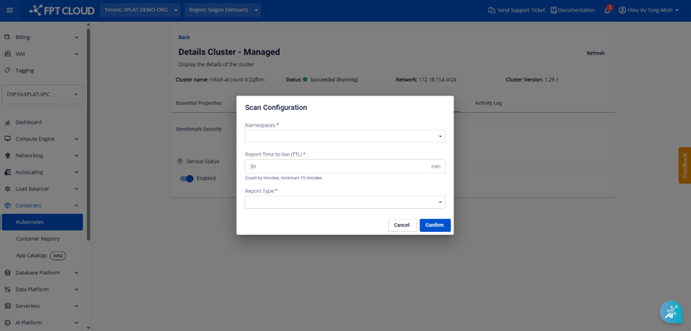
Figure 2. Configuration form after enabling the feature
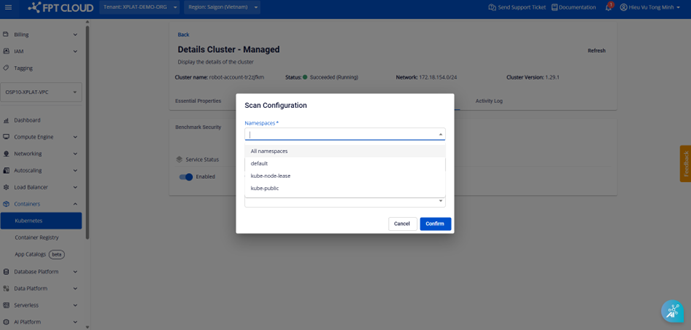
Figure 3. Select namespaces
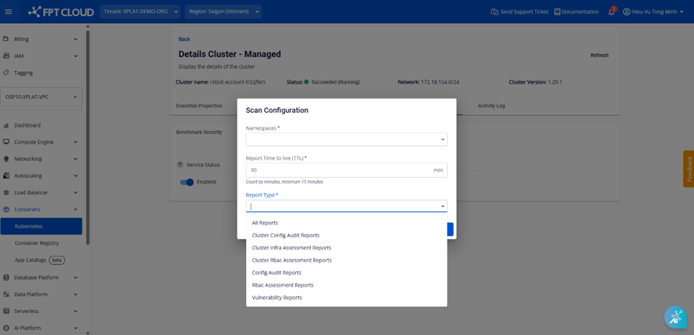
Figure 4. Select report types to scan and display on the Portal
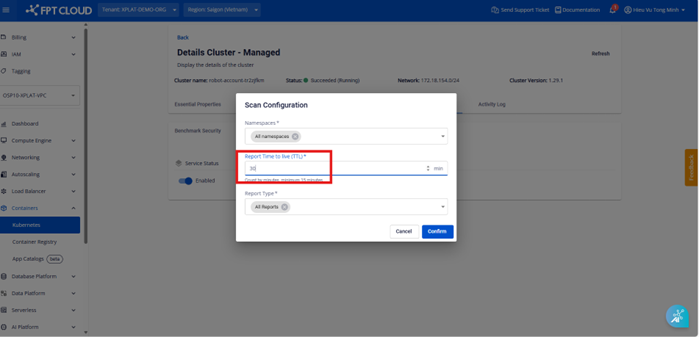
Figure 5. Select TTL duration (default 30 minutes)
After the Workload job runs successfully, detailed results are displayed. You can re-run the workload scan to get the latest results.
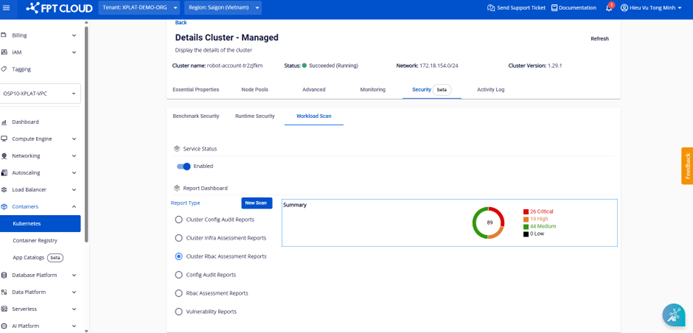
Figure 6. Cluster RBAC Assessment Report display
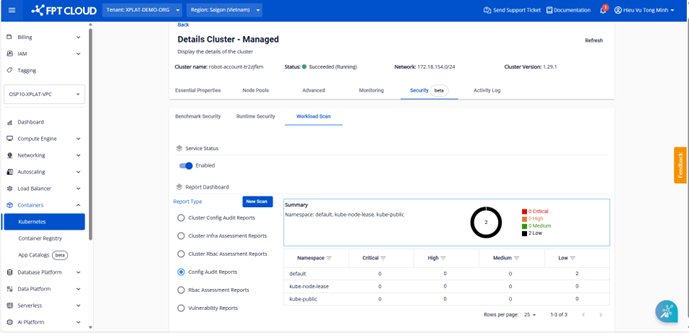
Figure 7. Config Audit Report display
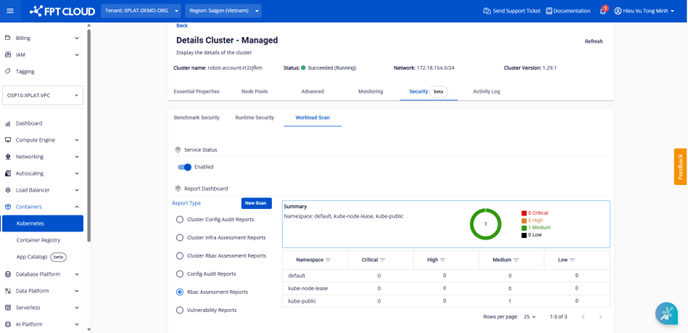
Figure 8. RBAC Assessment Report display
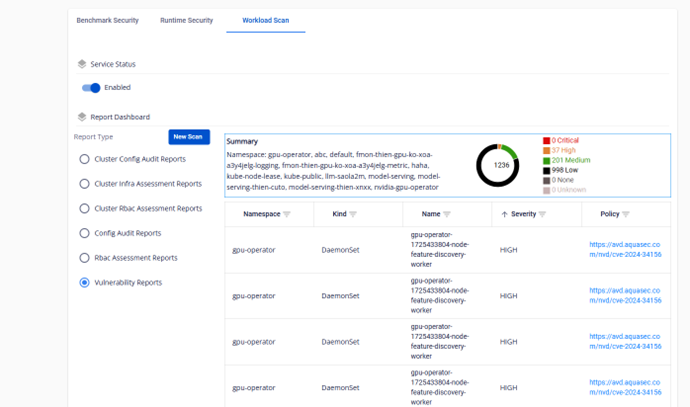
Figure 9. Vulnerability Report display
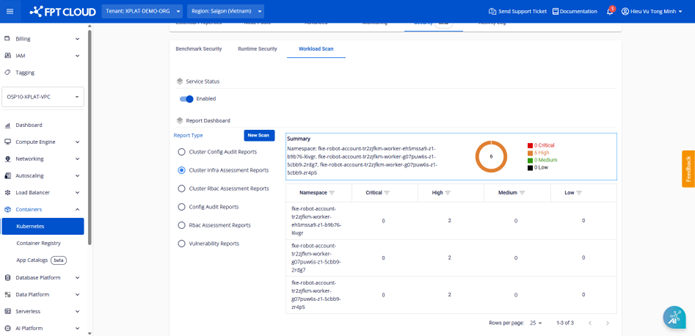
Figure 10. Cluster Infra Assessment Report display
2.2. Disable Workload Security
Go to FPT Cloud portal console.fptcloud.com, select Kubernetes, click on the cluster, go to the Security tab, select the Workload Security tab, then confirm to disable the service.