Add a worker group
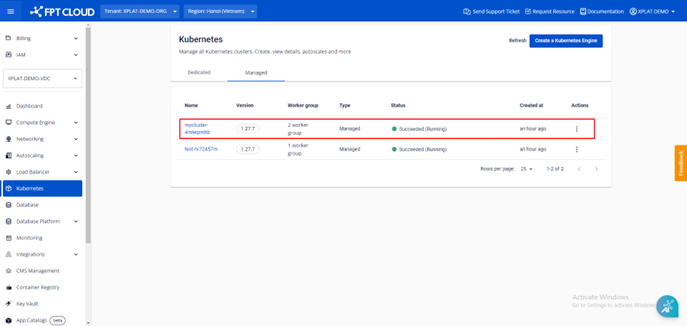
Step 1: From the menu, select Kubernetes. The Kubernetes Management page appears. Select the Cluster you want to add a Worker Group to.
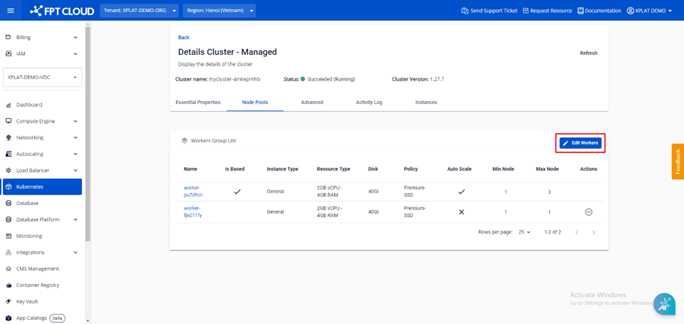
Step 2: Select Node Pools > Edit Workers.
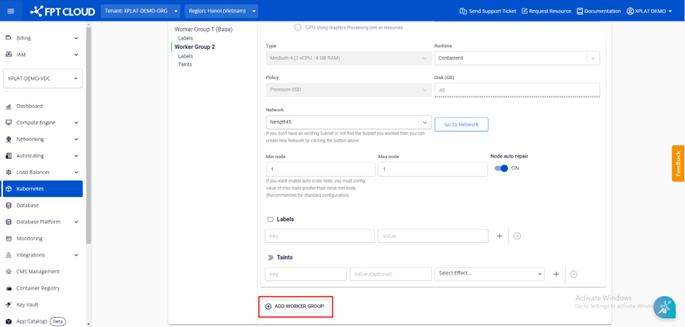
Step 3: Click ADD WORKER GROUP.
Step 4: Fill in the required fields.
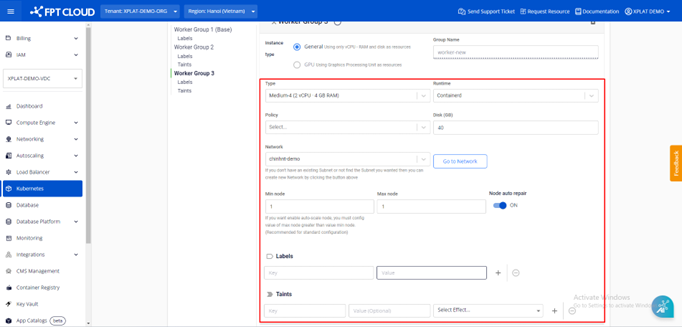
- Instance Type: Select the Instance type (CPU or GPU) for Worker nodes.
- Type: Select the configuration (CPU & Memory) for Worker nodes.
- Container Runtime: Select Containerd.
- Storage Policy: Select the Storage Policy type (corresponding to IOPS) for the Worker node disk.
- Disk (GB): Select the root disk size for Worker nodes.
- Network: The Subnet used to deploy VMs for the Kubernetes cluster.
- Scale min: Minimum number of Worker node VM instances in the cluster. Recommended minimum is 3 nodes for production environments.
- Scale max: Maximum number of Worker node VM instances per worker group in the cluster.
- Label: Assign Labels to the Worker Group.
- Taint: Assign Taints to the Worker Group.
Step 5: Review the information, then click Save to add the new Worker.
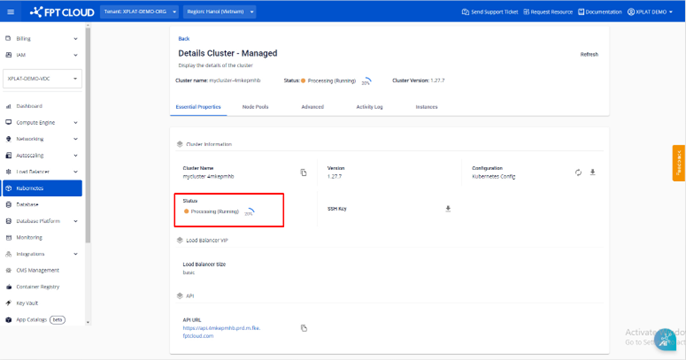
The cluster scaling process takes a few minutes. The cluster status changes to Processing during this time. The cluster continues to operate normally while the new Worker Group is being added.