Edit Labels and Taints for Worker Group
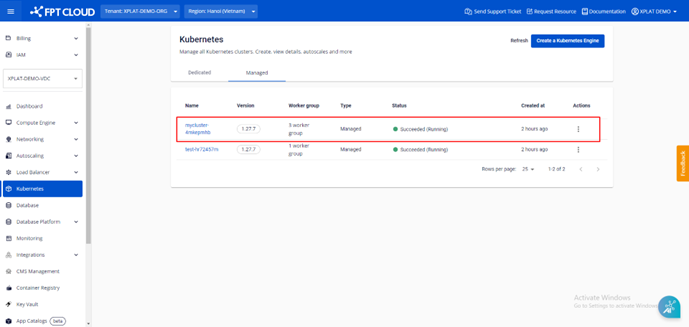
Step 1: From the menu, select Kubernetes. The Kubernetes Management page appears. Select the Cluster you want to edit Labels/Taints for.
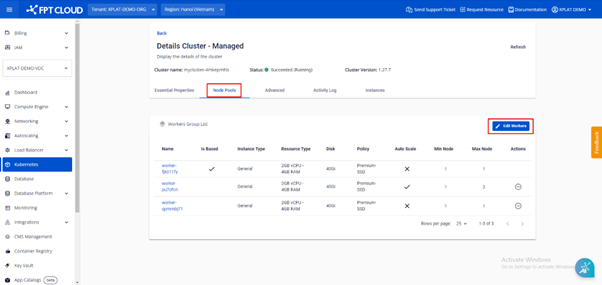
Step 2: Select Node Pools > Edit Workers.
Step 3: Enter the Labels and Taints you want to add to the worker group and click Save.


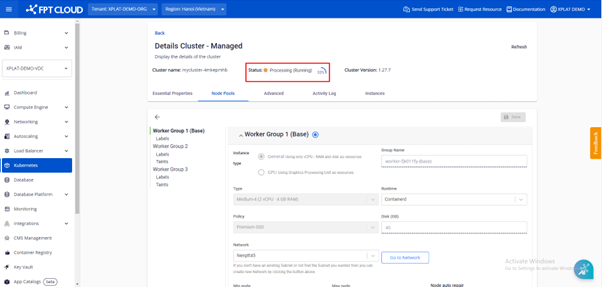
The process of editing Labels and Taints takes a few minutes. The cluster status changes to Processing during this time, and you cannot make other changes to the cluster until the process completes.
To prevent application workloads from affecting cluster operations, the Reserve this worker group for system workloads only feature lets you dedicate the Base Worker Group to running System Pods while preventing Application Pods from being scheduled into this worker group.
Note: This feature only applies to clusters with 2 or more worker groups.
When creating a new cluster, enable the "Reserve this worker group for system workloads only" option in the Base Worker Group configuration step. When this feature is enabled, nodes in the Base Worker Group are assigned the taint CriticalAddonsOnly=true:NoSchedule, meaning Application Pods will not be scheduled into the Base Worker Group unless they are configured with the appropriate toleration.
If the cluster is already running and the Base Worker Group contains Application Pods, enabling this feature will not affect those existing Application Pods. Newly created Pods without the appropriate toleration will not be scheduled into the Base Worker Group.
If you delete all other Worker Groups and only the Base Worker Group remains, the system automatically disables this option until a new Worker Group is added.