Managing DB Proxy
Database Proxy (DB Proxy) is an intermediary layer between applications and the database server that manages and coordinates connections, performs load balancing, and routes connections to the appropriate database node without requiring changes to application source code or database configuration, thereby enhancing system high availability.
Currently, FPT Database Engine supports DB Proxy for the following engine types: MySQL, PostgreSQL, MariaDB and is only available when the database is deployed in High Availability (HA) mode.
On FPT Cloud Portal, the Manage DB Proxy feature allows users to:
- Create and manage DB Proxy.
- Monitor the operational status of DB Proxy.
- Perform operational tasks such as Start, Stop, Restart, Resize, Delete.
- View the detailed configuration and nodes of DB Proxy.
Required permissions
| Permission name | Operation type | Description |
|---|---|---|
| manageDatabase:ListProxy | View | Permission to view the list of DB Proxies for the database. |
| manageDatabase:CreateProxy | Create | Permission to create a DB Proxy for the database. |
| manageDatabase:DeleteProxy | Delete | Permission to delete a DB Proxy for the database. |
1. Access the DB Proxy management page
Log in to FPT Cloud Portal. From the main menu, select "Database Platform" > "All Databases". Click the ID of the database cluster to manage > switch to the DB Proxy tab to access the DB Proxy Management page:
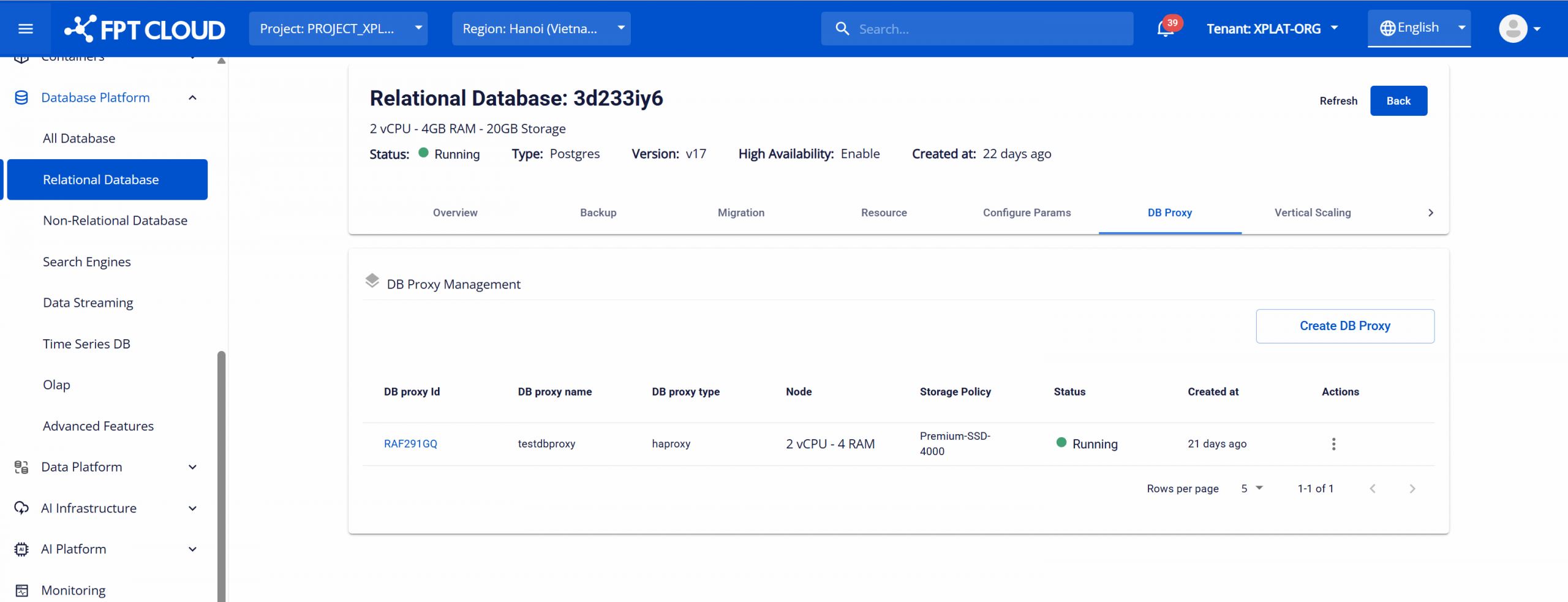
Note: The DB Proxy tab is only displayed when the database was created with the High Availability option and the database engine is supported.
2. Create a DB Proxy
On the DB Proxy Management page, click "Create DB Proxy". The create new DB Proxy dialog appears as follows:
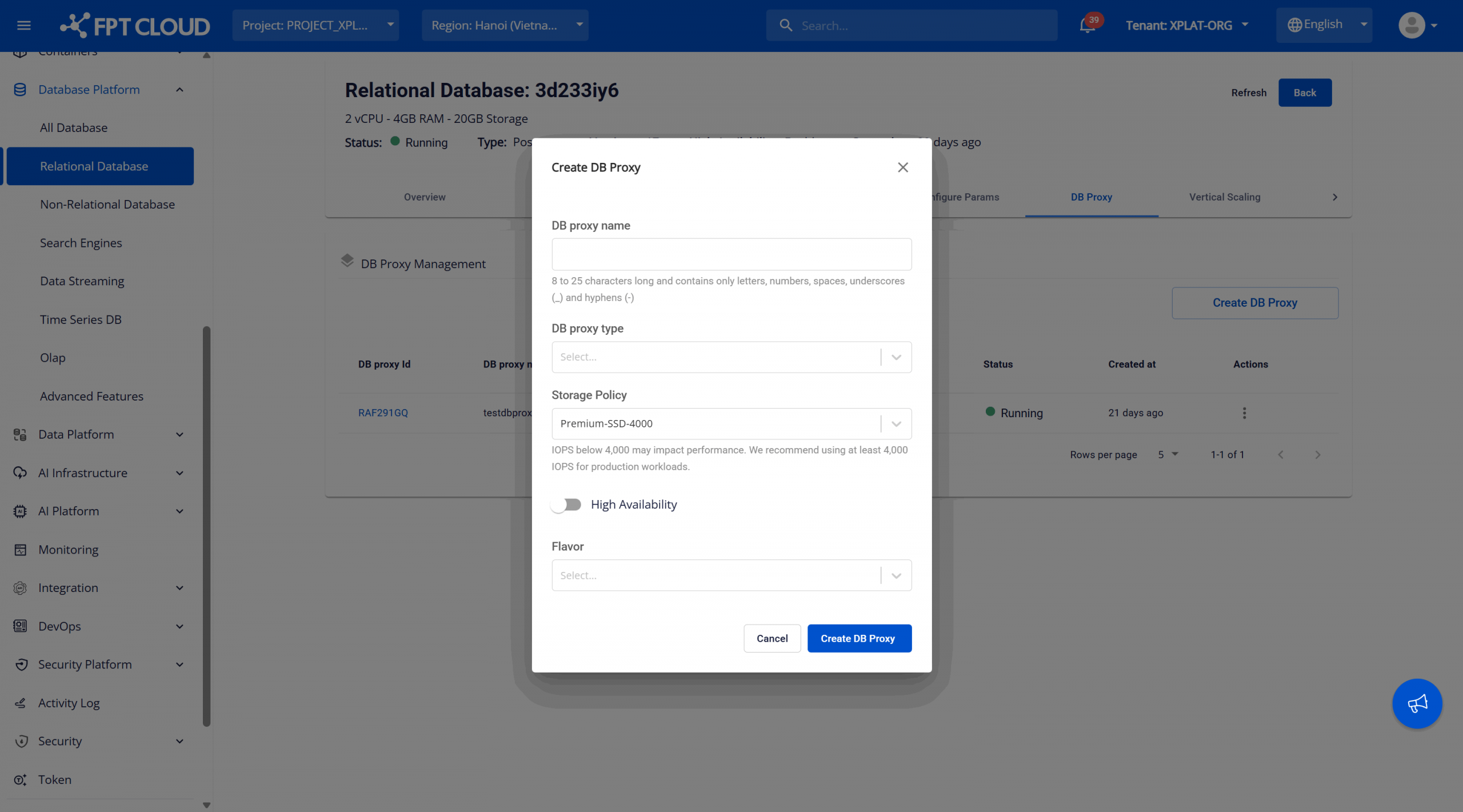
Enter the required information:
- DB proxy name: The identifier name for the proxy, 8–25 characters, only including letters, numbers, and hyphens (-).
- DB proxy type: Select the proxy type. Currently FPT Database Engine only supports one type: HAProxy.
- Storage Policy: Select the Storage Policy that determines storage performance (IOPS) for the proxy.
- High Availability: Enable to deploy the DB proxy in HA mode.
- Flavor: Select the resource configuration (vCPU, RAM) for the DB proxy.
After entering all information, click Create DB Proxy to confirm initialization. The system will check resources, display an initialization notification, and begin deploying the new proxy based on the entered configuration. The newly created proxy will appear in "Processing" status at the top of the DB Proxy Management screen.
The initialization process typically takes 5–7 minutes. When complete, the proxy will transition to "Running" status and be ready to use.
Note: If the initialization process fails, please delete the failed proxy and reinitialize.
3. View connection information
To view connection information for the proxy, access the DB Proxy Management page, then select the proxy ID to open the DB Proxy Detail dialog:
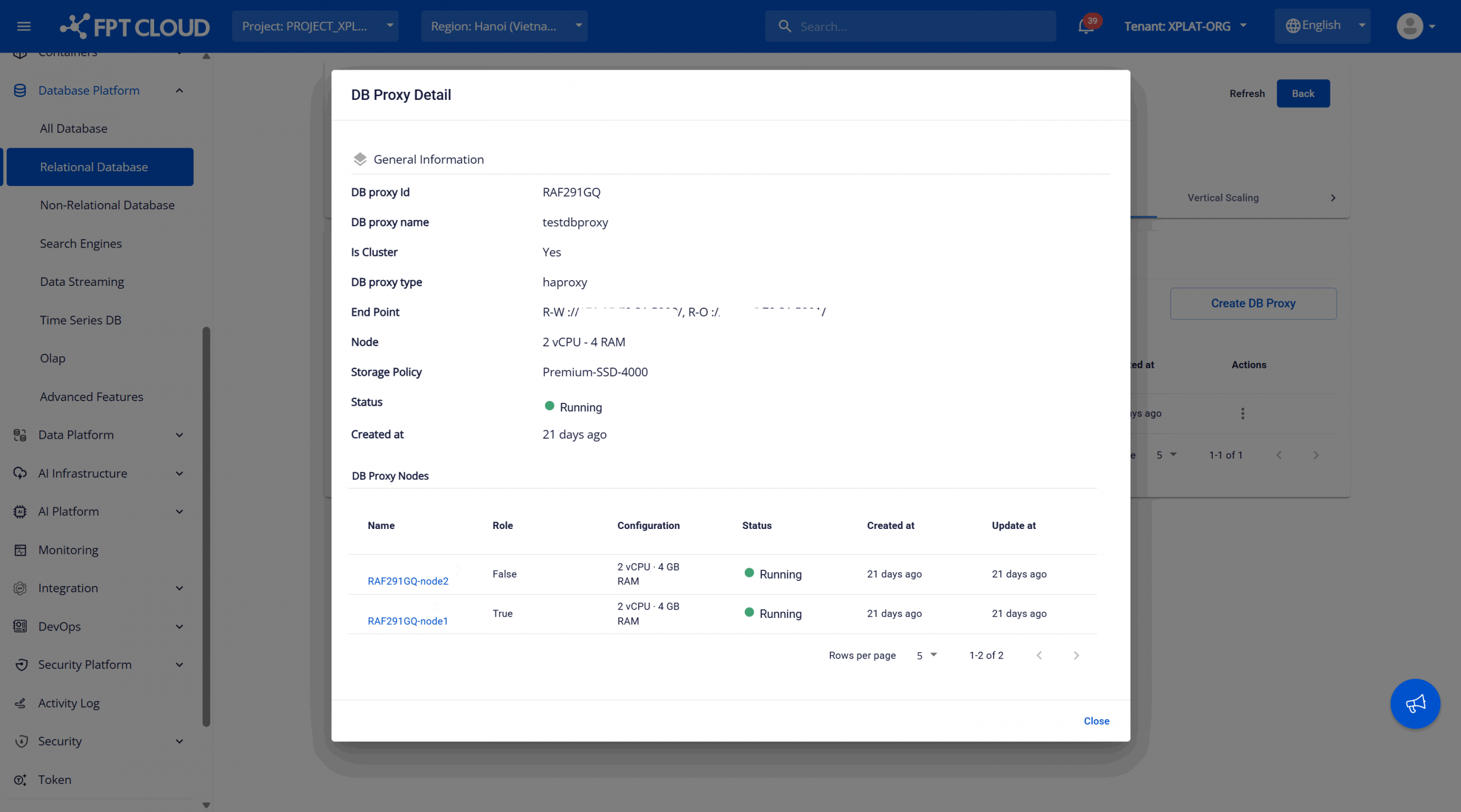
The Running status indicates the DB Proxy is operational and ready to accept connections. Use the information in End Point to establish a connection to the proxy.
4. Operate DB Proxy
You can perform start, stop, restart, resize, and delete operations appropriate to the proxy lifecycle state.
Operations:
- Start: Starts the DB Proxy when it is in Stopped state. When the operation is performed, the proxy status transitions to "Starting" and then to "Running" when ready.
- Stop: Stops a running DB Proxy. When stopped, the proxy temporarily suspends workload processing. The status transitions to "Stopping" and then to "Stopped". In this state, connections through the proxy will be disrupted.
- Restart: Restarts a running proxy. This operation stops and restarts the proxy, typically used to resolve temporary issues. The status displays "Restarting" and returns to "Running" when complete.
- Resize: Changes the resource configuration (Flavor) of the DB Proxy. When resizing, the status transitions to "Resizing" and then to "Running".
- Delete: Deletes a DB Proxy. This action cannot be undone. After successful deletion, the proxy is removed from the list and associated resources are released.
Status and available operations:
| Status | Meaning | Available operations |
|---|---|---|
| Processing | The proxy is being initialized. | Delete |
| Running | The proxy is operating normally. | Stop, Restart, Resize, Delete |
| Stopped | The proxy has been stopped. | Start, Delete |
| Resizing | The proxy resources are being adjusted. | Delete |
| Failed | The proxy has encountered an unknown error. If no longer needed, delete the proxy to free resources, or contact FPT Support for assistance. | Delete |
Performing operations:
To perform operations, open the DB Proxy Management page, then click the "⋯" (More actions) icon in the "Action" column of the proxy to operate on. The list of available actions will be displayed:
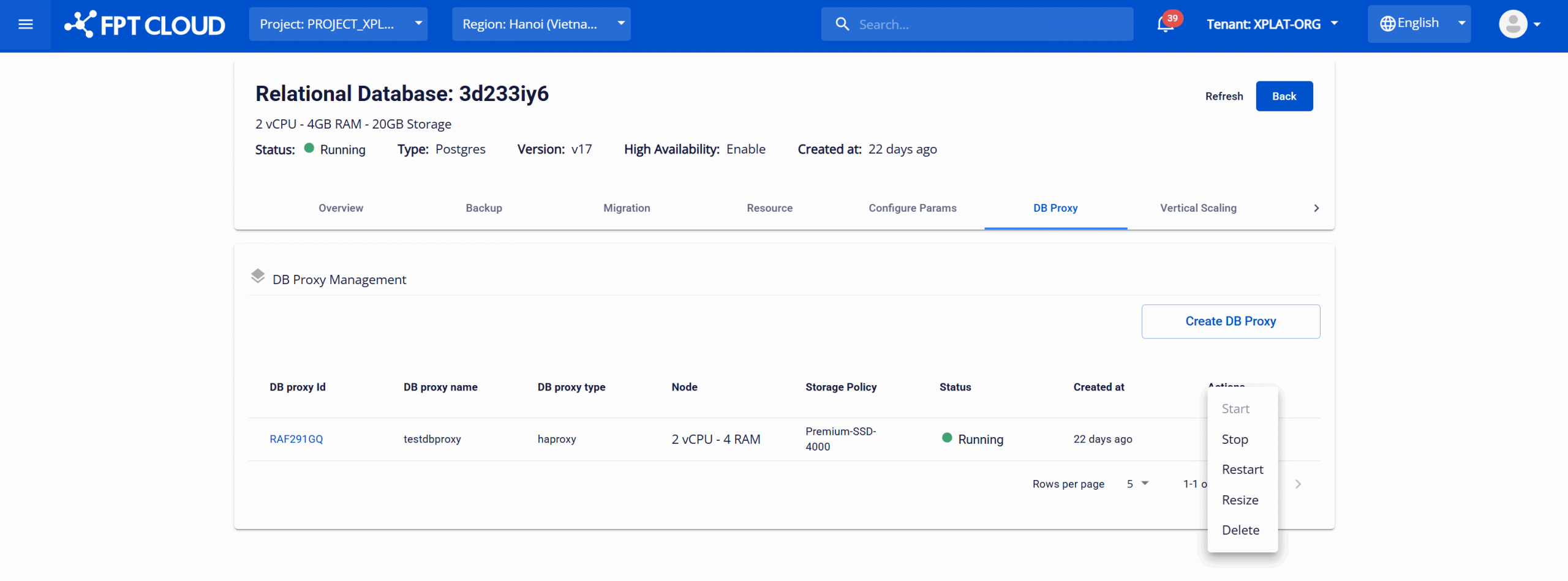
When an action is selected, the system will display a confirmation dialog. You must manually confirm to proceed, to avoid performing unintended operations, especially for actions that cannot be undone.
After confirmation, the system will execute the action within approximately 5–7 minutes. During this time, other operations on the proxy will be temporarily disabled until the process completes.
Best practices:
Perform Restart or Resize of DB Proxy during off-peak hours to reduce impact on applications.