Configuring notifications
The Notification feature helps users configure receiving notifications about important events and service status related to their database clusters. Notifications can be sent via email or external channels such as Telegram, helping you stay informed about situations such as backup schedules, resource thresholds, resource scaling, and other important events.
The system currently supports the following notification types:
- Backup & Restore notifications – including enabling/disabling the backup service, and success/failure results of backup and restore jobs.
- Resource notifications – alerts when vCPU, RAM, or Disk reaches a predefined threshold.
- Vertical Scaling notifications – notifications about automatic CPU/RAM/Disk scaling events.
- Maintenance notifications – notifications when FPT performs maintenance activities affecting a database cluster.
This guide helps you set up and manage Notifications to effectively monitor important events in FPT Database Engine on FPT Cloud Portal.
Configuring notifications from FPT Database Engine
Step 1: Access the notification setup page
Log in to FPT Cloud Portal. From the main menu, select "Database Platform" → "All Database". On the Database list page, select the Cluster ID of the cluster to configure notifications for > Select the "Notification" tab to open the notification configuration management screen.
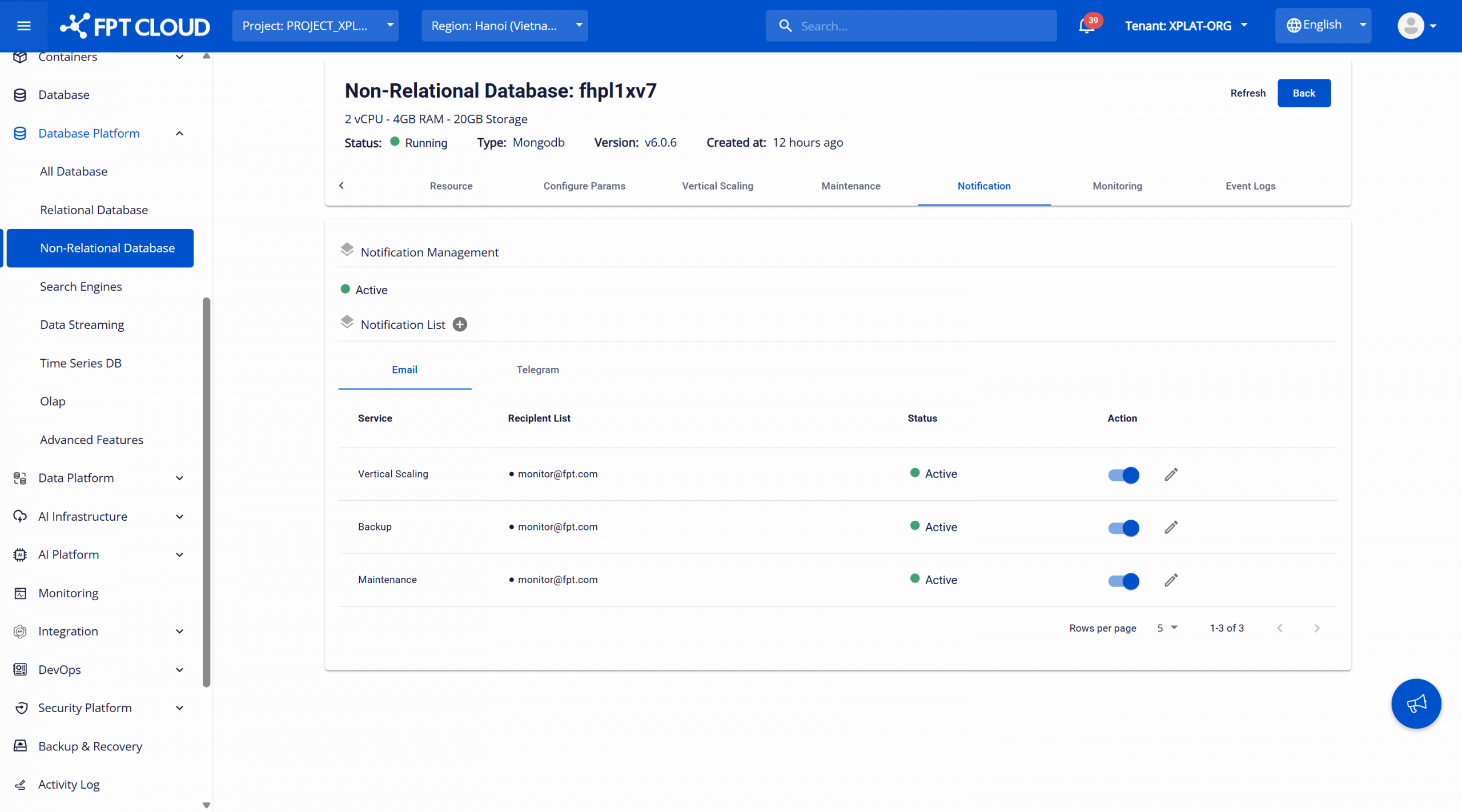
Step 2: Set up the notification recipient list for a service
Click Add New Alert List (plus icon next to Notification List) to open the add notification configuration dialog.
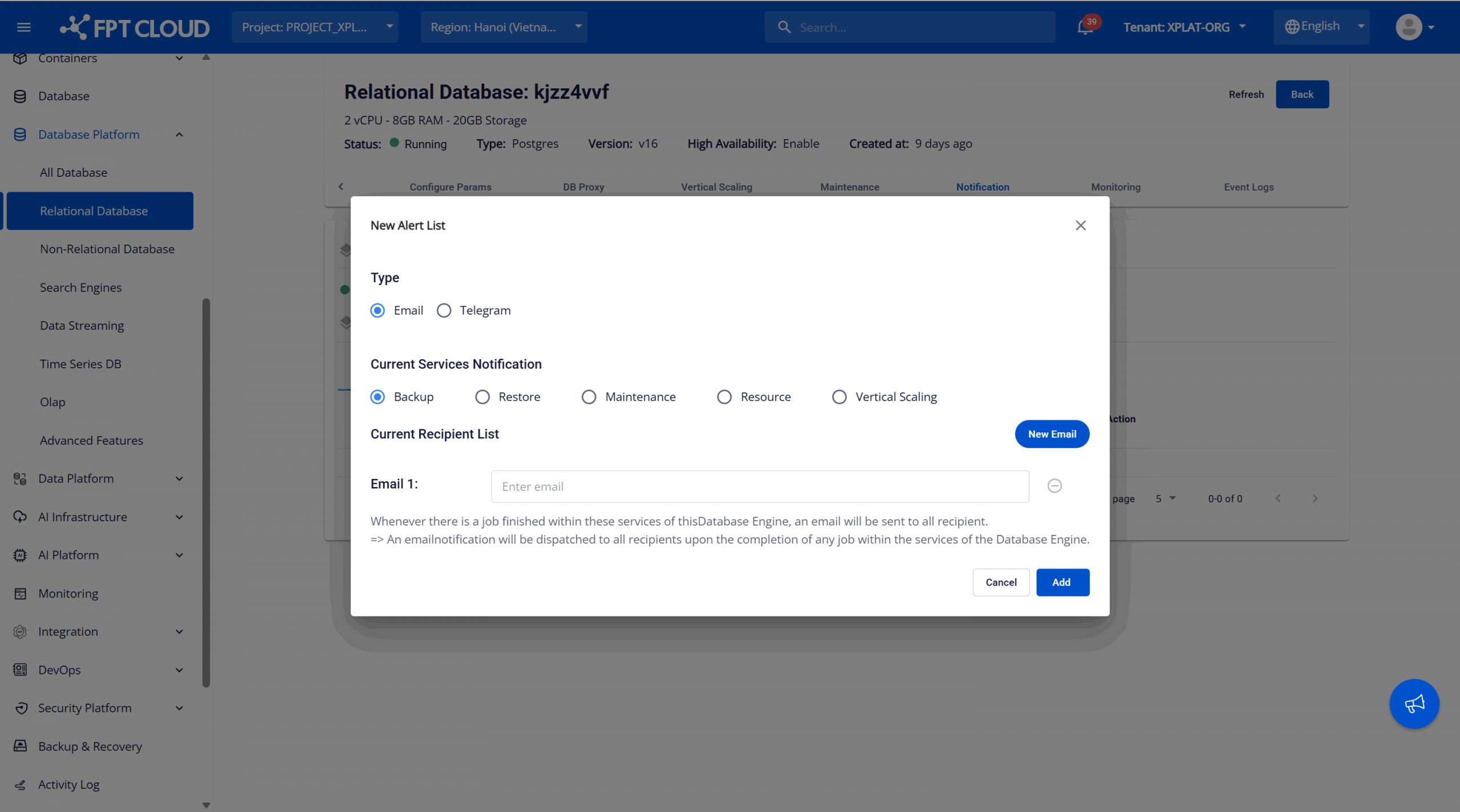
Enter the configuration information:
- Type: Select the notification delivery method when an alert is triggered. There are 2 options:
- Email: Send alerts via email.
- Telegram: Send alerts via Telegram. This method is not supported for the "Maintenance" service.
- Current Services Notification: Select the service that will trigger a notification when the corresponding task or event is performed. Options:
- Backup – Notification when backup runs.
- Restore – Notification when a restore is performed.
- Maintenance – Notification when the system performs service maintenance.
- Resource – Resource usage alerts.
- Vertical Scaling – Notification when resources are changed (scaled).
- Current Recipient List: The alert recipient list:
- If Type = "Email" → enter the email address(es) to receive alerts.
- If Type = "Telegram" → enter the ID of the Telegram channel to receive alerts. See instructions for obtaining the channel ID in section 2. Configuring Telegram to receive notifications from FPT Database Engine.
- Alert conditions for Current Services Notification = "Resource":
- vCPU more than (%): Enter the CPU usage threshold (in %). Alert is triggered when vCPU usage exceeds this value.
- RAM more than (%): Enter the memory usage threshold (in %). Alert is triggered when RAM usage exceeds the configured level.
- Storage more than (%): Enter the storage usage threshold (in %). Alert is triggered when storage usage exceeds the allowed level.
Alerts will be sent when at least one condition is met. If all three conditions are reached, the system will send multiple corresponding notifications.
After entering all information, click "Add" to save the configuration.
All configured alerts will appear in the Notification List on the Notification tab. You can view details including recipients, alert type, monitored service, and status (enabled/disabled). The following management operations can be performed on a configured alert:
- Edit alert – click the pencil icon next to the alert list to update recipients or monitored service.
- Disable alert – temporarily disable the alert without deleting the rule.
- Re-enable alert – reactivate a previously disabled alert.
Best practices:
- Configure alerts before enabling backup and vertical scaling services.
- Set reasonable thresholds to avoid alert spam.
- Assign notifications to the operations team and DBAs.
- Combine alerts with monitoring dashboard for comprehensive monitoring.
Configuring Telegram to receive notifications from FPT Database Engine
When receiving notifications from FPT via Telegram, you need to enter the channel ID. The steps below guide you through the operations needed to obtain this ID.
Step 1: Create a channel on Telegram
Log in to Telegram and create a new Private channel (e.g., FDE Notify) to receive notifications from FPT Database Engine.
Step 2: Add @fde_notify_bot as a member of the channel
Enter @fde_notify_bot in the member search field and select FDE NOTIFY:

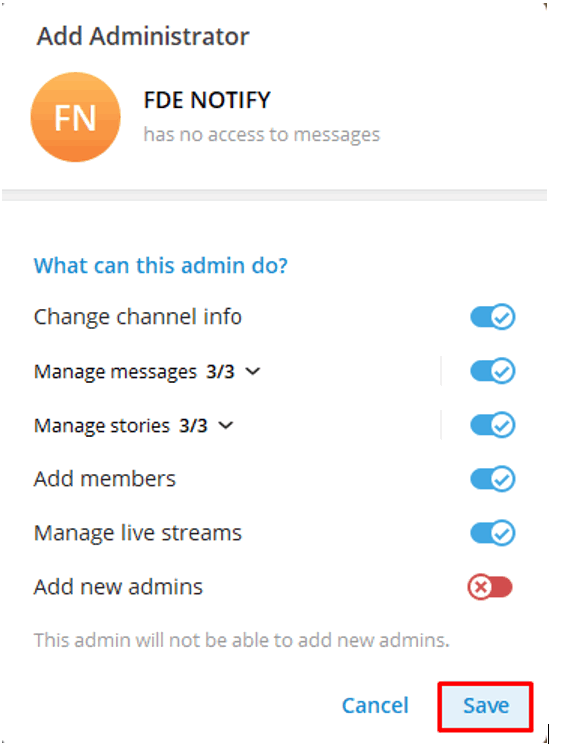
Step 3: Set @fde_notify_bot as admin of the channel
Set @fde_notify_bot as Administrator of the newly created channel to allow it to send notifications.
Step 4: Get the channel ID
In the Search field, enter @username_to_id_bot to find the chat IDBot:
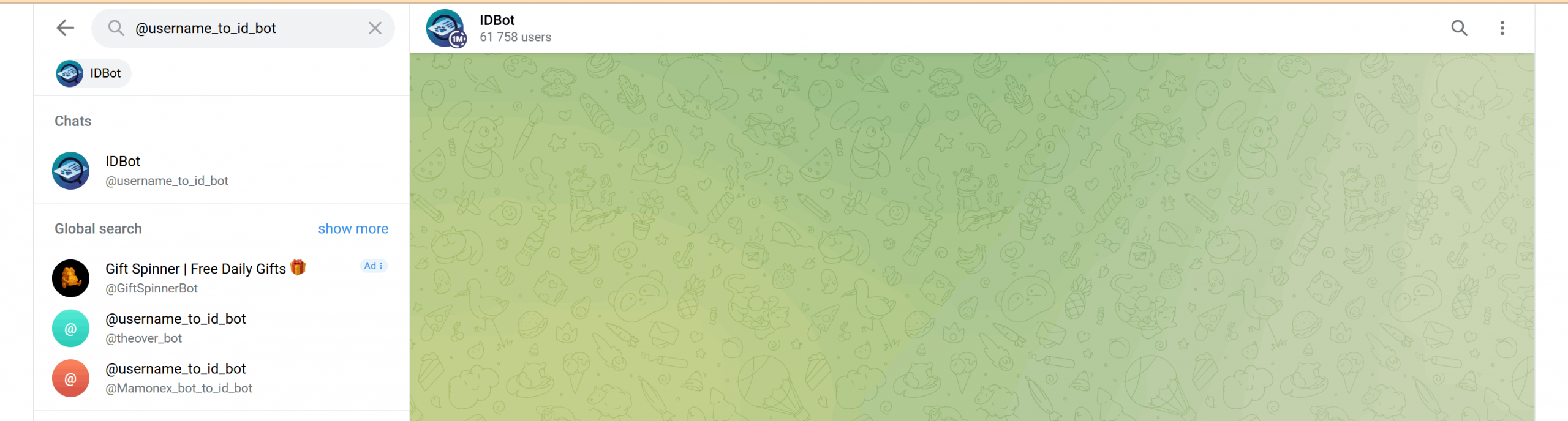
Click on IDBot to open the chat window. Click Start to begin.
Click the keyboard shortcuts button (Keyboard Shortcuts button) and select Channel:
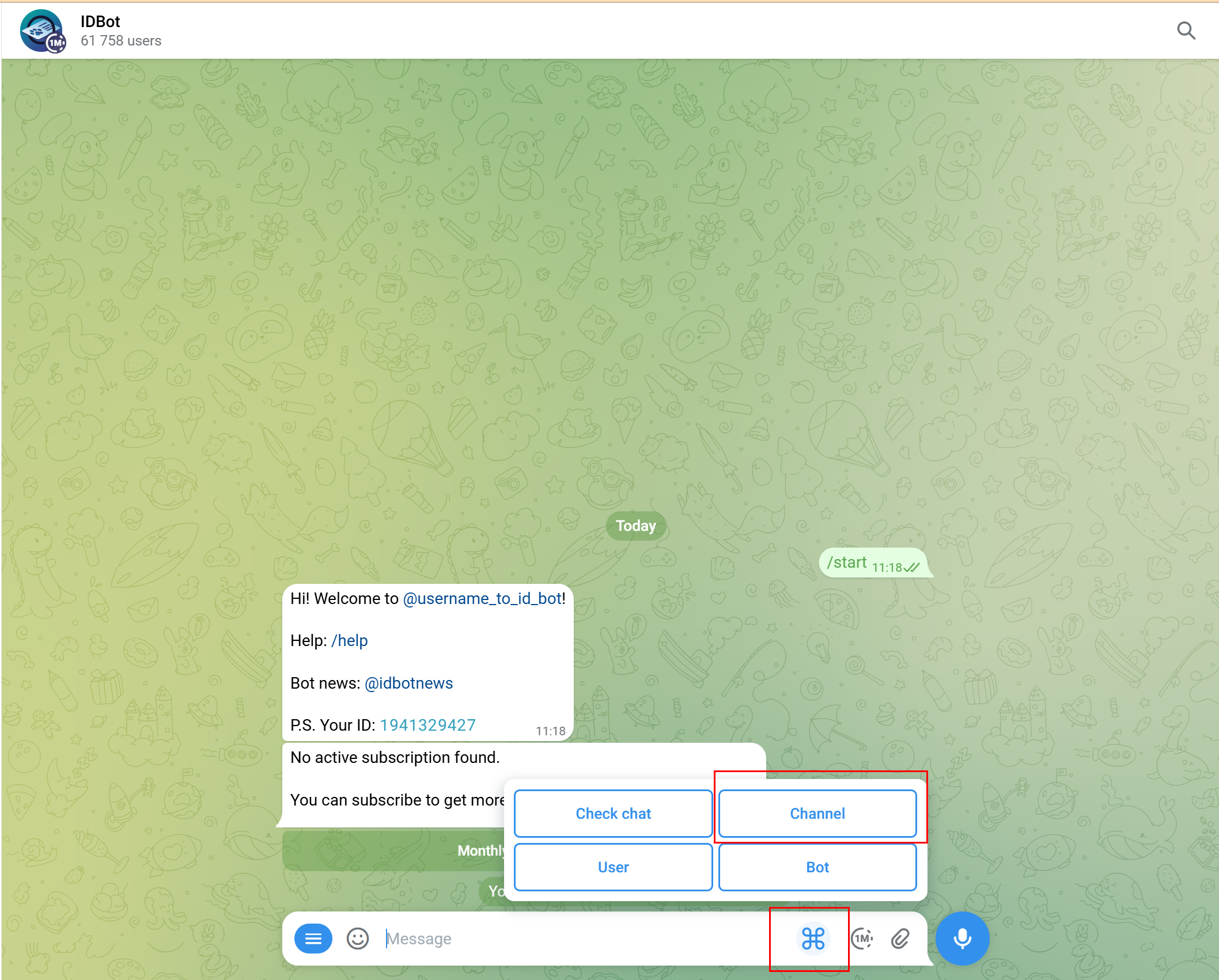
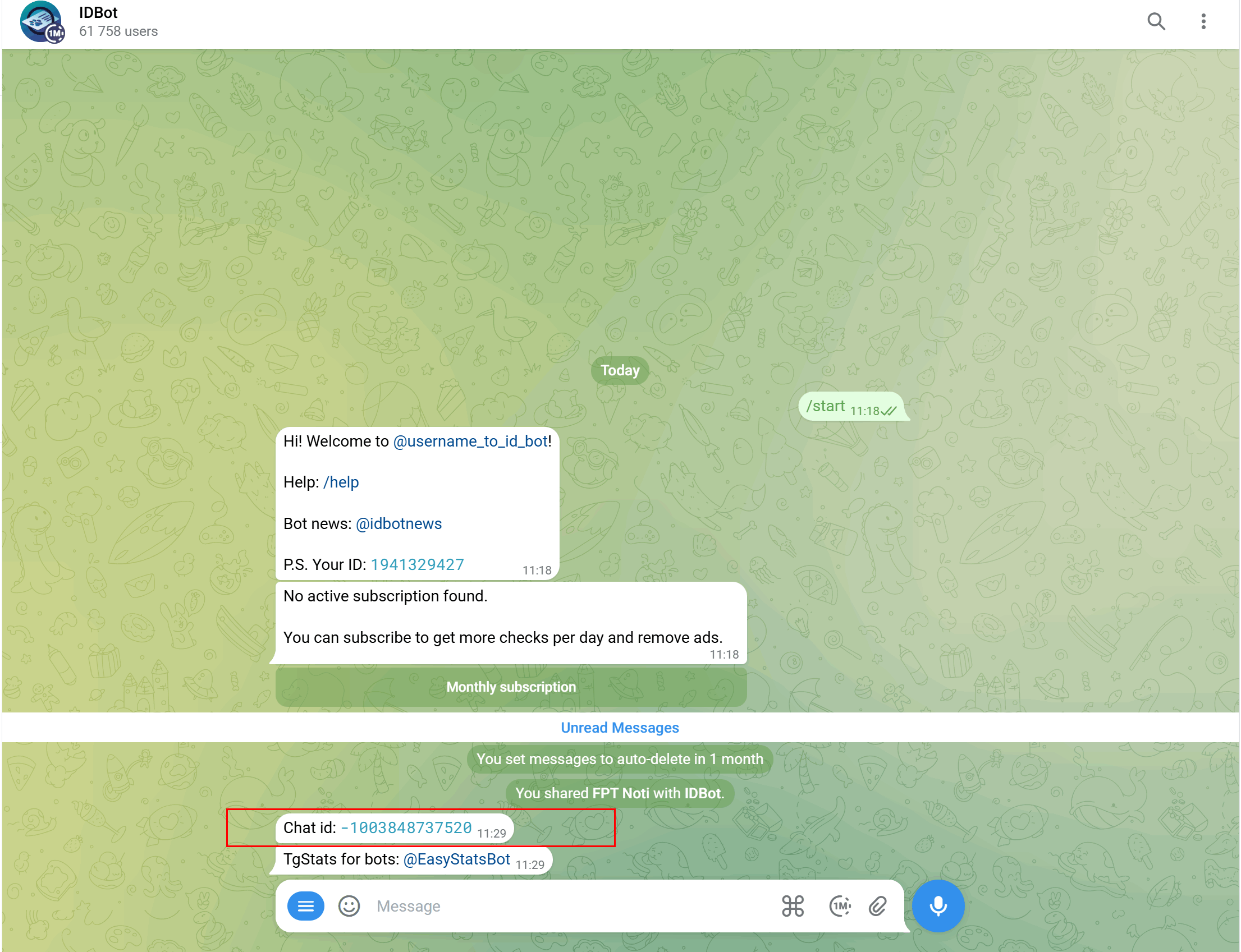
Select the channel just created > click Send to send the request to get the ID information. Telegram will return the channel ID. Save this ID for later use.
Step 5: Register the FDE Notify channel ID in the notification recipient settings on FPT Cloud Portal
Follow the instructions in section 1. Configuring notifications on FPT Cloud Portal. When selecting Telegram as the notification type, at the channel entry step, copy the ID obtained from Step 4 to register.
Note: If you want to add multiple channels, create multiple channels on Telegram following Steps 1 through 4 to obtain the information to register.