Managing database cluster resources
Database cluster resources include Flavor (CPU – RAM) and data disk capacity (Data Disk Size).
The Manage database cluster resources feature allows users to monitor and adjust the resources allocated to a database cluster, including CPU – RAM (Flavor), data disk capacity, and Storage Policy, to meet performance and capacity requirements during operations.
Detailed steps are described in the instructions below.
1. View database resource information
From the menu bar, select Database Platform > select the All Database menu or the menu corresponding to the appropriate database group > click the Cluster ID > select the Resource tab to open the database resource management screen.
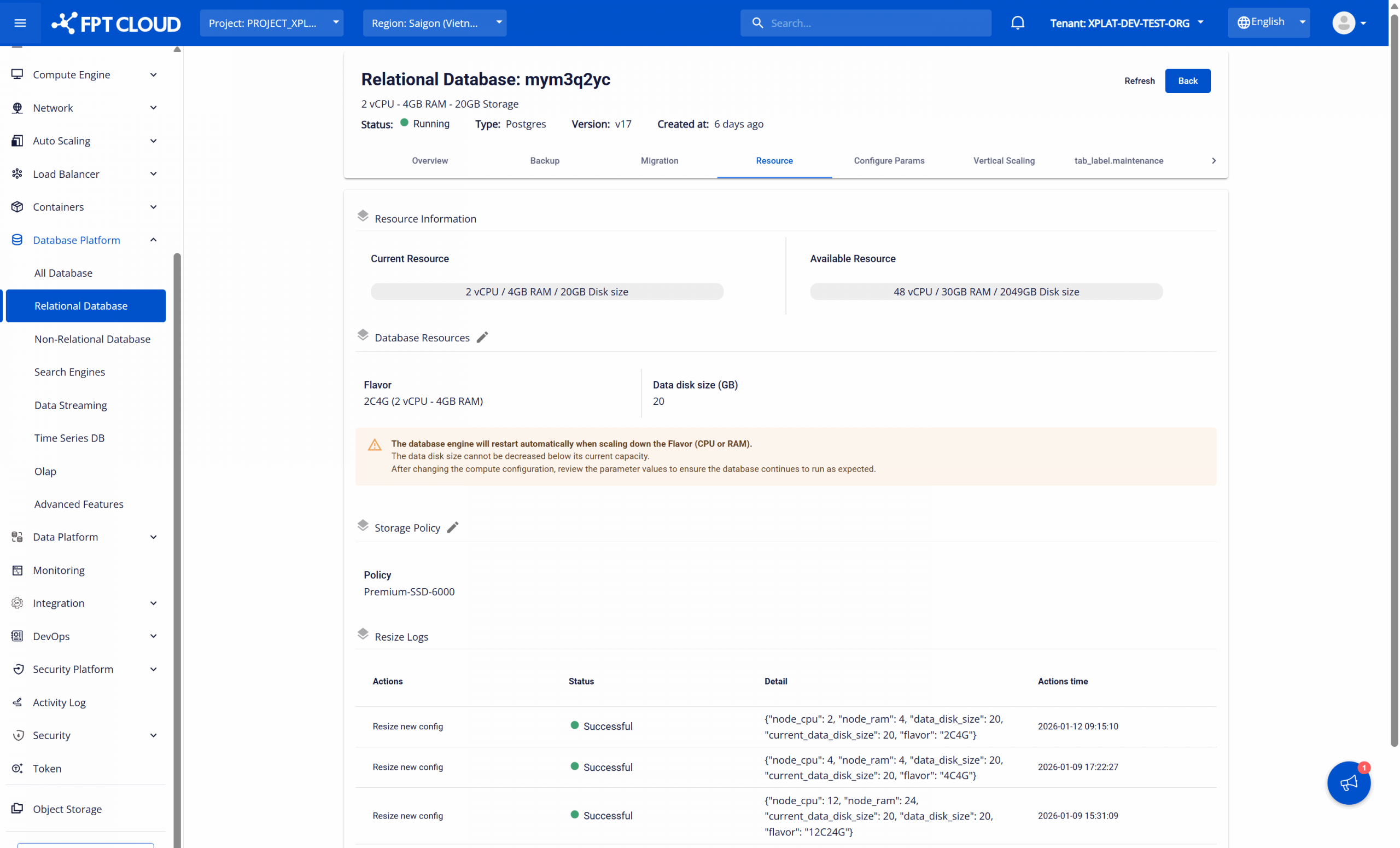
Database resource information is displayed in the Resource Information section with two main parts: Current Resource and Available Resource.
- Current Resource: Displays the current resource configuration of the database, including vCPU, RAM, and data disk capacity.
- Available Resource: Displays the maximum resource quota available for expanding the database, also including: vCPU, RAM, and data disk capacity.
2. Adjust database resources
Users can change the Flavor to increase or decrease compute resources (CPU – RAM) or increase the data disk capacity within the available resource limit. Proceed as follows:
On the database resource management screen, click the resource edit icon (pencil icon) next to the Database Resources section to open the Update Database Resource dialog:
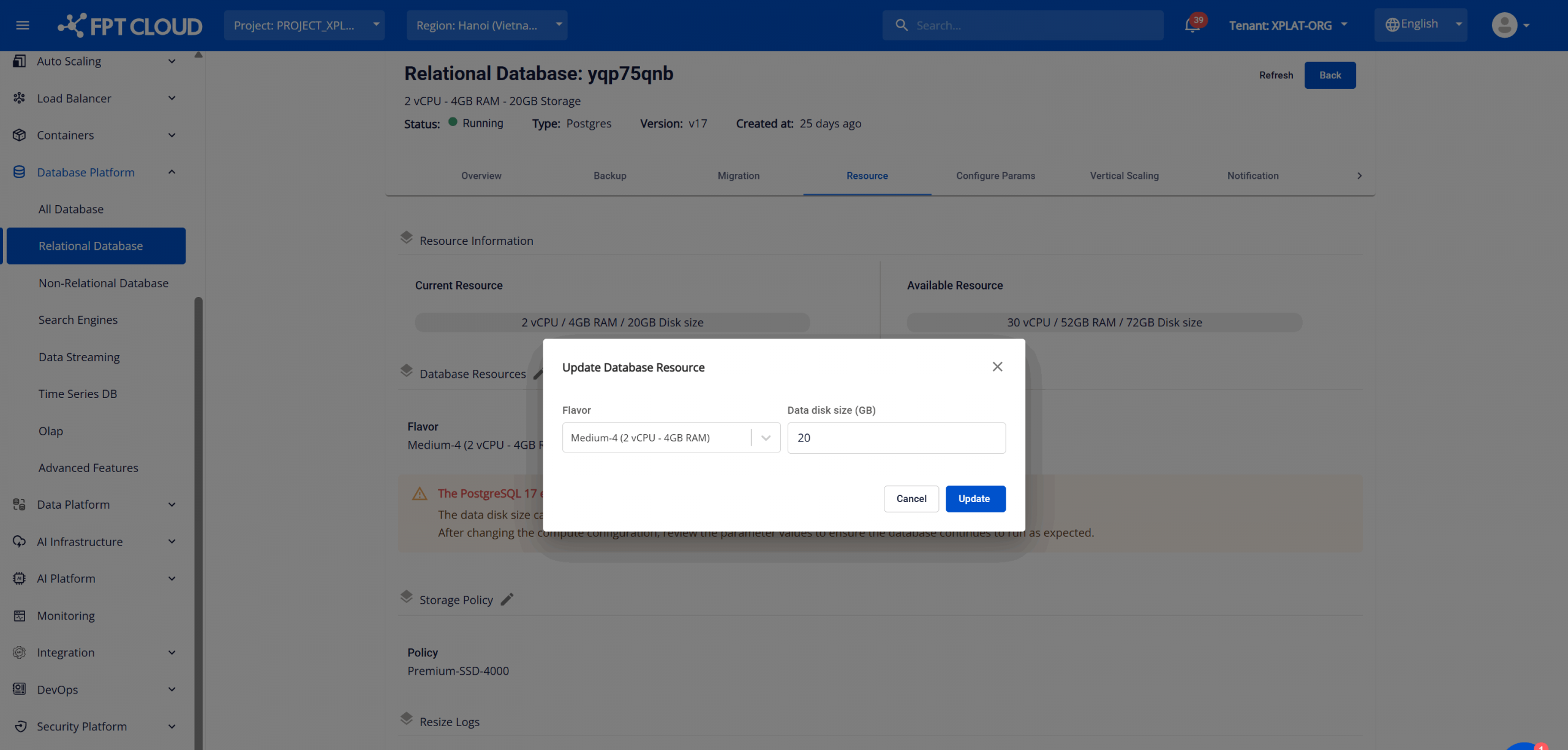
Enter the information to adjust:
- To change the compute configuration (vCPU – RAM), select the desired Flavor from the dropdown list.
- To increase data disk capacity, enter the new value in the Data disk size (GB) field.
Click Update to apply the changes.
After confirmation, the database cluster status will change to "Resizing", and then return to "Running" when the process is complete.
The resource update process may take 5–10 minutes. During this time, please do not perform any other operations on the database cluster.
Important notes:
- Resource limits: Users can only change resources within the Available Resource quota. If the new configuration exceeds this quota, the system will display an error message and will not allow the change.
- Data disk size reduction is not supported: The system does not support reducing data disk capacity. You can only increase disk capacity, not reduce it below the current capacity.
- Service restart (Restart database cluster): When changing compute resource configuration, some database engines require restarting the database cluster to apply the new configuration. The restart may be performed automatically by the system or may require the user to perform it manually after the resource update is complete. The restart process may cause a temporary service disruption. Therefore, users should make these changes during low-traffic periods to minimize impact.
Specifically:
- The system will automatically restart the service when reducing compute resources.
- When increasing compute resources, the system will not restart automatically. For PostgreSQL and ClickHouse specifically, users need to perform an additional restart after the update for the new configuration to take effect.
3. Adjust storage policy
Storage Policy directly affects the I/O performance and operating cost of the database. Users can update this policy as follows:
On the database resource management screen, click the storage policy edit icon (pencil icon) next to the Storage Policy section to open the Update Storage Policy dialog:
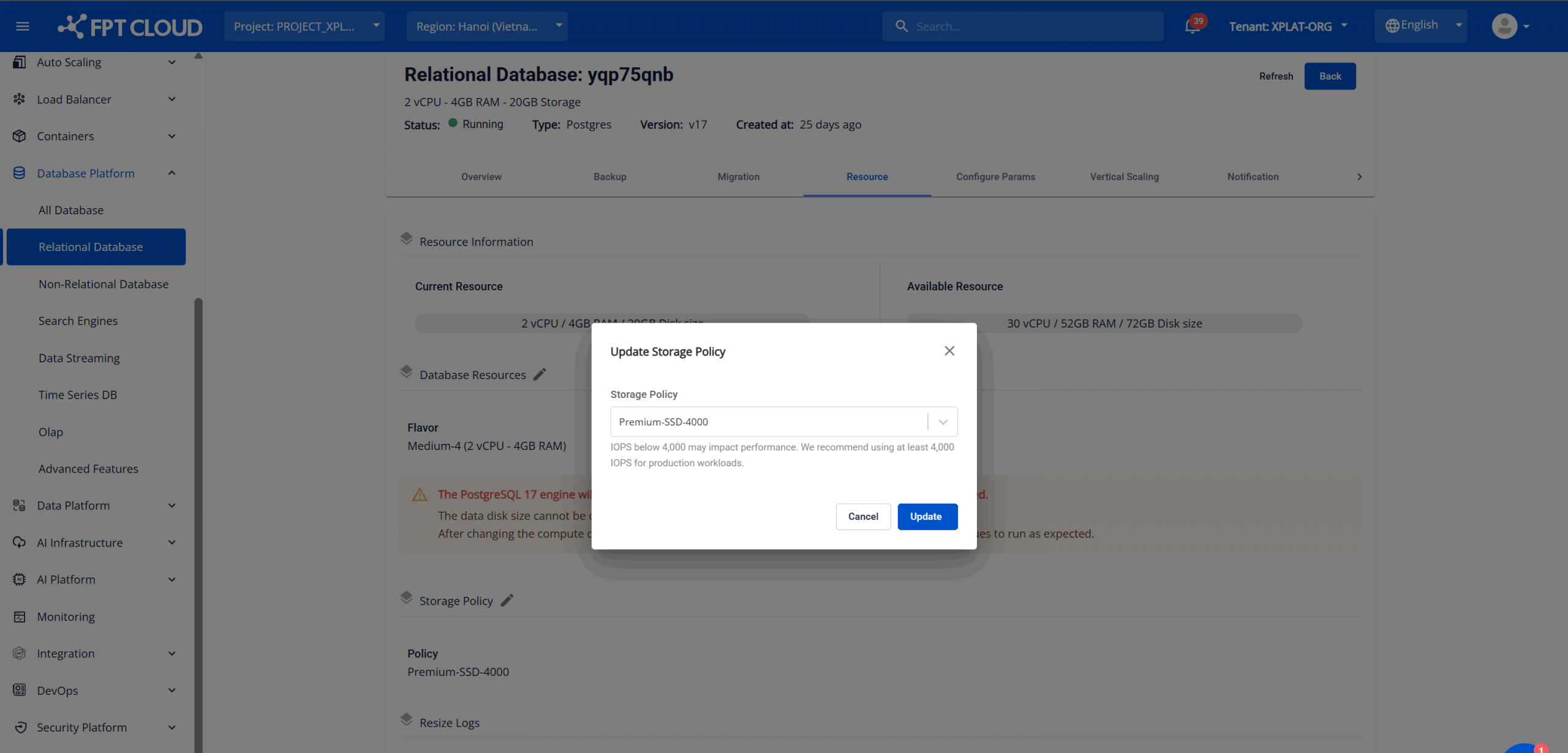
Select the new Storage Policy that suits your needs from the dropdown list and click Update to apply the changes.
The Storage Policy update process may take approximately 5–10 minutes. During this time, do not perform any other operations on the database cluster to avoid affecting the system.
Recommendation: For production environments, use a Storage Policy with a minimum IOPS of 4,000 (4K) to ensure stable performance.