Managing parameters
Overview
In a database management system (DBMS), parameters are configuration values that adjust and control the characteristics and behavior of the system during operation. These parameters can affect performance, memory, timeouts, optimization mechanisms, and other aspects of the database system.
Each parameter can have specific values and can be changed depending on the needs of the database administrator to optimize system operation. Parameters can be either dynamic or static, each with a different application method.
- Dynamic Parameter: These parameters can be changed while the database is running without requiring a system restart.
- Static Parameter: These parameters require the database to be restarted for changes to take effect.
Understanding and properly managing parameters is very important to ensure the system operates stably, efficiently, and meets user requirements.
In FPT Database Engine, the Manage Parameters feature allows users to view and update the configuration parameters of a running database cluster directly on FPT Cloud Portal. When updating a dynamic parameter, the new value will be applied immediately after the operation completes without disrupting the service. When updating a static parameter, the system will automatically restart the database to apply the new value.
Required permissions
| Permission name | Operation type | Description |
|---|---|---|
| manageDatabase:Configuration | Edit | Permission to change database configuration (parameters, scaling configuration, etc.) |
Update instructions
The steps below explain how to update the value of a parameter for a database cluster:
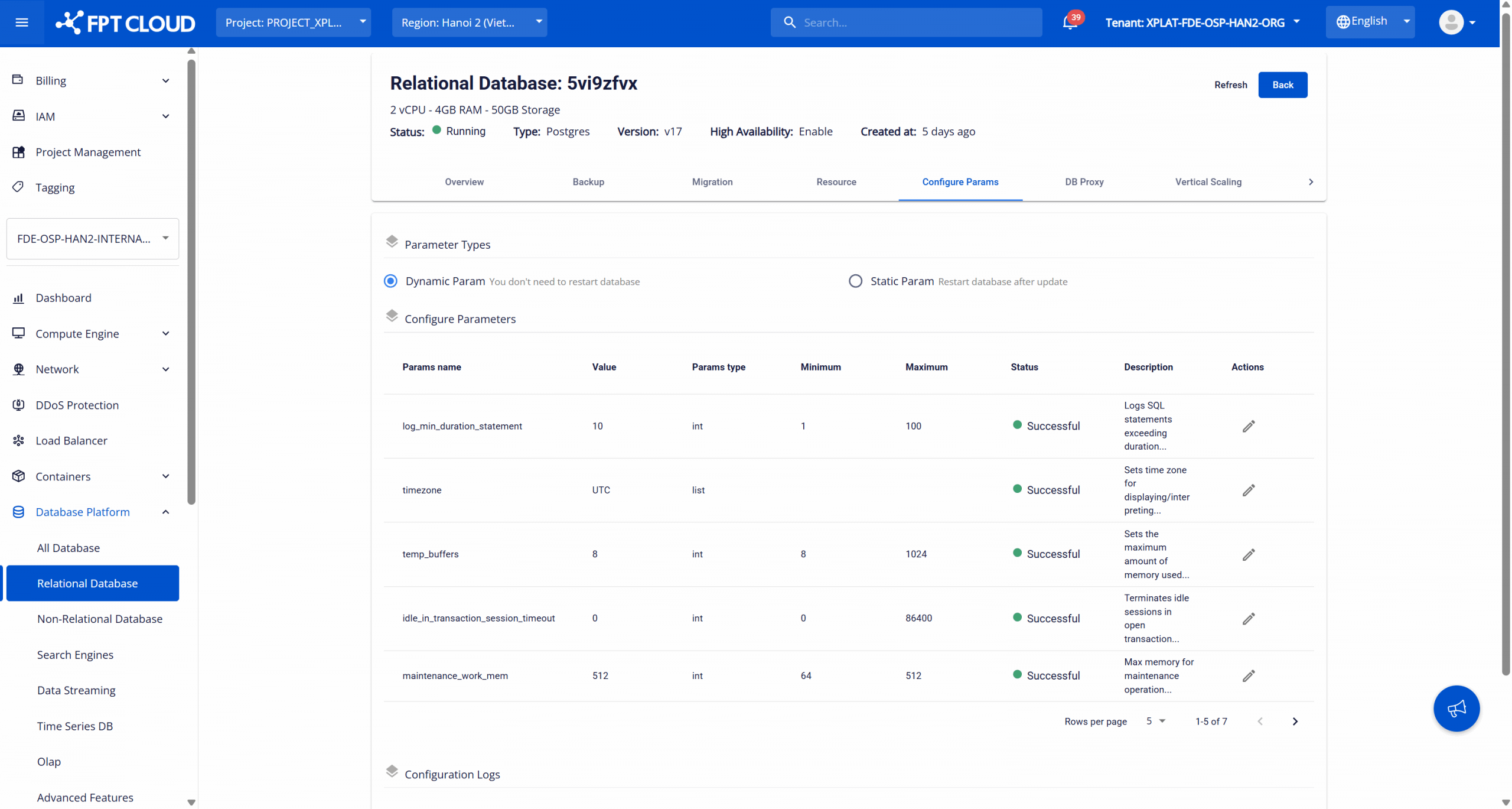
Step 1: Access the parameter management page
Log in to FPT Cloud Console. Open the Database list page > select the database cluster ID to open the detail page > select the Configure Params tab to access the Parameter Management page:
Step 2: Select the parameter type
Select the type of parameter you want to update:
- Dynamic Params
- Static Params
Step 3: Adjust the parameter value
Click the Edit parameter icon (pencil icon) corresponding to the parameter to edit. The Update Configure Params dialog displays the full information of the selected parameter and allows users to update the value within the allowed range.
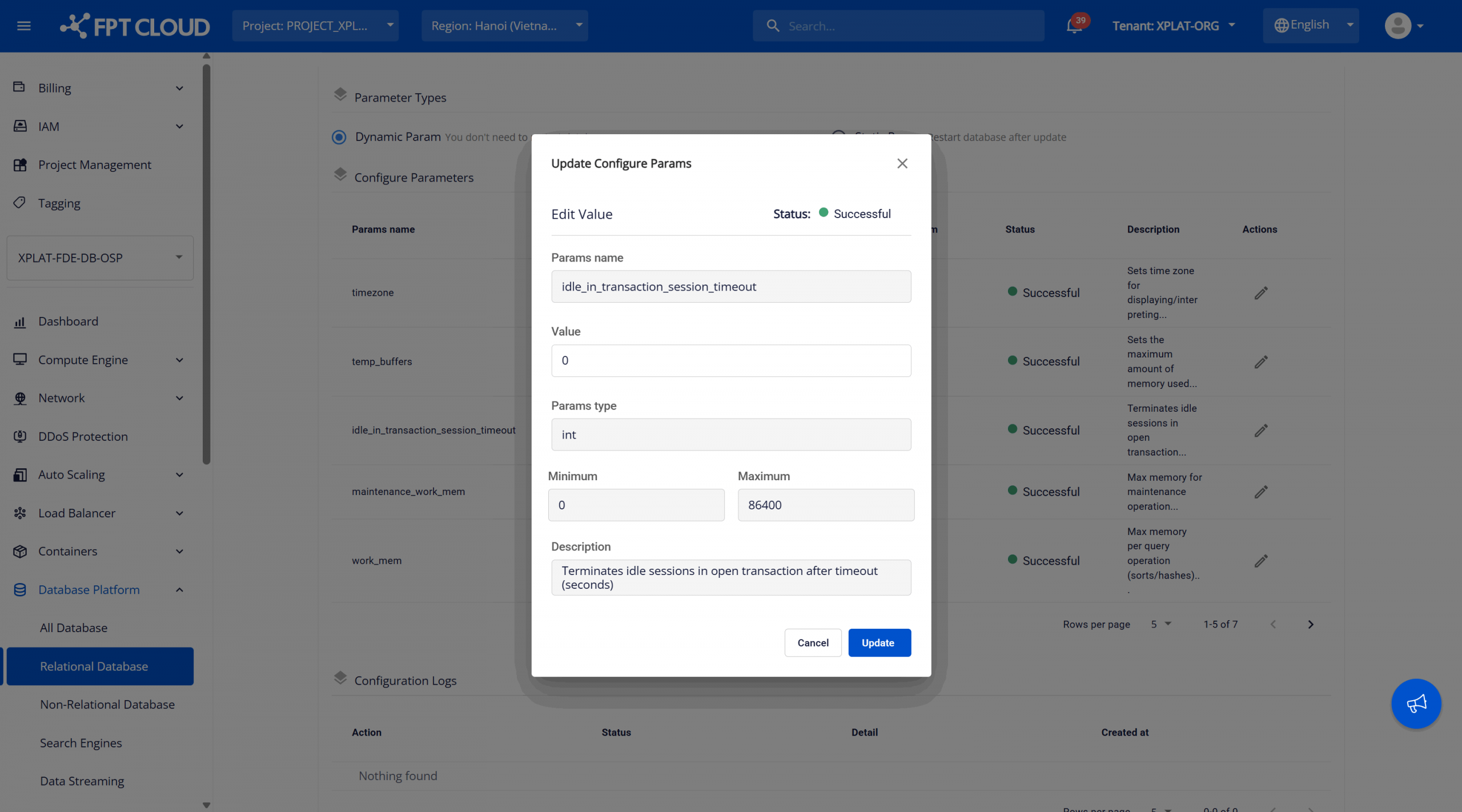
Review the parameter information (data type, minimum and maximum values), then update the value in the "Value" field within the allowed range and click "Update" to apply the changes.
Best practices
- Adjust parameters in small incremental steps and monitor performance.
- Prioritize dynamic parameters to avoid downtime.
- Schedule maintenance when changing static parameters.
- Record changes for audit and operations purposes.