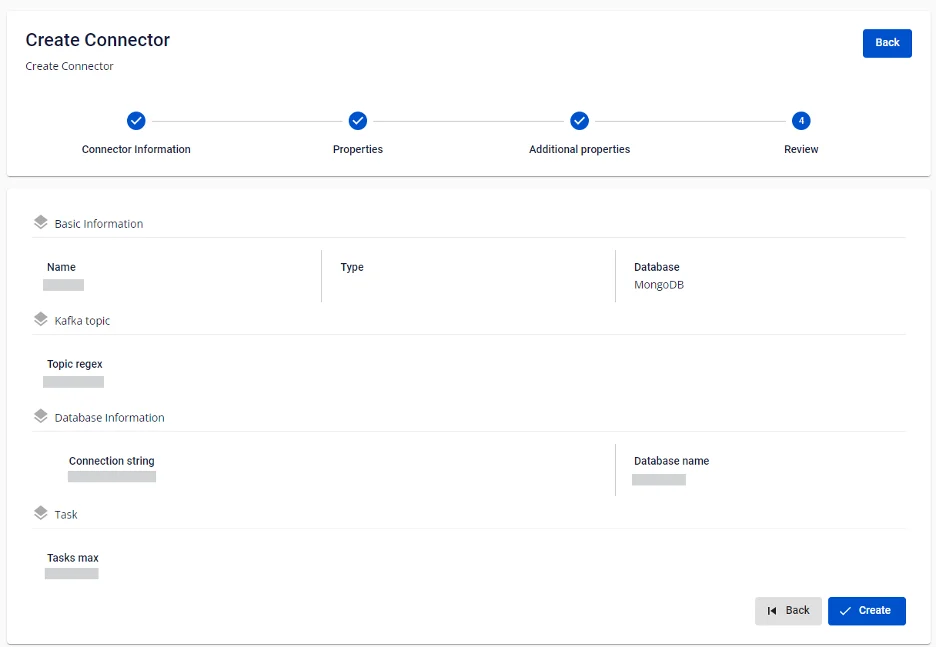
MongoDB Sink Connector
Create a connector with Type: sink, Database: MongoDB
Pre-condition: CDC service status is healthy
Steps to create a connector:
Step 1: From the menu bar, select Data Platform > select Workspace Management > select Workspace name
Step 2: Under My services, select CDC service
Step 3: On the CDC service detail screen > Select the Connectors tab > click Create a connector

Step 4: Fill in the Connector Information screen:
- Name (required): connector name
Note: The connector name may contain lowercase letters a-z or digits 0-9. Spaces are not allowed; use "-" as a separator instead.
-
Type (required): select sink
-
Database (required): select MongoDB

Step 5: Click Next to proceed to the Properties screen
Step 6: Two options are available: From FPT Database Engine, Manual configuration
-
When Manual configuration is selected — fill in:
-
Connection string (required): MongoDB connection uri
-
Database (required): database name
-
Note: The database name may contain lowercase or uppercase letters or digits 1-9. Spaces are not allowed; use '-' or '_' as separators instead.
* **Topics** (required): list of topics

-
When From FPT Database Engine is selected — fill in:
-
Connection string (required): MongoDB connection uri
-
Database (required): database name
-
Note: The database name may contain lowercase or uppercase letters or digits 1-9. Spaces are not allowed; use '-' or '_' as separators instead.
* **Topics** (required): list of topics
-
Converter
-
Converter key: select the key value for the converter
-
Converter key schema enable: select whether to use schema in the Converter key
-
Converter value: select the value for the converter
-
Converter value schema enable: select whether to use schema in the Converter value
-
Step 7: Click Next in the top-right corner to proceed to the Additional Properties screen
Step 8: Fill in the following information:
- Tasks max (required): Number of tasks the connector can run concurrently, if the topics have more than 1 partition

Step 9: Click Next to proceed to the Review screen
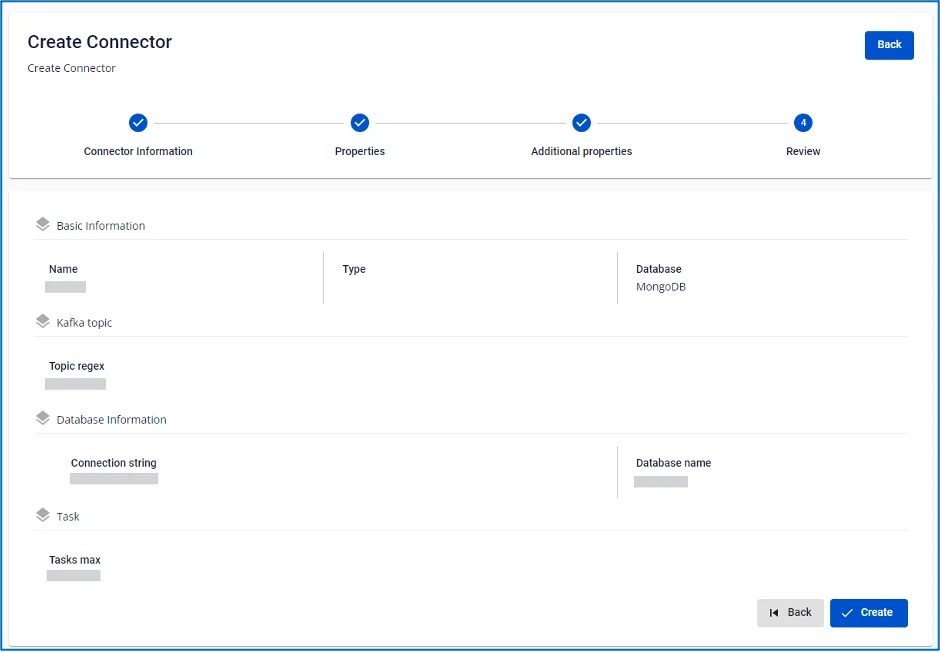
Step 10: Review the information and click Create to complete the connector creation.