SQL Server Source Connector
Create a connector with Type: source, Database: SQL Server
Pre-condition: CDC service status is healthy
The SQL Server source connector is based on the change data capture feature available in SQL Server 2016 and later, Standard or Enterprise edition.
SQL Server Configuration
Prerequisites:
-
Perform tasks under sysadmin privileges.
-
Perform database tasks under db_owner privileges.
1. To perform CDC with SQL Server, you must first enable the SQL Server Agent.
-
For details, refer to Configure SQL Server Agent and Install SQL Server Agent.
-
For FPTCloud services, contact Support for assistance.
2. Create a SQL Server user:
CREATE LOGIN <YOUR_USERNAME> WITH PASSWORD = '<YOUR_PASSWORD>';
        CREATE USER <YOUR_USERNAME> FOR LOGIN <YOUR_USERNAME>;
3. Optional - Create a role for CDC:
- The Connector can use sysadmin or dbowner. However, for a higher level of security, you can create a new role for this user.
CREATE ROLE <YOUR_ROLE_NAME>;
- Add user to Role:
ALTER ROLE <YOUR_ROLE_NAME> ADD MEMBER <YOUR_USERNAME>;
4. Configure CDC on the SQL Server database:
USE <YOUR_DATABASE_NAME>
        GO
        EXEC sys.sp_cdc_enable_db
        GO
5. Configure CDC on the table to listen for changes:
- With the newly created role:
USE <YOUR_DATABASE_NAME>
        GO
        EXEC sys.sp_cdc_enable_table
        @source_schema = N'dbo',
        @source_name   = N'<YOUR_TABLE>',
        @role_name     = N'<YOUR_ROLE_NAME>',
        @supports_net_changes = 0;
        GO
- With sysadmin or db_owner role only:
USE <YOUR_DATABASE_NAME>
        GO
        EXEC sys.sp_cdc_enable_table
        @source_schema = N'dbo',
        @source_name   = N'<YOUR_TABLE>',
        @role_name     = NULL,
        @supports_net_changes = 0;
        GO
6. Verify permissions for the CDC user. Note: Perform this operation with the user created above.
USE <YOUR_DATABASE_NAME>
        EXEC sys.sp_cdc_help_change_data_capture;
        GO
Steps to create a connector:
To create a connector, follow these steps: Step 1: From the menu bar, select Data Platform > Workspace Management > Workspace name
Step 2: Under My services, select CDC service
Step 3: On the CDC service detail screen > Select the Connectors tab > Click Create a connector

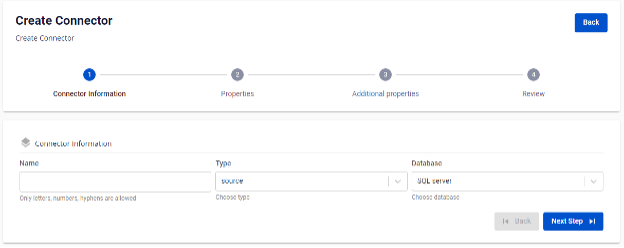
Step 4: Enter the information on the Connector Information screen:
- Name (required): connector name
Note: The connector name may contain lowercase letters a-z or digits 0-9. Spaces are not allowed; use "-" instead of a space.
-
Type (required): select source
-
Database (required): select SQL Server
Step 5: Click Next to proceed to the Properties screen
Enter the Properties information
-
When selecting Manual configuration - fill in the following fields:
-
Host name (required): Hostname or IP of SQL Server
-
Port (required): SQL Server port, default:
1433. -
Database name (required): The database the Connector will listen to for data changes
-
Username (required): Username used by the Connector
-
Password (required): Password used by the Connector
-
Topics (required): List of topics the Connector will consume and sink data to the target database, separated by ","
-

-
When selecting From Database Engine - fill in the following fields:
-
Database name (required): Database name
-
Host name (required): Hostname or IP of SQL Server
-
Port (required): SQL Server port, default:
1433. -
Database name (required): The database the Connector will listen to for data changes
-
Username (required): Username used by the Connector
-
Password (required): Password used by the Connector
-
Topics (required): List of topics the Connector will consume and sink data to the target database, separated by ","
-

Click Test connection to verify the connection from the Workspace to the entered Database
Step 6: Click Next to proceed to the Additional Properties screen
-
Enter the following information:
-
Mode (required): Connector behavior - select from the following modes:
-
Initial (default): The Connector will snapshot all existing data in the tables, then continue capturing data changes on these tables
-
Initial_only: The Connector will only snapshot all existing data in the tables, then stop listening to data change events on the tables
-
Never: The Connector will not snapshot existing data in the tables; it will only listen to data change events on the tables
-
Schema (optional): A namespace used to group tables with common characteristics for easier management.
-
Table (optional): Name of a table within the schema
-
Column (optional): Name of a data column to retrieve from the table
-

Step 7: Click Next to proceed to the Review screen

Step 8: Review the information and click Create to complete the connector creation