PostgreSQL Sink Connector
Create a connector with Type: sink, Database: PostgreSQL
Pre-condition: CDC service status is healthy
PostgreSQL Configuration - Grant permissions on schema
GRANT USAGE ON SCHEMA public TO username;
    GRANT CREATE ON SCHEMA public TO username;
Steps to create a connector:
Step 1: From the menu bar, select Data Platform > Workspace Management > Workspace name
Step 2: Under My services, select CDC service
Step 3: On the CDC service detail screen > Select the Connectors tab > Click Create a connector

Step 4: Enter the information on the Connector Information screen:
- Name (required): connector name
Note: The connector name may contain lowercase letters a-z or digits 0-9. Spaces are not allowed; use "-" instead of a space.
-
Type (required): select sink
-
Database (required): select PostgreSQL

Step 5: Click Next to proceed to the Properties screen
Enter the Properties information
-
When selecting Manual configuration - fill in the following fields:
-
Database name (required): select database
-
Host Name (required): Hostname or IP of PostgreSQL
-
Port ( required): PostgreSQL server port, default:
5432. -
Database name (required): Target database where the Connector will sink data
-
Username (required): Username used by the Connector
-
Password (required): Password used by the Connector
-
Click the
(+)button to retrieve the list of topics the Connector will consume and sink data to the target database, separated by ","
-
Note: Maximum of 100 topics can be retrieved

-
When selecting From Database Engine - fill in the following fields:
-
Host Name (required): Hostname or IP of PostgreSQL
-
Port (required): PostgreSQL server port, default:
5432. -
Database name (required): Target database where the Connector will sink data
-
Username (required): Username used by the Connector
-
Password (required): Password used by the Connector
-
Click the (+) button to retrieve the list of topics the Connector will consume and sink data to the target database, separated by ","
-
Note: Maximum of 100 topics can be retrieved

-
Click Test connection to verify the connection from the Workspace to the entered Database
-
Converter
-
Converter key: select the key value for the converter
-
Converter key schema enable: select whether or not to use a schema in the Converter key
-
Converter value: select the value for the converter
-
Converter value schema enable: select whether or not to use a schema in the Converter value
-
Step 6: Click Next to proceed to the Additional Properties screen
Enter the following information:
-
Timezone: select the appropriate timezone for the data from the source database
-
Task max: number of tasks to process simultaneously
-
Type: select the type of source Database
-
Name: schema name
-
Create new table: default is ON
-
Enable filter errors: default is OFF
Note: Check Enable filter error to filter table names with errors
-
Mode (required): The Connector's behavior when it cannot process a message
-
None: The Connector will skip messages that cannot be sunk to the database
-
All: Error messages will be sent to the specified topic
-

Step 7: Click Next to proceed to the Review screen
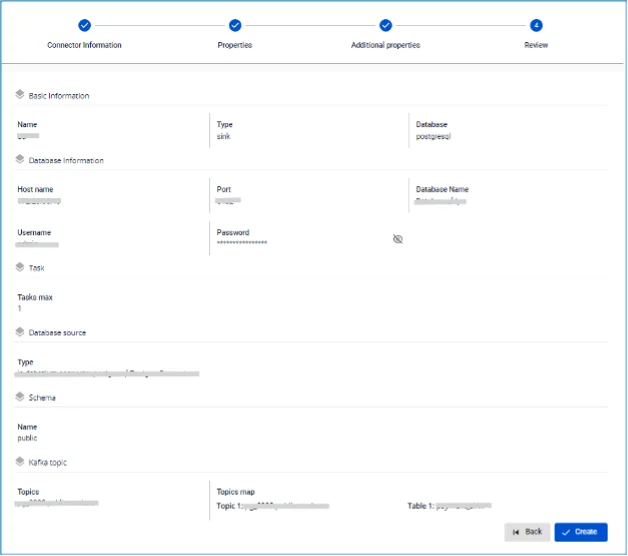
Step 8: Review the information and click Create to complete the connector creation.