PostgreSQL Source Connector
Create a connector: Type is source, Database is PostgreSQL
Pre-condition: CDC service status is Healthy.
PostgreSQL Configuration
1. pgoutput requires changing the wal_level configuration of the Postgres cluster to logical. CDC must also be performed on the primary, rather than hot or warm replicas.
- To check the configuration:
SHOW wal_level;
- To apply the configuration change, run the following command on Postgres and restart the service after the change:
ALTER SYSTEM SET wal_level = 'logical';
2. PostgreSQL source connector requires at minimum the REPLICATION role.
- If using a SuperUser account, proceed to step 5.
- To check whether a user is a SuperUser:
SELECT rolsuper FROM pg_roles WHERE rolname = '<USER_NAME>';
- Otherwise, create a user with the REPLICATION role:
CREATE USER <USER_NAME> WITH REPLICATION LOGIN PASSWORD '<PASSWORD>';
-
Create a Publication:
- Note: Perform the following operations with superuser privileges. For
<PUBLICATION_NAME>, FPTCloud only accepts strings containing lowercase letters. - Create a Publication for all tables:
- Note: Perform the following operations with superuser privileges. For
CREATE PUBLICATION <PUBLICATION_NAME> FOR ALL TABLES;
* Check existing Publications:
SELECT * FROM pg_publication;
* Create a Publication for specific tables:
CREATE PUBLICATION <PUBLICATION_NAME> FOR TABLE <SCHEMA1>.<TABLE1>, <SCHEMA2>.<TABLE2>, ...;
* Add tables to the publication:
ALTER PUBLICATION <PUBLICATION_NAME> ADD TABLE <SCHEMA1>.<TABLE1>, <SCHEMA2>.<TABLE2>, ...;
* Remove tables from the publication:
ALTER PUBLICATION <PUBLICATION_NAME> DROP TABLE <SCHEMA1>.<TABLE1>, <SCHEMA2>.<TABLE2>, ...;
* Drop a Publication:
DROP PUBLICATION <PUBLICATION_NAME>;
-
Grant SELECT permissions on tables for the user being used:
- Grant SELECT on a single table:
GRANT SELECT ON TABLE '<SCHEMA_NAME>.<TABLE_NAME>' TO <USER_NAME>;
* Or grant permissions for all tables in a schema:
DO $$
           DECLARE
            table_record RECORD;
           BEGIN
            FOR table_record IN
                SELECT table_name
                FROM information_schema.tables
                WHERE table_schema = '<SCHEMA_NAME>' AND table_type = 'BASE TABLE'
            LOOP
                EXECUTE 'GRANT SELECT ON TABLE <SCHEMA_NAME>."' || table_record.table_name || '" TO <USER_NAME>;';
            END LOOP;
           END $$;
-
Change the REPLICA IDENTITY level for tables that require Capture Data Change.
- This configuration change ensures that data change events contain complete information both before and after the change:
ALTER TABLE your_schema_name.your_table_name REPLICA IDENTITY FULL;
* Or apply the change to all tables in a schema:
DO $$
           DECLARE
            table_record RECORD;
           BEGIN
            FOR table_record IN
                SELECT table_name
                FROM information_schema.tables
                WHERE table_schema = '<SCHEMA_NAME>' AND table_type = 'BASE TABLE'
            LOOP
                EXECUTE 'ALTER TABLE <SCHEMA_NAME>."' || table_record.table_name || '" REPLICA IDENTITY FULL;';
            END LOOP;
           END $$;
-
The Connector will automatically create or reuse an existing replication_slot with the slot.name value entered from the UI , to listen to changes from the wal_log (write-ahead log).
- Check the maximum number of replication_slots:
show max_replication_slots;
* Check current replication_slots:
SELECT slot_name, plugin, slot_type, database, active FROM pg_replication_slots;
* To remove an inactive replication_slot:
SELECT pg_drop_replication_slot('<REPLICATION_SLOT_NAME>');
-
When deleting a connector, remove its replication_slot and publication:
- Drop the replication_slot:
SELECT pg_drop_replication_slot('<REPLICATION_SLOT_NAME>');
* Drop the publication:
DROP PUBLICATION <PUBLICATION_NAME>;
- To change the max_replication_slots configuration , modify this setting in the postgres.conf file.
Steps to create a connector:
To create a connector, follow these steps:
Step 1: From the menu bar, select Data Platform > Workspace Management > Workspace name.
Step 2: Under My services, select CDC service
Step 3. On the CDC service detail screen, select the Connectors tab and click Create a connector.

Step 4 Enter the information on the Connector Information screen:
-
Name (required): Connector name. Note: The connector name may contain lowercase letters a-z or digits 0-9. Spaces are not allowed; use "-" instead of a space.
-
Type (required): Select source.
-
Database (required): Select PostgreSQL.

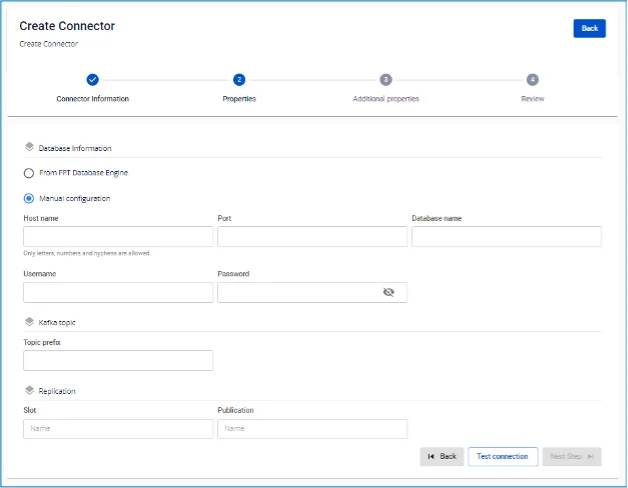
Step 5: Click Next to proceed to the Properties screen and enter the following information:
-
When selecting From FPT Database Engine: - fill in the following fields:
-
Database (required): Select Database.
-
Host Name (required): Hostname or IP of the Postgres server.
-
Port (required): Postgres server port, default is 5432.
-
Database name (required): The database the Connector will listen to for data changes.
-
Username (required): Postgres user used by the Connector.
-
Password (required): Password.
-
Topic prefix (required): When data changes, change events will be produced to Kafka topics. Topic names follow the format [topic.prefix].[schema_name].[table_name]
-
Example: topic prefix: syncdata, schema: inventory, tables: customer, order, item. The Connector will record data changes to Kafka topics: syncdata.inventory.customer, syncdata.inventory.order, syncdata.inventory.item)
* **Slot (required):** Replication slot used by the connector; value must contain only lowercase letters.

* **Publication (required):** Publication used by the connector; value must contain only lowercase letters.
-
When selecting Manual configuration - fill in the following fields:
-
Host Name (required): Hostname or IP of the Postgres server
-
Port (required): Postgres server port, default is 5432
-
Database name (required): The database the Connector will listen to for data changes
-
Username (required): Postgres user used by the Connector
-
Password (required): Password
-
Topic prefix (required): When data changes, change events will be produced to Kafka topics. Topic names follow the format [topic.prefix].[schema_name].[table_name]. Example: topic prefix: syncdata, schema: inventory, tables: customer, order, item. The Connector will record data changes to Kafka topics: syncdata.inventory.customer, syncdata.inventory.order, syncdata.inventory.item)
-
Slot (required): Replication slot used by the connector; value must contain only lowercase letters
-
Publication (required): Publication used by the connector; value must contain only lowercase letters
-
* **Enable incremental snapshot** (optional): Checkbox to enable the incremental snapshot feature for the Connector

  * Only displayed for source connectors: **MySQL, MariaDB, PostgreSQL**
    * When this checkbox is checked and "Test connection" is clicked, the system will verify:
    * Whether the database has sufficient permissions to perform a snapshot (INSERT, CREATE TABLE permissions are required for PostgreSQL/MySQL)
    * If the database lacks permissions, a detailed error message will be displayed
    * If the database has sufficient permissions, "Test connection successfully" will be displayed
    * After the Connector is created successfully with this checkbox checked:
    * The Connector will have the incremental snapshot management feature
    * The "Snapshot Status" column will be displayed in the List Connector screen
    * The following operations can be performed: Execute, Pause, Resume, Stop snapshot via the Actions menu
Click Test connection to verify the connection from the Workspace to the entered Database
Step 6: Click Next to proceed to the Additional Properties screen and enter the following information:
-
Mode (required): Connector behavior. Select from the following modes:
-
Initial (default): The Connector will snapshot all existing data in the tables, then continue capturing data changes on these tables
-
Initial_only: The Connector will only snapshot all existing data in the tables, then stop listening to data change events on the tables
-
No_data: The Connector will not snapshot existing data in the tables; it will only listen to data change events on the tables
-

Click '+' to retrieve schema and table information
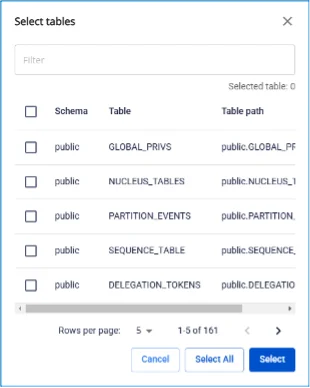
Maximum selection limit is 100 tables
Step 7: Click Next to proceed to the Review screen and verify the information.
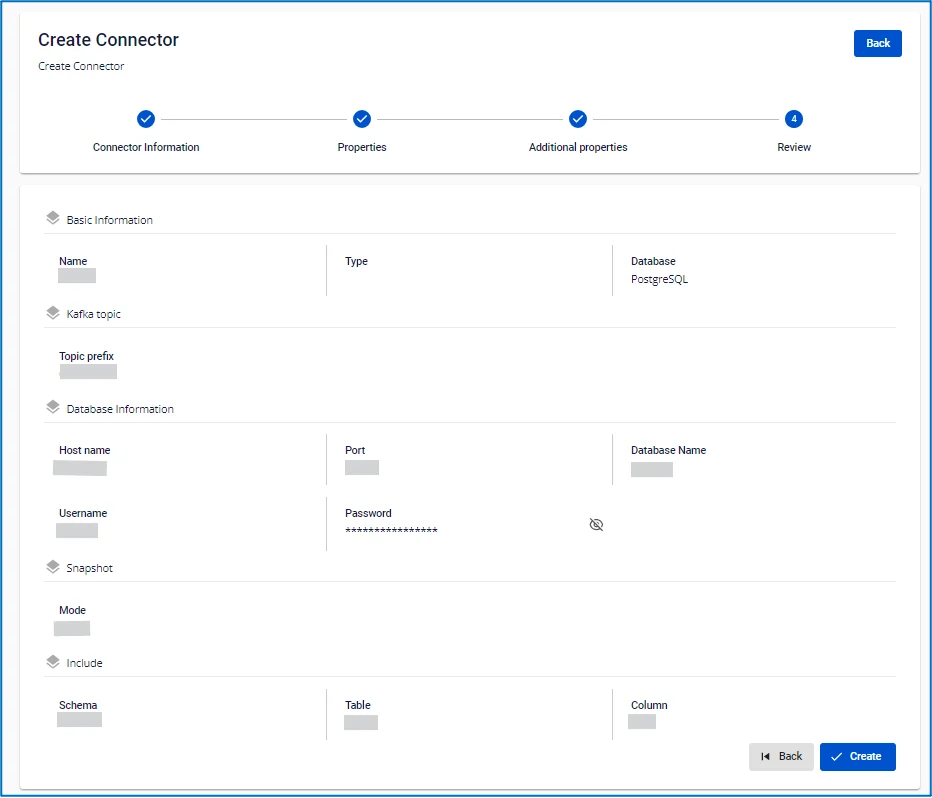
Step 8: Review the information and click Create to complete the connector creation.