Oracle Source Connector
Create Oracle source connector
Use case: Type is source, Database is Oracle.
Pre-condition: CDC service status must be healthy.
The Oracle Source connector uses Oracle LogMiner to read redo logs and capture data changes (CDC). The connector supports 3 snapshot modes:
- initial: Snapshot all existing data, then continue capturing changes.
- initial_only: Snapshot existing data only, without capturing changes.
- no_data: No snapshot; only capture changes from the time the connector starts.
Oracle Database Configuration (required before creating the connector)
1. Create an Oracle user for CDC:
CREATE USER cdc_user IDENTIFIED BY <PASSWORD>;
2. The Oracle source connector requires the following permissions:
GRANT CREATE SESSION TO cdc_user;
        GRANT SELECT ON V$DATABASE TO cdc_user;
        GRANT FLASHBACK ANY TABLE TO cdc_user;
        GRANT SELECT ANY TABLE TO cdc_user;
        GRANT SELECT_CATALOG_ROLE TO cdc_user;
        GRANT EXECUTE_CATALOG_ROLE TO cdc_user;
        GRANT SELECT ANY TRANSACTION TO cdc_user;
        GRANT LOGMINING TO cdc_user;
Or grant permissions on a specific schema:
GRANT SELECT ON <SCHEMA_NAME>.<TABLE_NAME> TO cdc_user;
3. Enable Archive Log Mode: Check whether Archive Log is already enabled:
SELECT LOG_MODE FROM V$DATABASE;
The result must be: ARCHIVELOG. If the result is NOARCHIVELOG, enable Archive Log Mode:
SHUTDOWN IMMEDIATE;
        STARTUP MOUNT;
        ALTER DATABASE ARCHIVELOG;
        ALTER DATABASE OPEN;
Verify:
SELECT LOG_MODE FROM V$DATABASE;
4. Enable Supplemental Logging:
Oracle CDC requires Supplemental Logging to capture complete change information.
Enable Supplemental Logging at the database level:
ALTER DATABASE ADD SUPPLEMENTAL LOG DATA;
Enable Supplemental Logging for each table that requires CDC:
ALTER TABLE <SCHEMA_NAME>.<TABLE_NAME> ADD SUPPLEMENTAL LOG DATA (ALL) COLUMNS;
Check Supplemental Logging:
SELECT SUPPLEMENTAL_LOG_DATA_MIN, SUPPLEMENTAL_LOG_DATA_PK,
        SUPPLEMENTAL_LOG_DATA_UI, SUPPLEMENTAL_LOG_DATA_FK,
        SUPPLEMENTAL_LOG_DATA_ALL
        FROM V$DATABASE;
5. Verify LogMiner permissions:
Verify the user has access to LogMiner:
SELECT * FROM DBA_ROLE_PRIVS WHERE GRANTEE = 'CDC_USER';
Test LogMiner query:
SELECT * FROM V$LOGMNR_CONTENTS WHERE ROWNUM <= 10;
To create a connector, follow these steps: Step 1: From the menu bar, select Data Platform > Workspace Management > Workspace name
Step 2: Under My services, select CDC service
Step 3: On the CDC service detail screen > Select the Connectors tab > Click Create a connector
Step 4: Enter the information on the Connector Information screen:
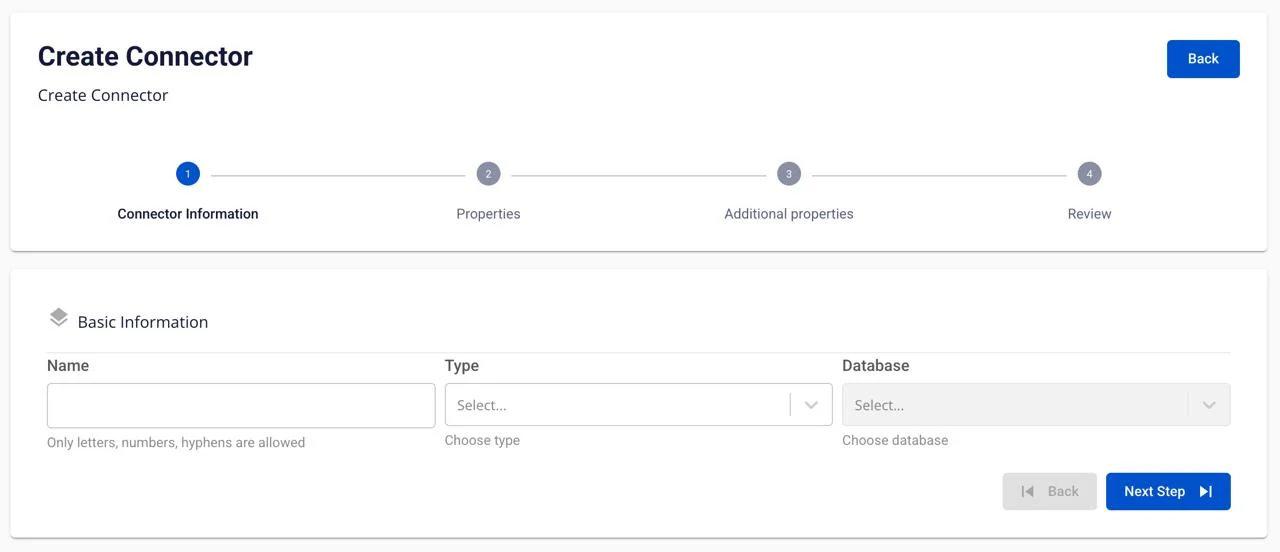
- Name (required): connector name
Note: The connector name may contain characters a-z, A-Z, 0-9, and hyphens "-". Special characters and spaces are not allowed.
-
Type (required): select source
-
Database (required): select Oracle
Step 5: Click Next to proceed to the Properties screen
Enter the Properties information:
When selecting Manual configuration
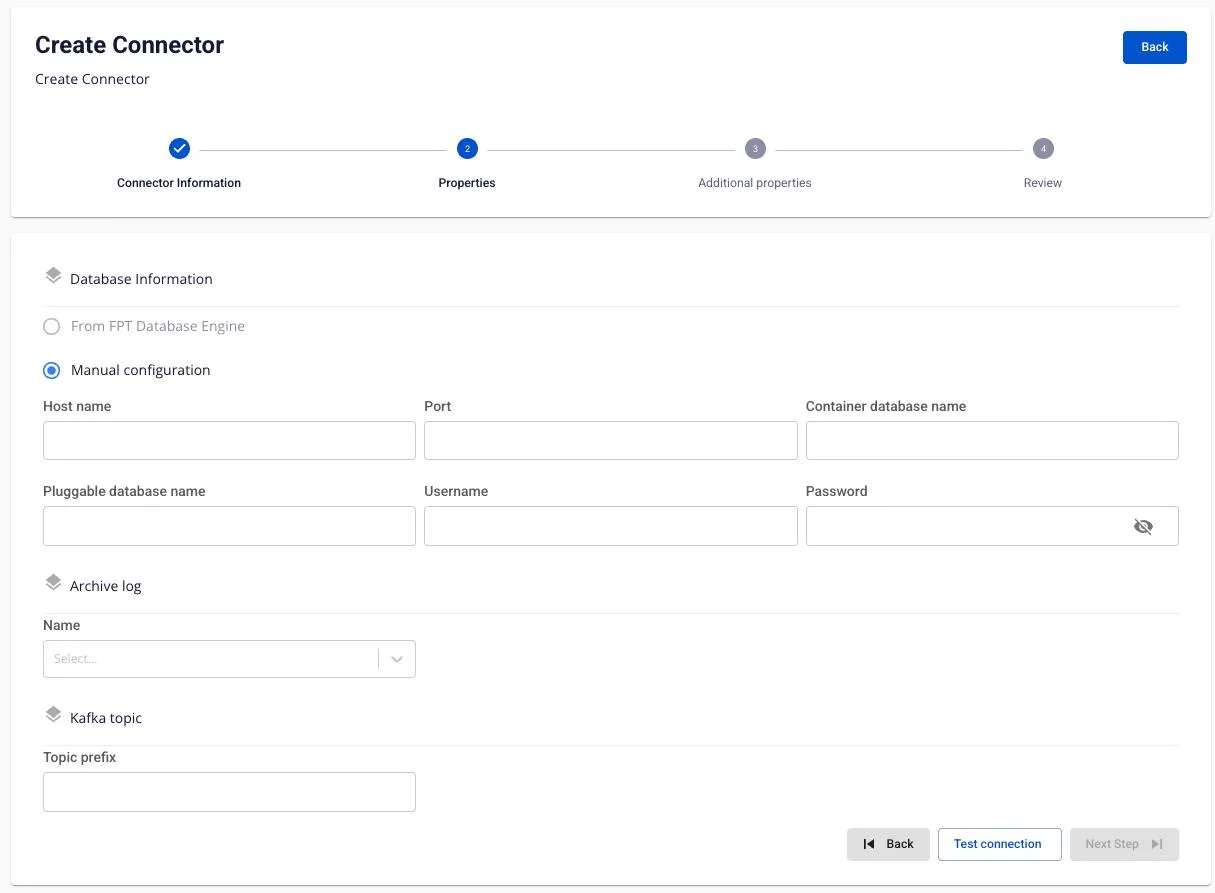
Fill in the following fields:
-
Host name (required): Hostname or IP of the Oracle Database
-
Port (required): Oracle server port, default: '1521'
-
Container database name: Container database name (CDB) - applicable for Oracle 12c and above with Multitenant architecture
-
Pluggable database name (required): Pluggable database name (PDB) - the actual database containing the data
-
Username (required): Username with LogMiner privileges (e.g., cdc_user)
-
Password (required): User password
-
Archive log (required): Select Archive Log mode (must be ARCHIVELOG)
-
Topic prefix (required): Prefix for Kafka topics. Topic format:
<topic_prefix>.<schema>.<table>
Note: After filling in all the information, you must click Test connection to verify the connection. You can only proceed to the next step after a successful connection test.
Step 6: Click Next to proceed to the Additional properties screen
Enter the Additional properties information:
-
Mode (required): Select snapshot mode
-
initial: The connector will snapshot all existing data in the tables, then continue capturing data changes via LogMiner
-
initial_only: The connector will snapshot all existing data in the tables only, then stop (no change capture)
-
no_data: The connector will not snapshot existing data; it will only capture changes from the time it starts
-
-
Schema: Select the database schema (multiple selections allowed)
-
Table: Select the tables for CDC (multiple selections allowed)
-
Column: Select the columns for CDC (default is all: .*)
Use the + button to add tables to the CDC list. Use the delete icon to remove tables from the list. Step 7: Click Next to proceed to the Review screen
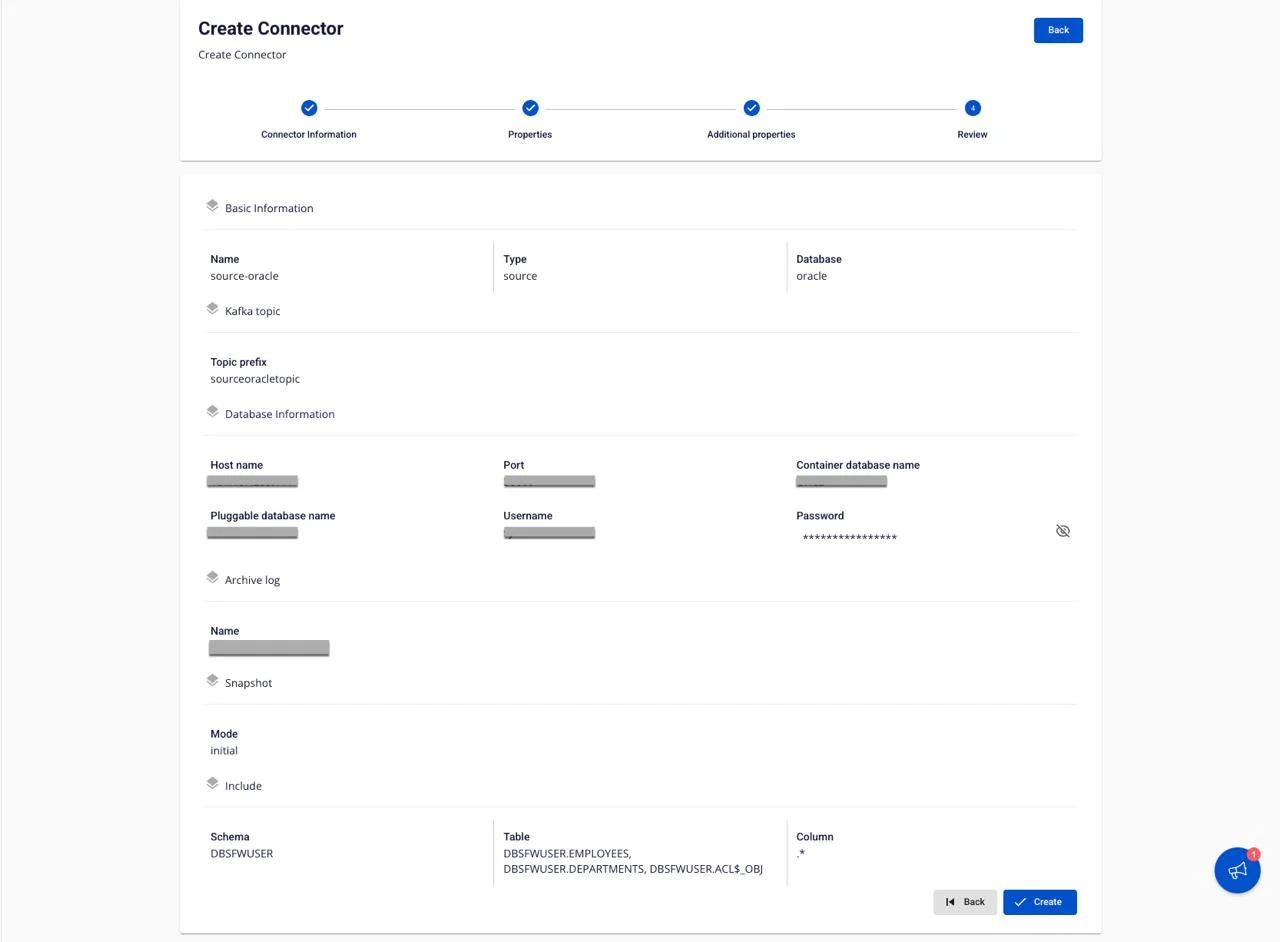
The Review screen displays all configurations entered in the previous steps. Verify the information:
-
Basic Information: Name, Type, Database
-
Database Information: Host name, Port, Container database name, Pluggable database name, Username, Password
-
Archive log: Archive log mode
-
Kafka topic: Topic prefix
-
Snapshot: Mode
-
Include: Schema, Table, Column
If you need to make changes, click the Back button to return to the previous step.