Pushing backup data to S3
The Push backup data to S3 feature allows users to push database backup files to a compatible S3 storage, for purposes such as long-term storage, off-site backup, or external data consumption. This feature is useful for disaster recovery scenarios, auditing, or replicating data to another system.
Currently, FPT provides this feature for the following engine types: PostgreSQL, MySQL, MariaDB, SQL Server, Redis, MongoDB, TimescaleDB.
This guide explains how to use the feature to manage pushing backup data to S3, serving the purposes of secure storage, recovery, or external data integration.
1. Add a new S3 configuration
The Add new S3 configuration feature allows users to configure S3-compatible storage information for the system to use as backup data storage.
Prerequisites
- A valid S3 bucket already exists.
- Access Key and Secret Key with bucket access permissions are available.
- The S3 endpoint is accessible from the system.
Steps
Step 1: Access the S3 configuration management page
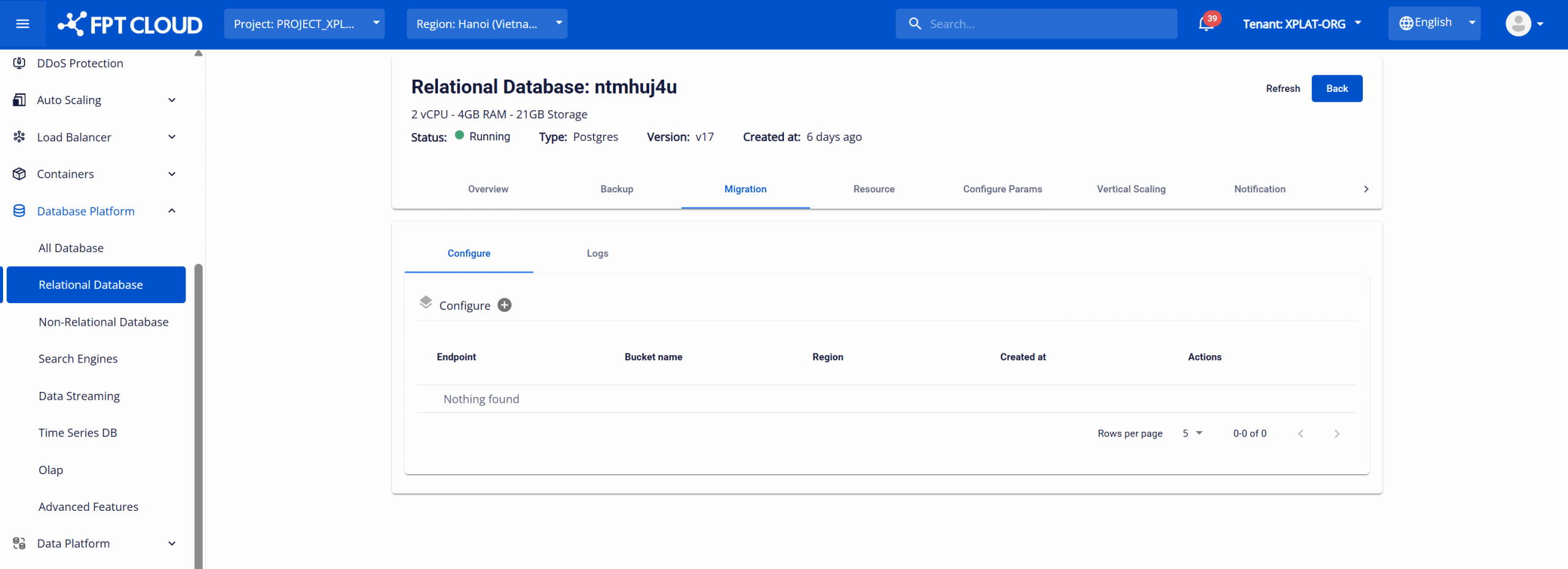
Log in to FPT Cloud Console. Open the Database list page > select the database cluster ID to open the detail page > select the Migration tab. The migration management page appears as follows:
Step 2: Add S3 configuration
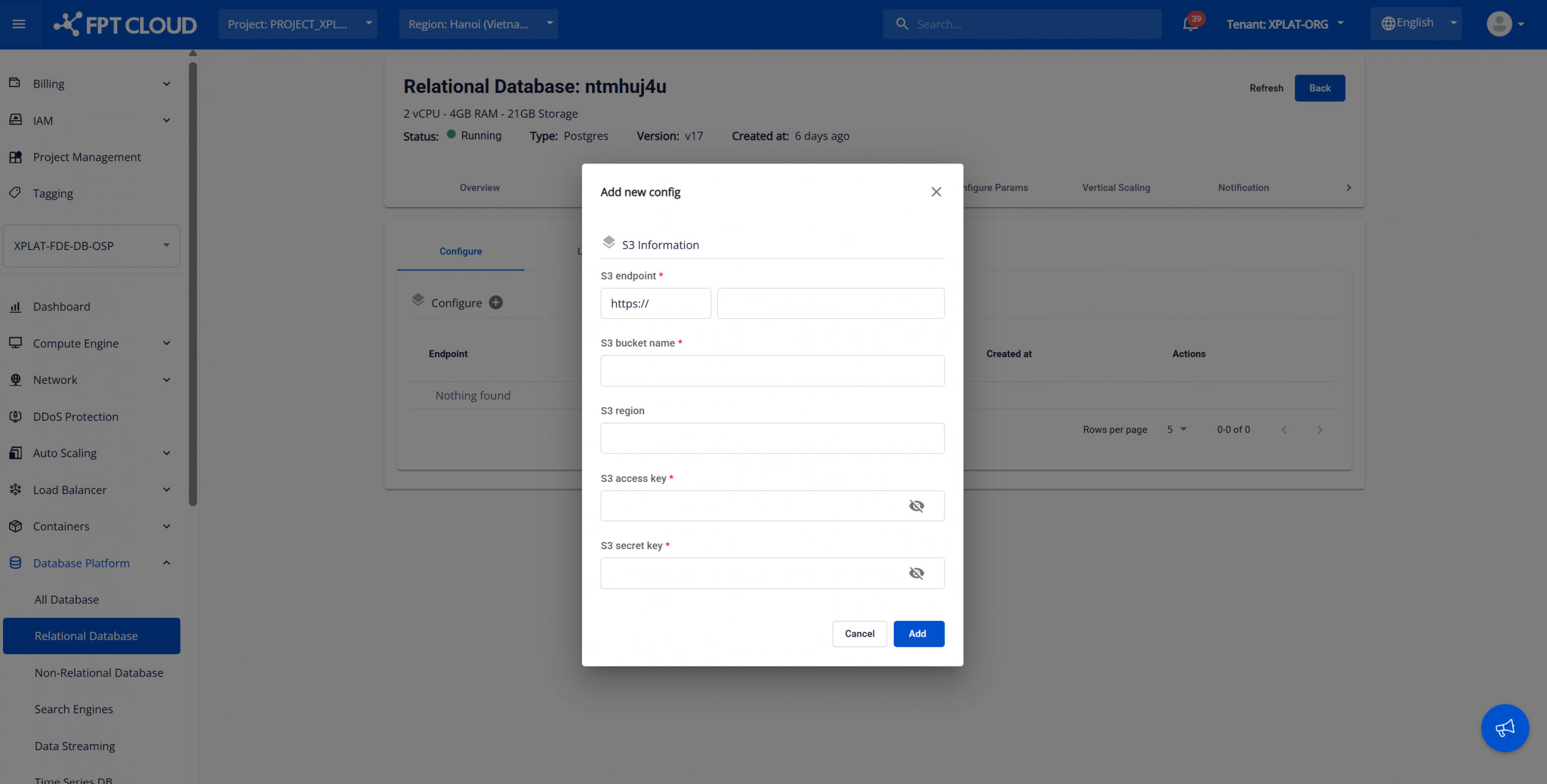
On the Migration screen, click the Add S3 Configuration button (plus icon next to the "Configure" section) to begin adding an S3 configuration. The system displays the following dialog:
Fill in the S3 configuration information:
- S3 endpoint: Enter the endpoint URL of the S3 service (e.g., https://s3.amazonaws.com for AWS S3).
- S3 bucket name: The bucket name used for storing backup data.
- S3 region: Enter the region of the S3 bucket (e.g., us-east-1).
- S3 access key: The access key used to authenticate S3 access.
- S3 Secret Key: The secret key corresponding to the access key.
Security notes:
- Access Key and Secret Key information is encrypted and hidden when entered.
- Do not share S3 credentials with unauthorized third parties.
After entering the information, review and click "Add" to save the configuration. After successful configuration, the S3 storage will be available for use with the Push backup data to S3 feature (depending on engine support).
When needed, you can perform the following operations on a created S3 configuration:
- Edit S3 configuration: This feature allows updating the configured S3 information. On the Migration page, click the Edit icon (pencil) corresponding to the S3 configuration to edit. Update the information to change and click Update to save.
- Delete S3 configuration: This feature allows removing unused S3 configurations for cleaner system management. On the Migration page, click the Delete icon (trash) corresponding to the configuration to delete. Confirm the action in the warning dialog to complete.
2. Push backup data to S3
The Push backup data to S3 feature allows users to push existing backup files of a database cluster to the previously configured S3 storage.
Prerequisites
- A valid S3 storage configuration already exists.
- The database cluster has at least one successful backup.
- The database engine supports the Push S3 feature.
Steps
Step 1: Access the restore screen
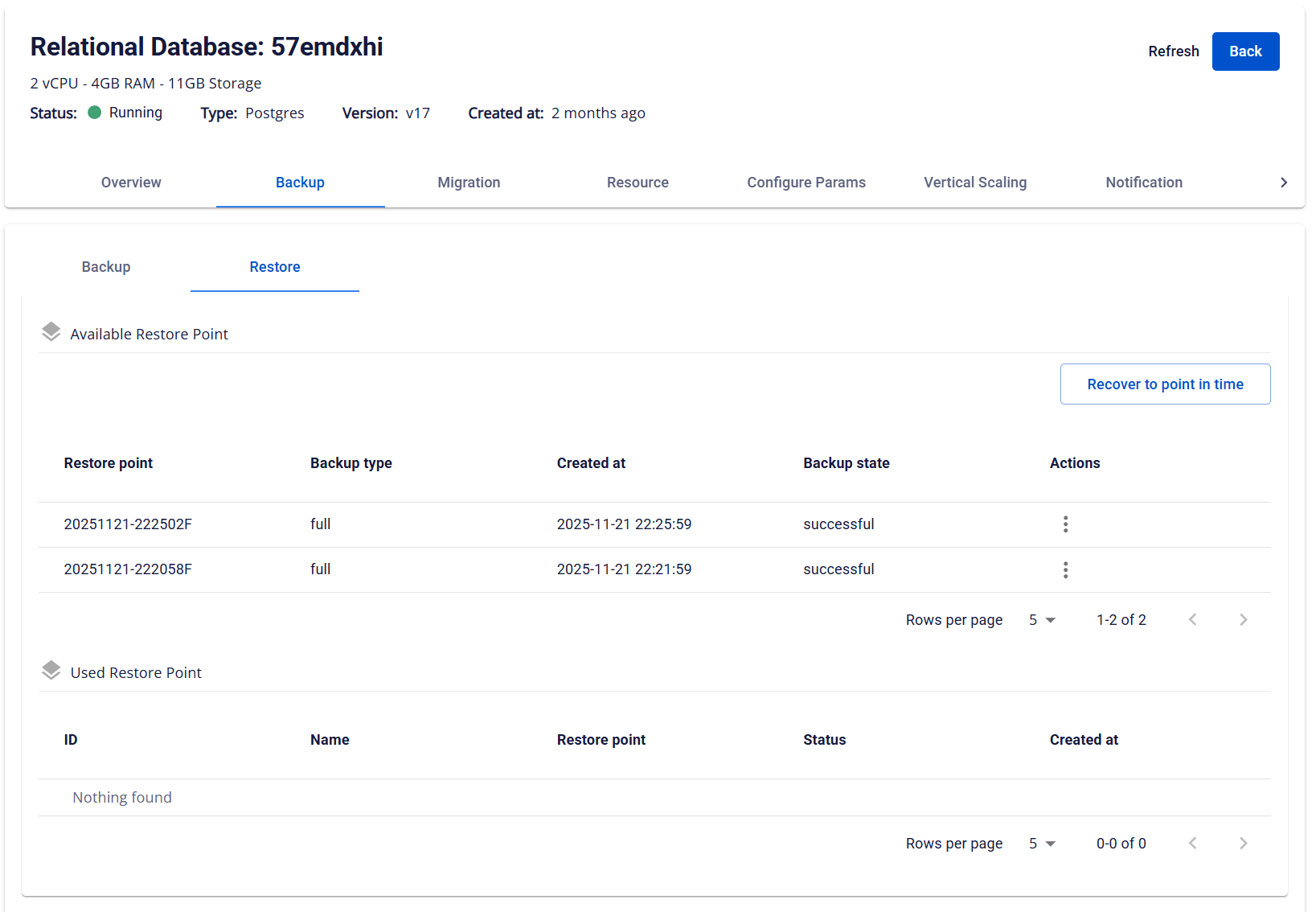
From the menu bar, select Database Platform > select the All Database menu or the menu corresponding to the database group > click the Cluster ID of the database cluster > select the Backup tab > select the Restore sub-tab. The system will display the list of Available Restore Points, including the backup type (Full or Diff).
Step 2: Perform Push S3
In the Actions column, click the three-dot icon (⋮) corresponding to the desired restore point → select Push S3. The Push S3 dialog displays the list of available S3 configurations:
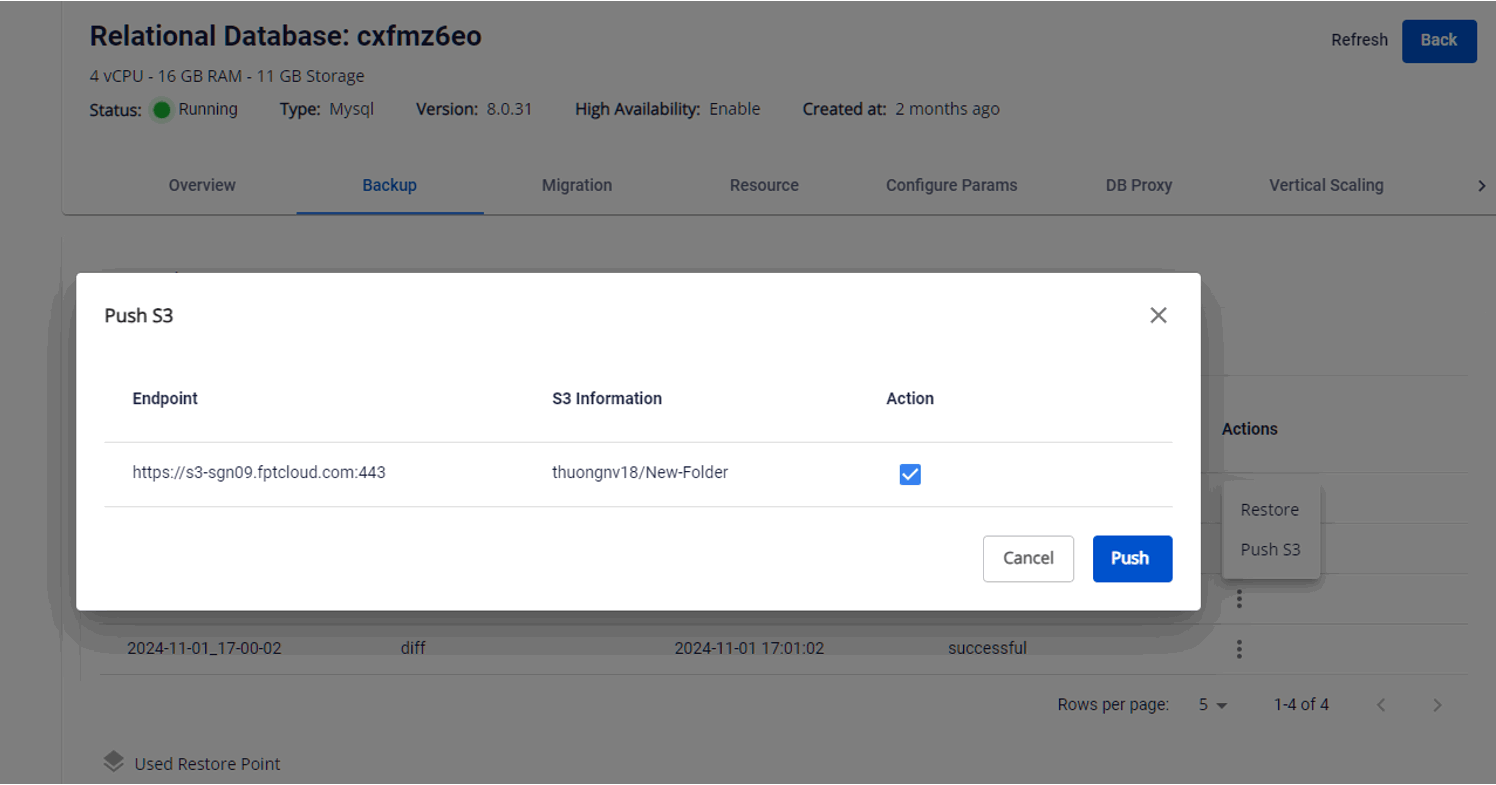
Select the desired S3 storage by checking the checkbox in the Action column, then click Push to begin pushing the backup file to S3.
To monitor the progress of pushing files to S3, go to the Migration tab and select the Logs sub-tab for detailed information:
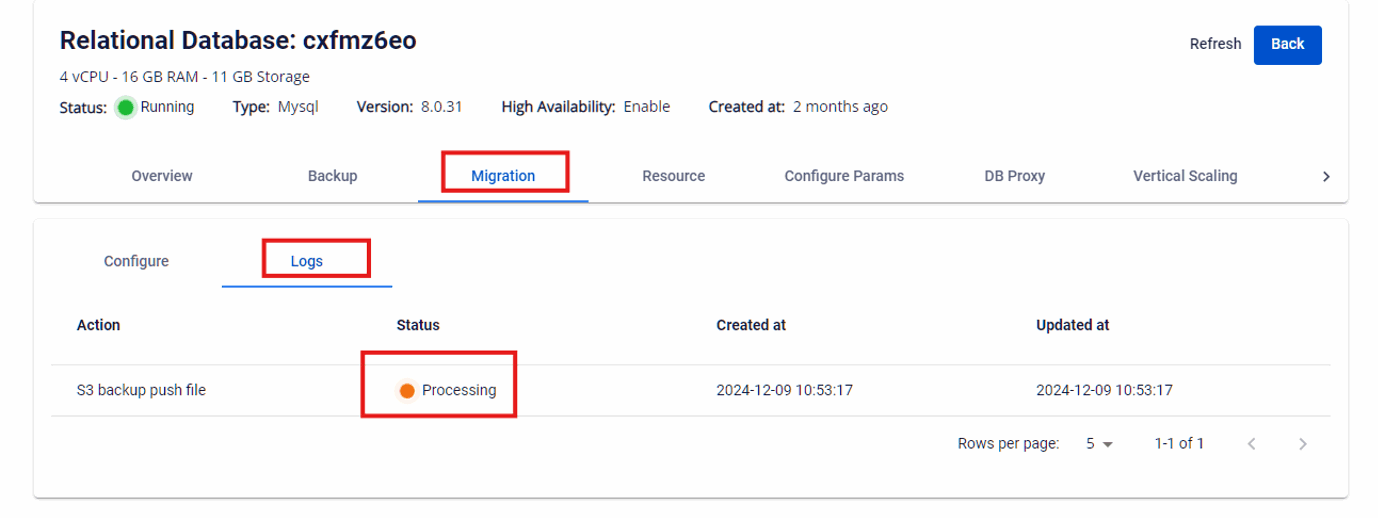
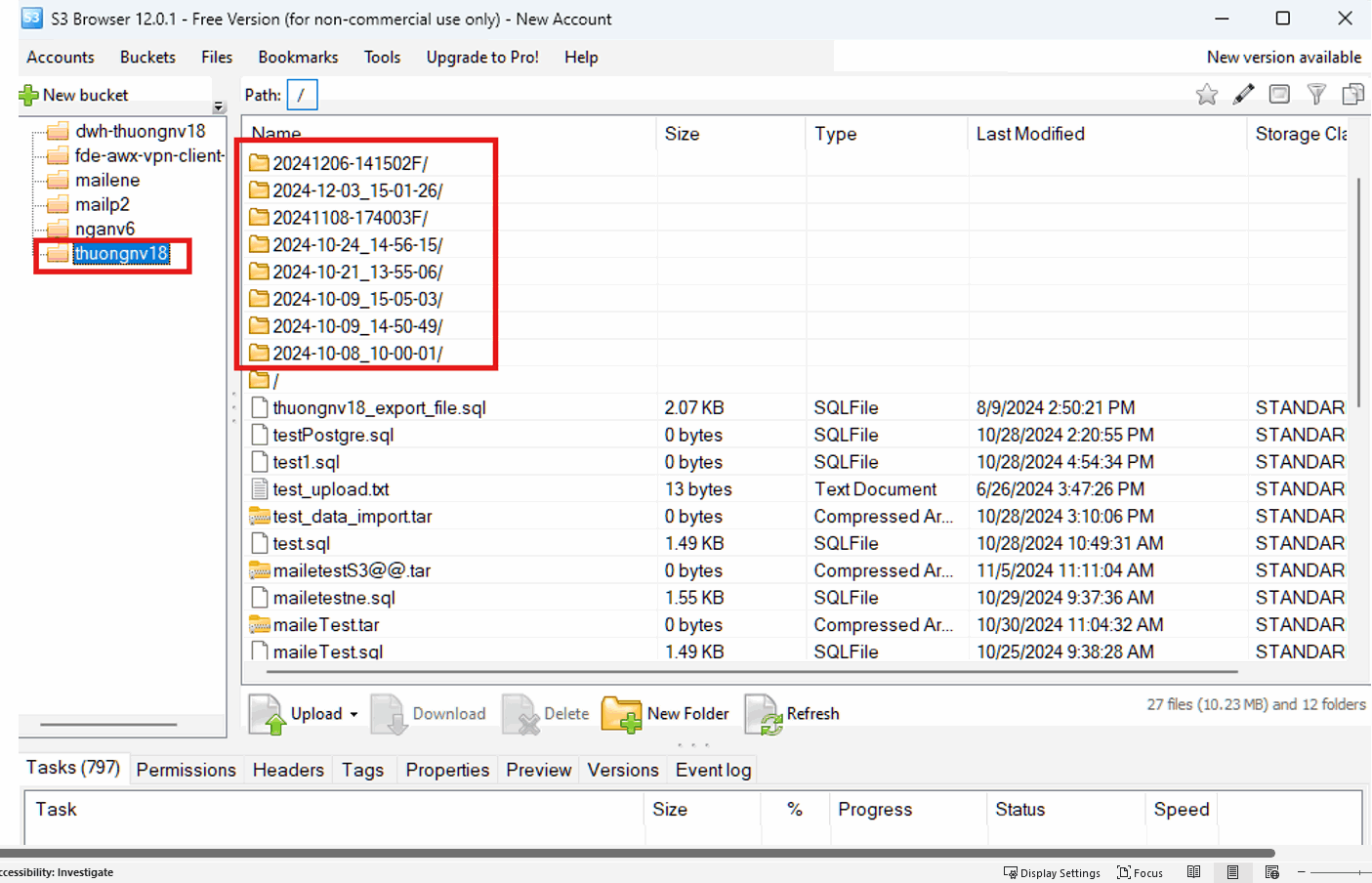
After the operation completes successfully, the backup files of the database cluster will have been pushed to the selected S3 storage. To verify the result, you can access S3 Browser or the corresponding S3 management tool to confirm the files have been pushed.