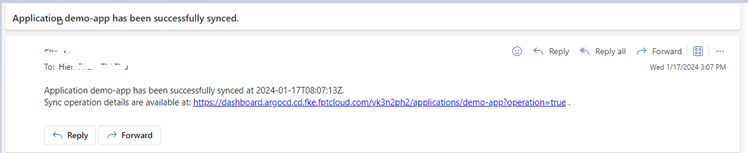
Configure notifications to receive alerts
1. Telegram
To configure notifications to Telegram, follow these steps:
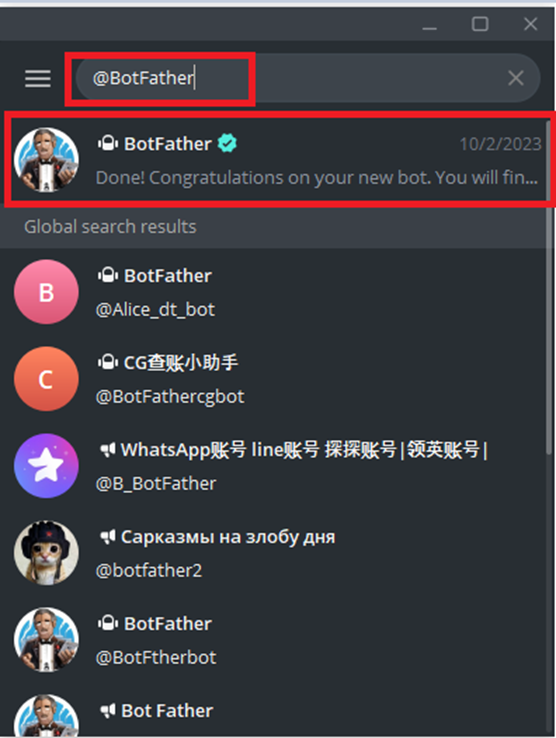
Step 1: Get the API token using @BotFather. Open the Telegram app and search for @BotFather.
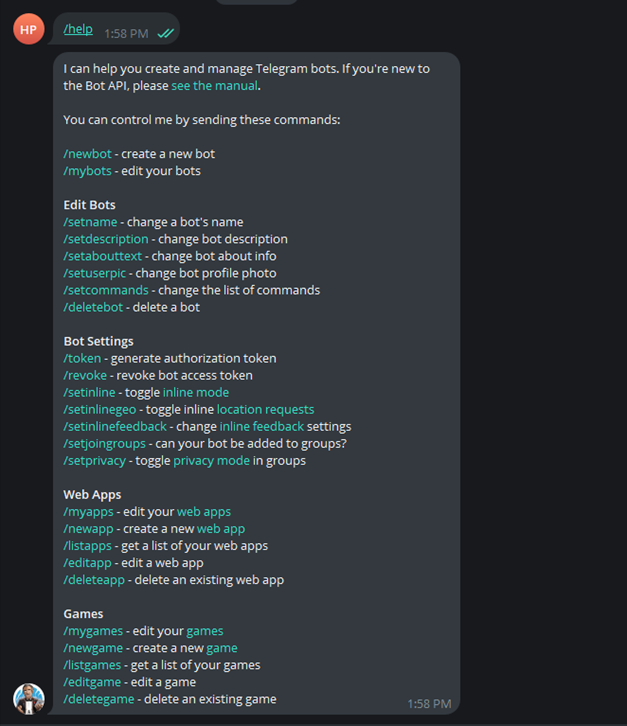
Type /help to see available options.
Type /newbot to create a new bot:
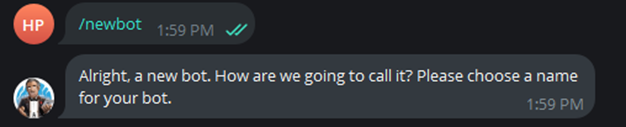
Enter the bot name. Note: the bot name must end with "bot".
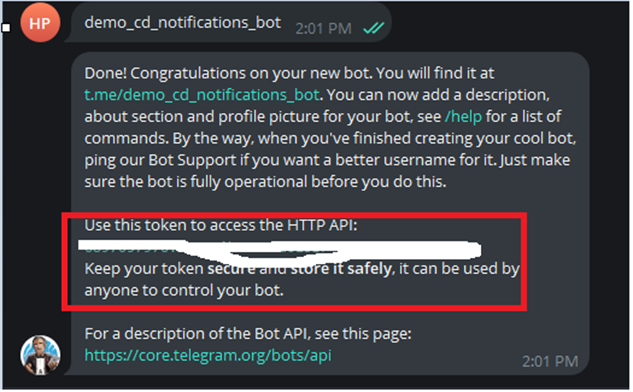
The access token is used to configure the Telegram token on the Portal.
Step 2: Configure the token on FPT Cloud to send notifications to Telegram.
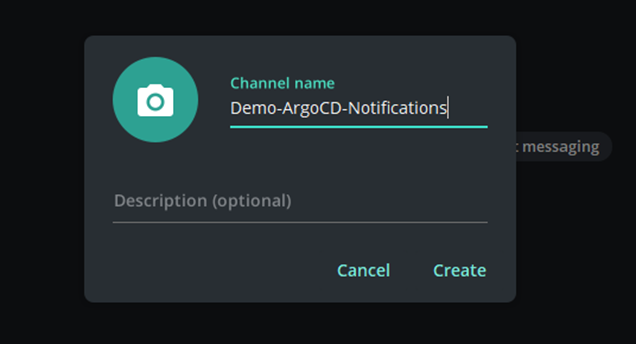
Step 3: Create a channel to receive notifications.
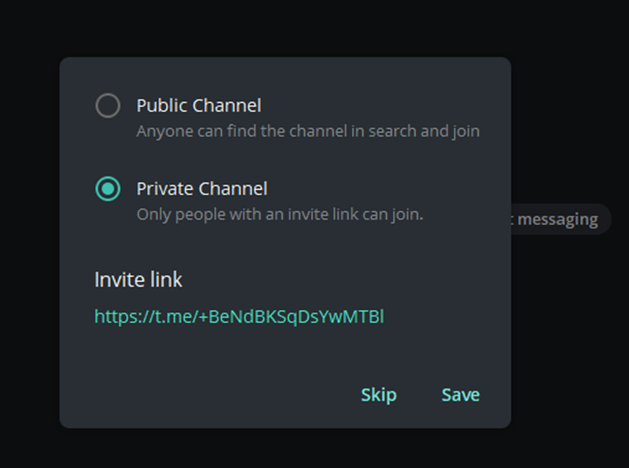
Select private channel:
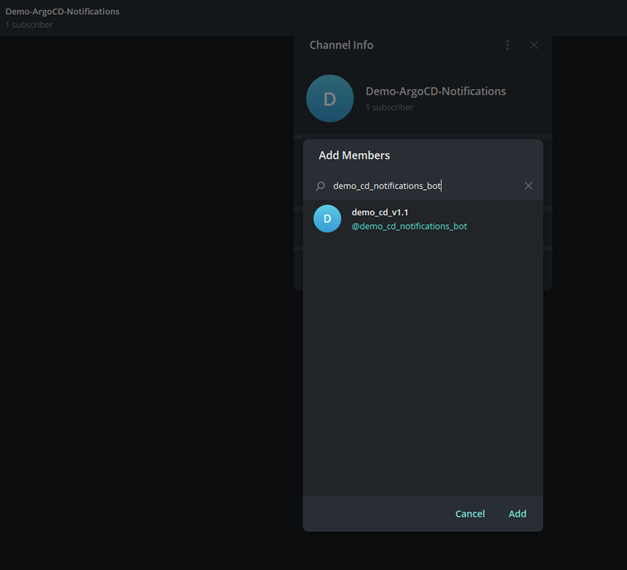
Step 4: Add the bot account to the channel.
Step 5: Use the ChatID in the subscription to integrate Telegram:

Step 6: Configure Telegram notifications in the application:
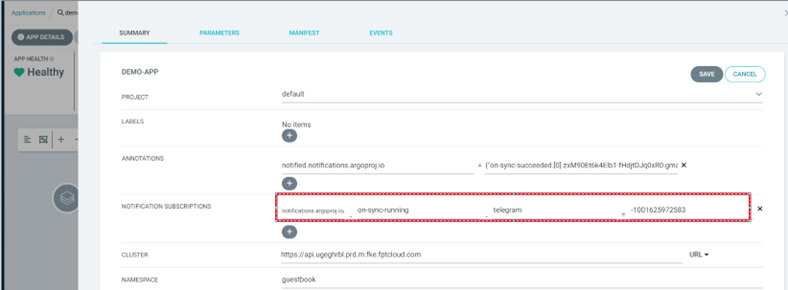
Step 7: Sync the Application and view messages sent to Telegram:
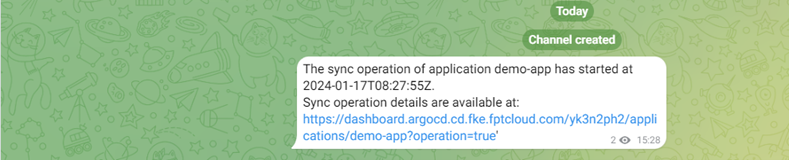
2. Slack
Step 1: Create a Slack workspace:
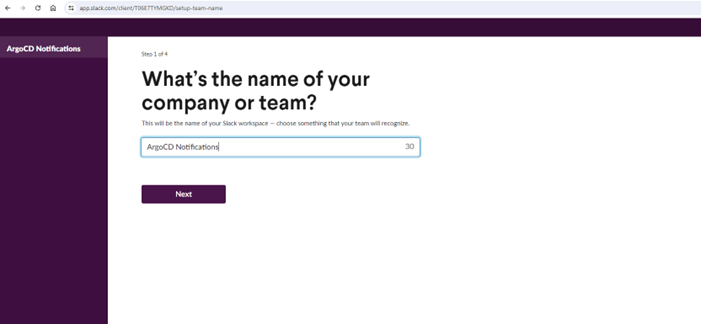
Step 2: Create a channel:
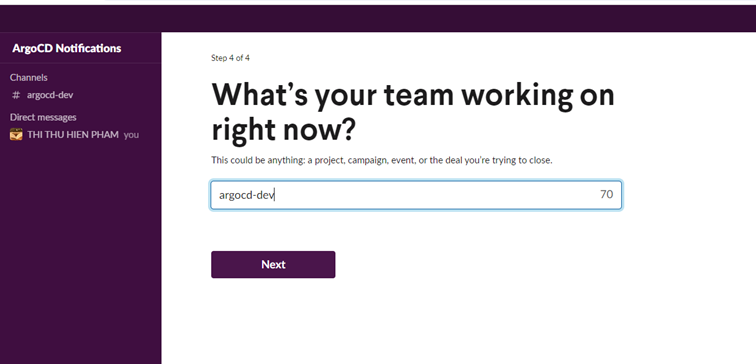
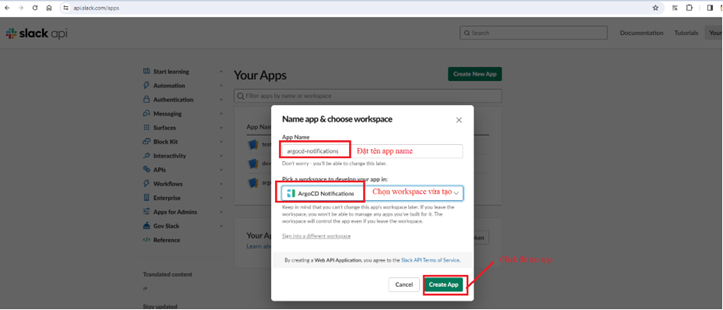
Step 3: Create a new app in Slack at https://api.slack.com/apps.

Create the App From scratch:
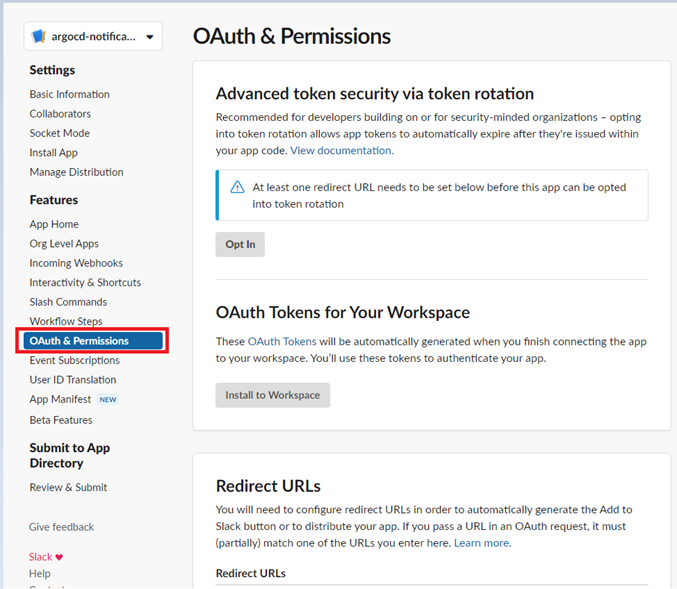
Step 4: Configure OAuth & Permissions:
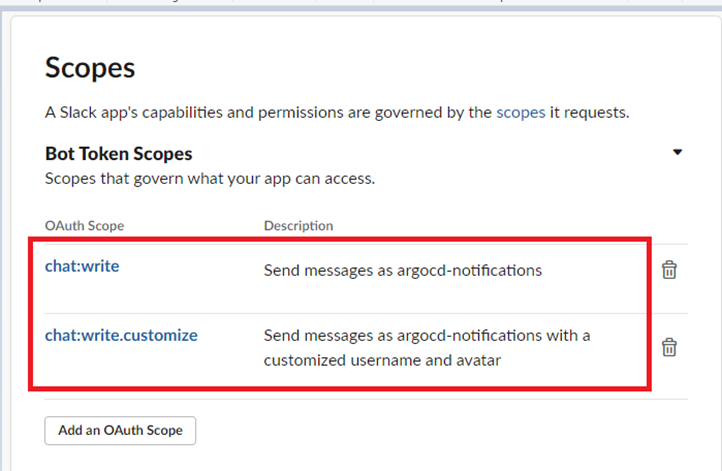
Configure OAuth Scope to allow ArgoCD Notifications to send messages to the channel:
Step 5: Configure OAuth Tokens for Your Workspace:
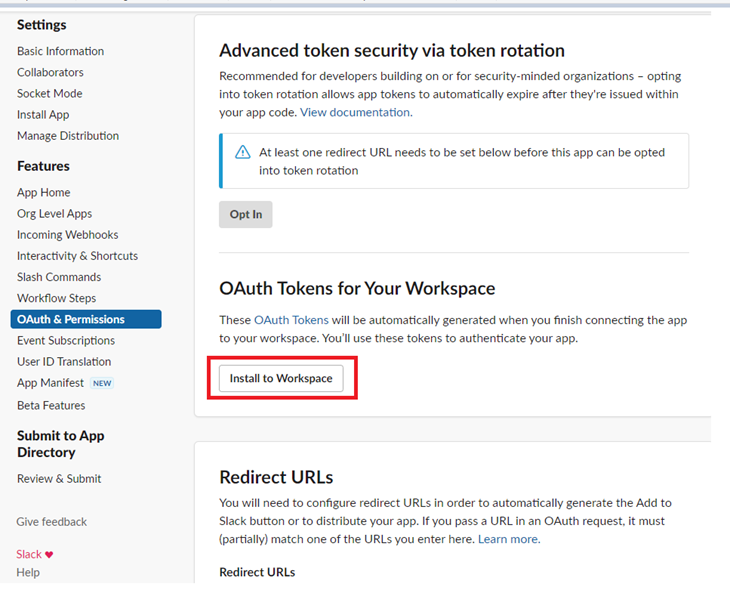
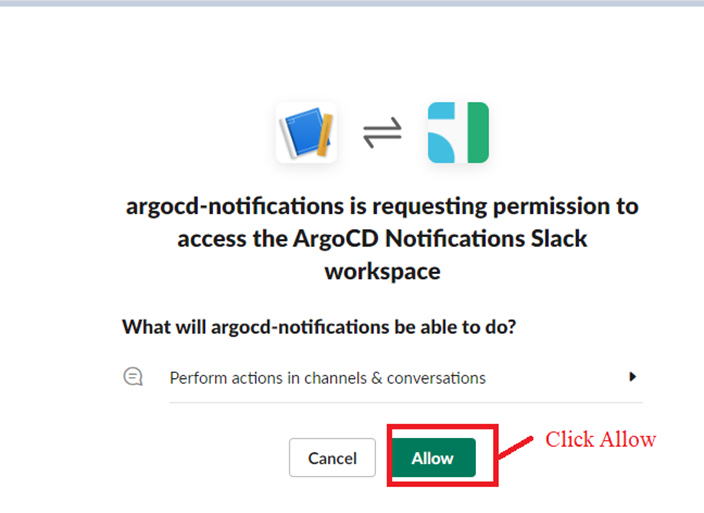
Slack will create a Bot User OAuth Token.
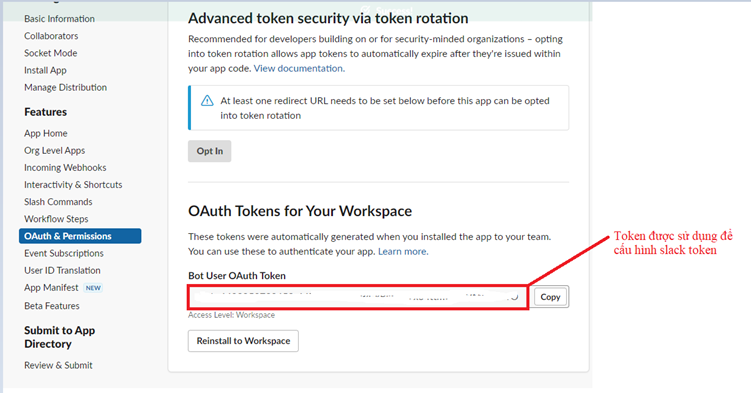
Step 6: Configure the Slack token on FPT Cloud Portal to send notifications from ArgoCD Notifications to Slack using the Bot User OAuth Token.
Step 7: Add the App to the channel:
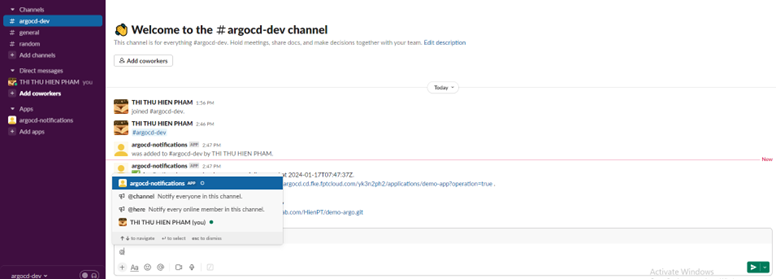
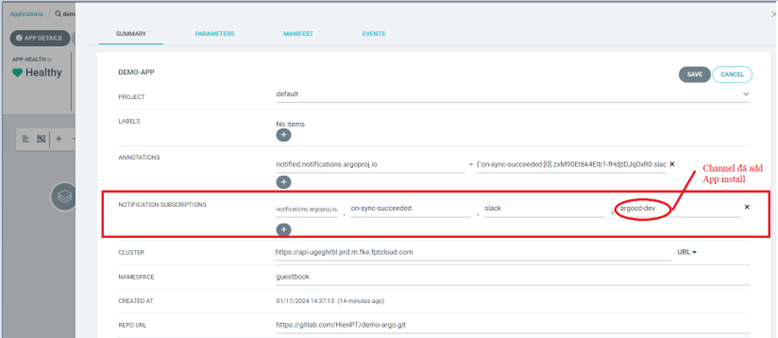
Step 8: Configure the ArgoCD Application to send notifications to Slack. After the application is created, edit the app to add annotations — notifications will be sent to the channel:
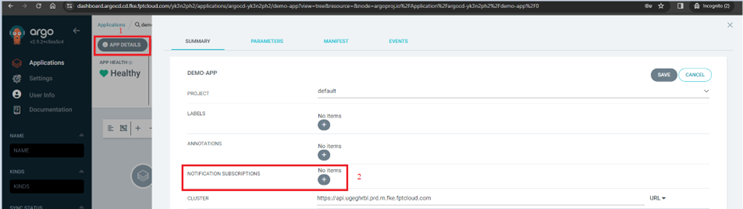
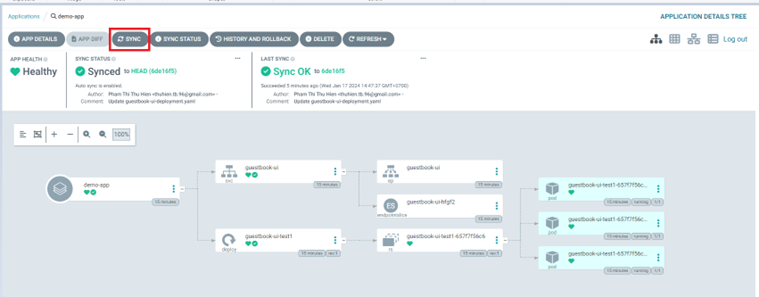
Sync the Application to test notifications:
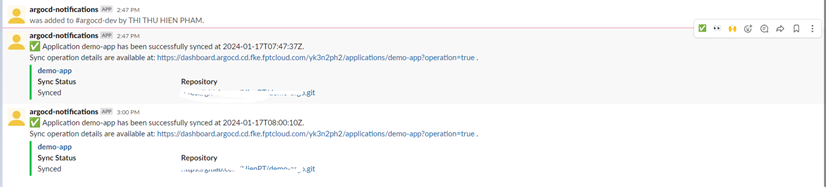
The Slack channel will receive notifications about the Application status:
3. Email
Step 1: Configure the email information on the Portal.
Step 2: Configure the ArgoCD Application to send notifications to email by adding annotations as follows:

Step 3: Sync the application — notifications will be sent to the configured recipient's email: