Manual report export
The Manual Report Export feature allows users to extract statistical data about database cluster backup activities for a selected time period at the time of use. Reports help users track backup history, evaluate execution status, support operational audits, or keep internal records.
To export a backup report file, follow these steps:
Step 1: Access the feature
From the menu bar, select Database Platform > select the Advanced Features menu > click the Go to Reporting button to open the Reporting screen.
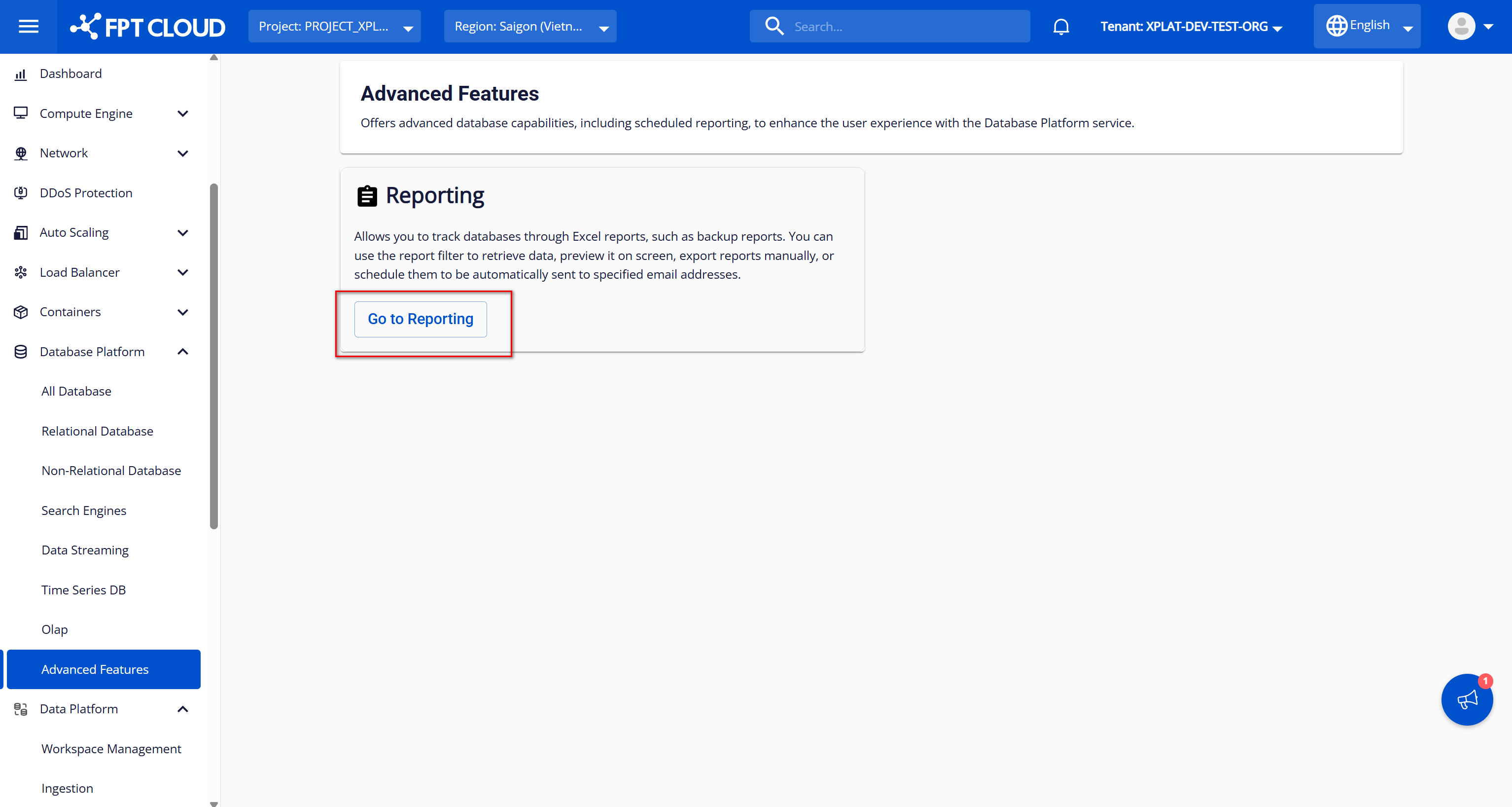
On the Advanced Features screen, click the Go to Reporting button to open the Reporting screen. When the Reporting interface appears, select the Report Export tab to access the manual report export feature.
Step 2: Enter filter conditions
On the Reporting screen, enter the conditions for exporting report data.
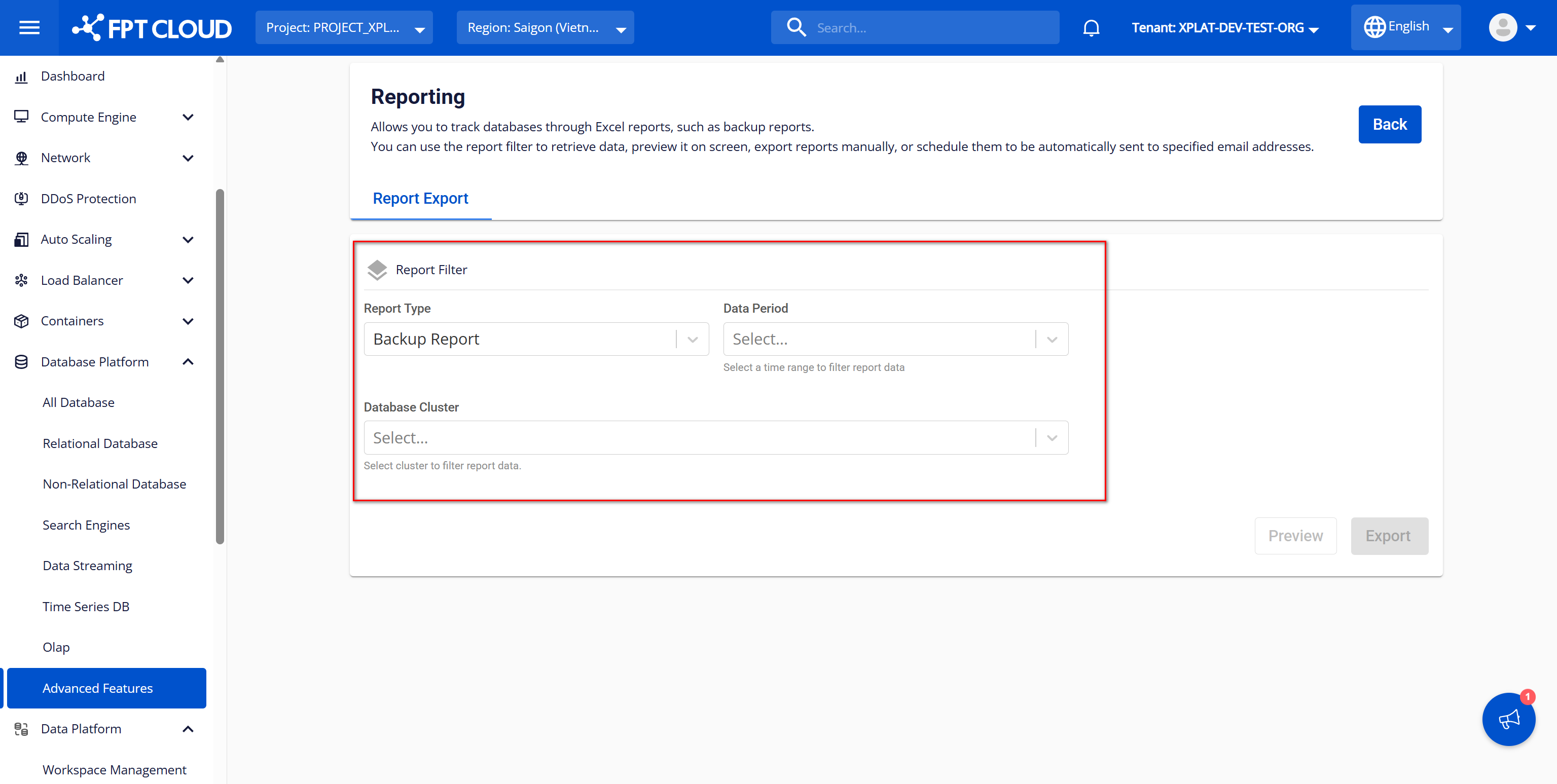
Information to enter includes:
- Report Type: Select the report type to export from the available list. Currently only backup reports are provided, so the selection list only has one value — Backup Report — which is selected by default. Additional values will be added when other report types are provided.
- Data Period: Select the time period for filtering report export data. Options include:
- Yesterday: Data from 00:00:00 of yesterday to the current time. E.g., if exporting at 11:00:00 on 17/04/2025, data covers 00:00:00 on 16/04/2025 to 11:00:00 on 17/04/2025.
- Last 7 days: Data from the 7 consecutive days before the current time, starting from 00:00:00 of (current date - 7) to the current date. E.g., if exporting at 11:00:00 on 17/04/2025, data covers 00:00:00 on 10/04/2025 to 11:00:00 on 17/04/2025.
- Last 30 days: Data from the 30 consecutive days before the current time, starting from 00:00:00 of (current date - 30) to the current date.
- Custom Range: Data over a user-defined time period, from 00:00:00 of the start date to 23:59:59 of the end date. When Custom Range is selected, an additional Date Range field appears:
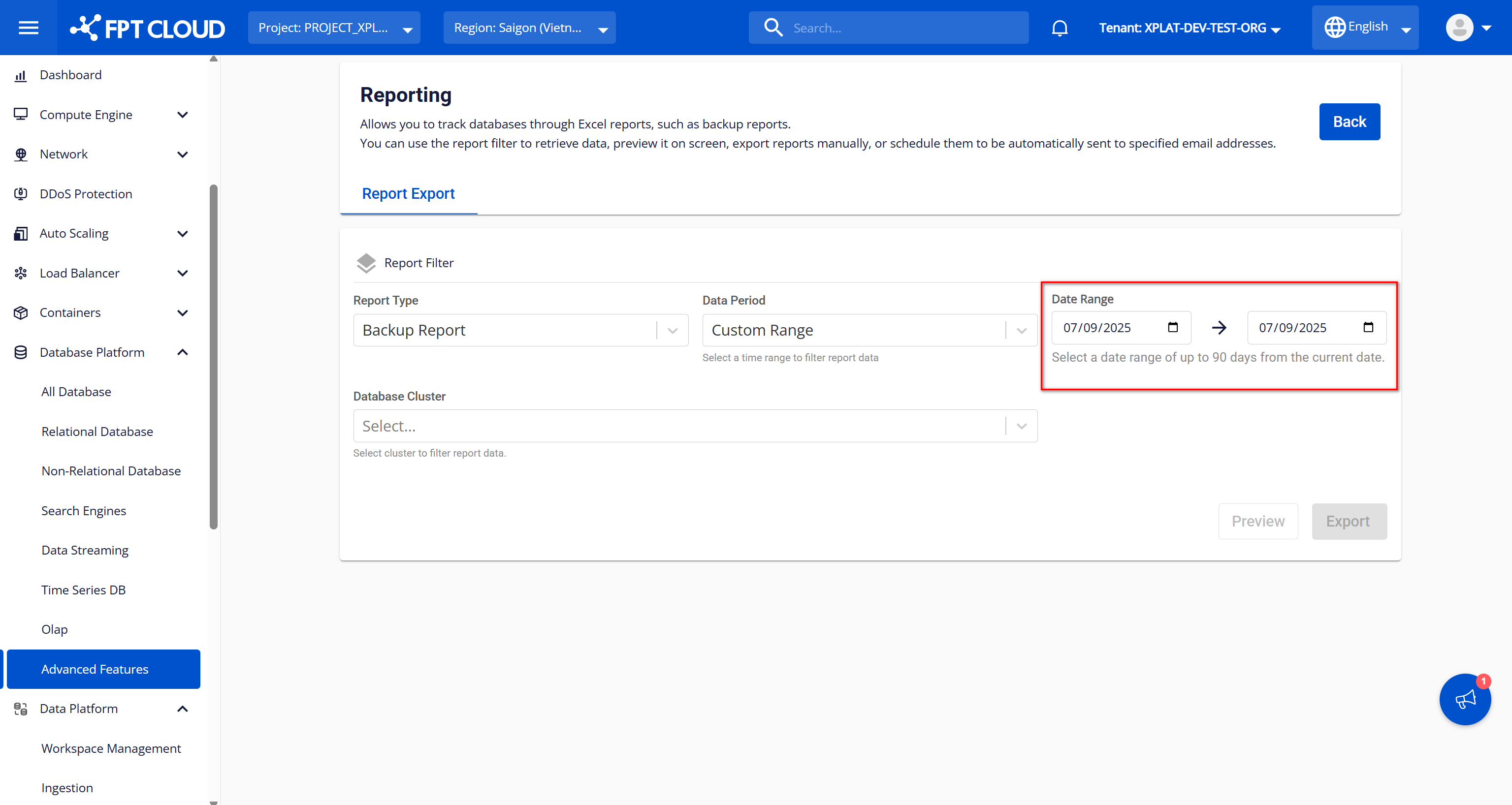
Date Range: Select the report export time range. Data can only be exported within a maximum of 90 days from the current date and To Date must not be after the current date. Notes:
-
Default value: current date.
-
Only allows selecting From Date and To Date satisfying (Current Date - 90) ≤ From Date ≤ To Date.
-
Database Cluster: Select the databases to retrieve data for the report; multiple databases can be selected at once. Options include:
- Select All: Select all databases in the list.
- Individual databases within the user's selected VPC.
Notes:
- If all input fields do not have complete and valid values, the Preview and Export buttons will be disabled.
- Each time filter conditions change, the Report Preview is hidden. To preview data before exporting, click the Preview button after each filter change.
Step 3: Preview report data
After entering all input fields completely and validly, click the Preview button to preview the backup database report on screen. The screen displays information about backup executions during the selected time period. If no database ran a backup job during the selected period, "Nothing Found" is displayed.
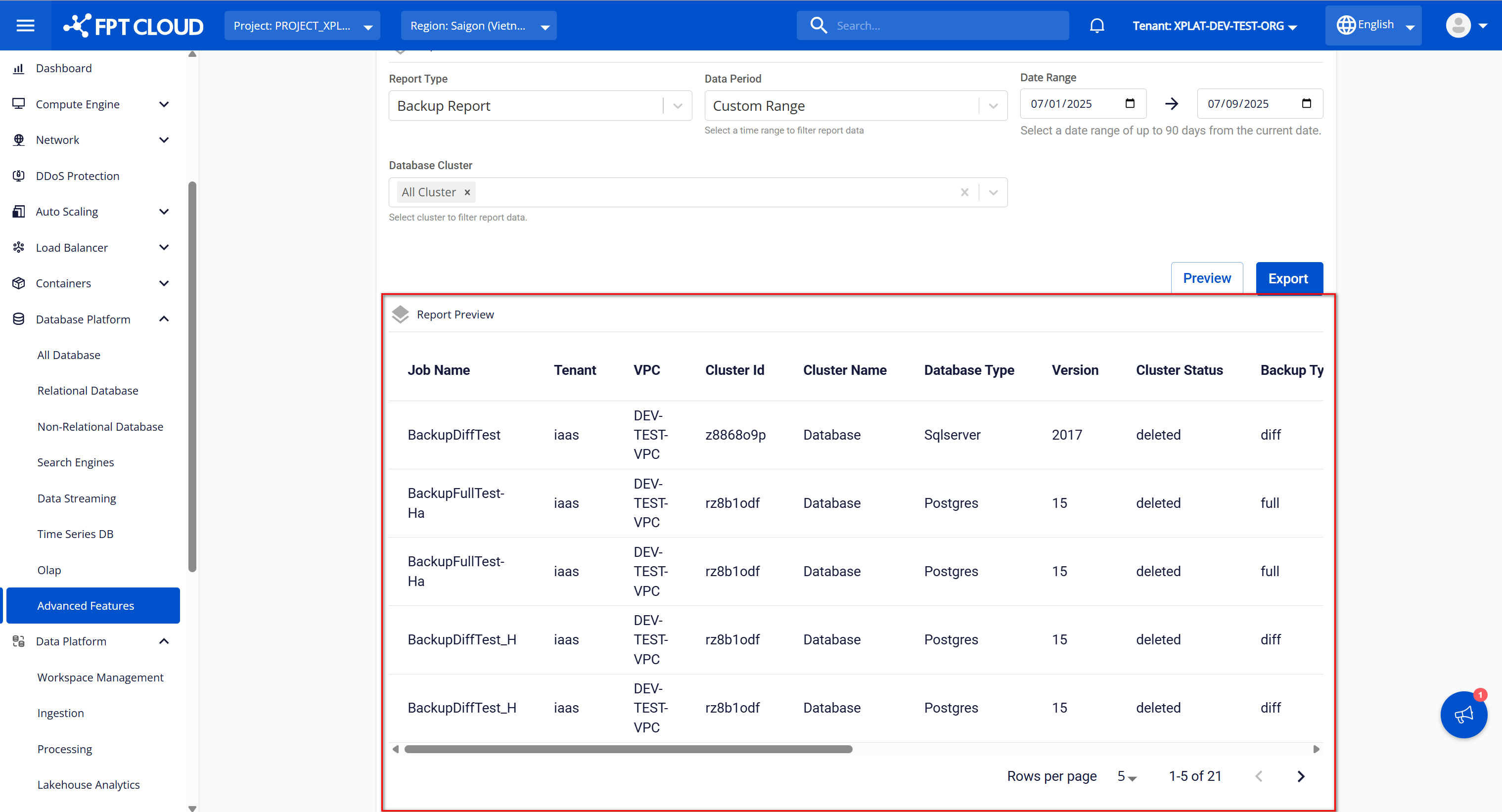
Description of fields in the Report Preview table:
| Column name | Description |
|---|---|
| Job Name | Displays the backup job name |
| Tenant | Displays the tenant name |
| VPC | Displays the VPC name containing the database |
| Cluster Id | Displays the cluster ID of the database that ran the backup job |
| Cluster Name | Displays the cluster name of the database that ran the backup job |
| Database Type | Displays the engine type of the database that ran the backup job |
| Version | Displays the version of the database that ran the backup job |
| Cluster status | Displays the database status at the time data was retrieved |
| Backup Type | Displays the backup job type ("full" for full database backup or "diff" for incremental backup of changes since the last backup) |
| Backup Retention | Displays the retention value of the backup file |
| Retention Type | Displays the retention type ("day" if retention is calculated by maximum days the backup file is stored, or "quantity" if by maximum number of backup files stored) |
| Backup Usage (GB) | Displays the backup disk usage in GB |
| Backup File Name | Displays the name of the backup file created after the job ran |
| Backup State | Displays the backup job run status ("successful" for successful backup, "deleted" for successfully run and deleted jobs) |
| Start Time | Displays the start time of the data backup |
| Finish Time | Displays the completion time of the data backup |
Step 4: Export the report
After entering all fields completely and validly, click the Export button to export the report as a CSV file, which will automatically download to the user's local machine. The downloaded backup database report file will include the following:
- Report file name: in the format {reportType}{vpcName}{exportTime}, where:
- {reportType}: the report type selected by the user in the Report Type field
- {vpcName}: the VPC selected by the user when exporting the report
- {exportTime}: the export time in ddMMyyyyHHmmss format
- File format: CSV
- Columns: includes all information displayed in the Report Preview table on the Report Export screen.