Managing backup jobs
This section guides users through the detailed steps for managing backup jobs, including creating Full Backup jobs, Differential Backup jobs, running, updating, and deleting backup jobs.
1. Create a full backup job
To back up a database, after enabling the backup service, you need to create a job to periodically run a full database backup. Follow these steps:
On the Backup service management screen, click the Add Full Backup Job button (plus icon in the Full Backup Job section) to begin creating a full database backup job.
The job configuration dialog appears as follows:
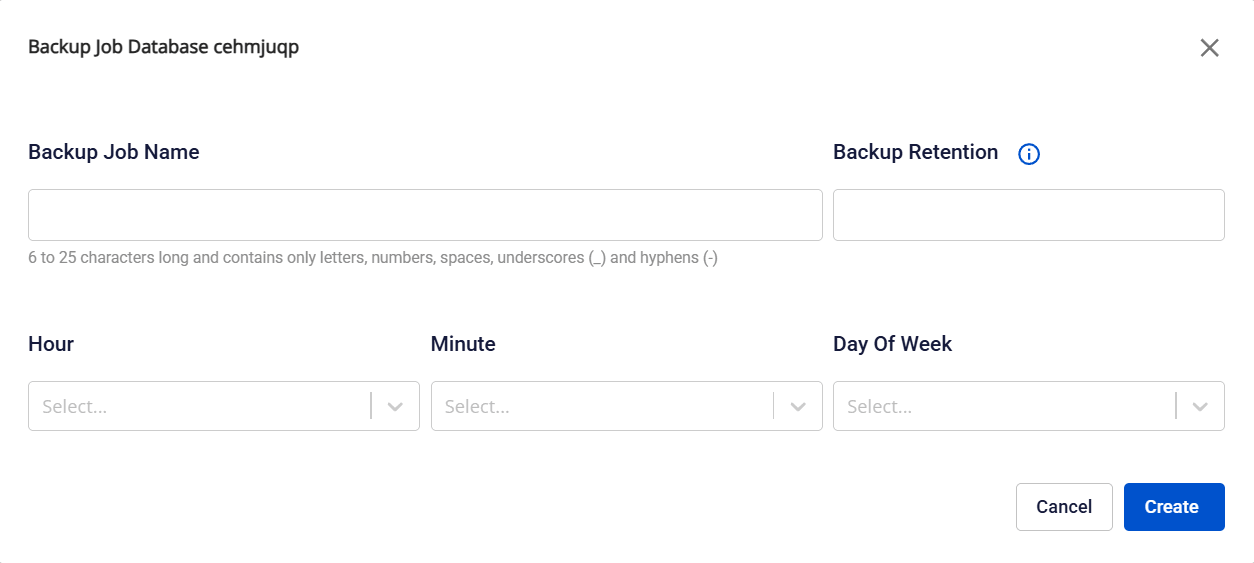
Field descriptions:
- Backup Job Name: Enter the backup job name, 6–25 characters, containing only letters, numbers, spaces, hyphens (-), and underscores (_).
- Backup Retention: Enter the number of backup copies to retain as a positive integer. When a full backup copy is deleted according to the retention policy, all associated differential backups and archived logs will also be completely deleted.
- Hour / Minute / Day of Week: Set the backup schedule (hour, minute, day of week). Note: For the Kafka engine, the backup operation may cause a temporary disruption. Schedule backups during low-traffic periods to minimize service impact.
After filling in all information, click Create to create the new backup job. The process takes 5–10 minutes and will show the backup job in Creating status. After successful creation, the backup job displays in Ready status with the configured parameters and is ready to run full database backups on the scheduled schedule.
2. Create a differential backup job
Recommendation
FPT Cloud recommends configuring the backup schedule so that there is at least one Full Backup per week and Differential Backups on the remaining days, especially for large-volume databases.
Prerequisites
A Full Backup job must be created before a Differential Backup job can be created.
Create the job
To create a Differential Backup Job to back up database changes, on the Backup service management screen, click Add Diff Backup Job (plus icon in the Diff Backup Job section) to open the job configuration dialog.
The configuration steps are the same as when creating a Full Backup Job.
Note: The retention policy of a Differential Backup follows the retention of the corresponding Full Backup Job. When a Full Backup is deleted according to the retention policy, all associated Differential Backups will also be completely deleted.
3. Run a backup job
Normally, after being successfully configured, backup jobs run automatically on the scheduled schedule and create backup copies (restore points) for database recovery (see the Restore feature). If you need to create a database snapshot, you can run a backup job manually:
On the Backup service management screen, click the Run Now button (arrow icon) corresponding to the backup job to run, to begin database backup.
The system will display a job run confirmation dialog. Enter "run" to confirm and click Confirm. After completion, a backup copy corresponding to a restore point will be generated on the Restore screen. Information on whether the backup job ran successfully or encountered an error will also be updated in the Backup Request table on the Backup service management screen.
Note: For the Kafka engine, the backup operation may cause a temporary disruption. Run backups during low-traffic periods to minimize service impact.
4. Update a backup job
When you need to adjust the configurations of a backup job, on the Backup service management screen, click the Update Backup Job button (pencil icon for the job to update) to open the job configuration update dialog.
The Update Job dialog appears similar to the Create Backup Job dialog. Update the information to change and click Update to save the new configuration.
5. Delete a backup job
To delete an unused backup job, on the Backup service management screen, click the Delete Job button (trash icon) corresponding to the backup job to delete.
The Delete Backup Job dialog appears. Enter the required information and click Confirm to confirm the deletion.
Note: You can only delete a full backup job after the differential backup job has been deleted.