Upgrade Database Version
The Upgrade Database Version feature in FPT Database Engine currently allows users to upgrade MariaDB databases from the current version to MariaDB 10.9. Upgrading helps you take advantage of performance improvements, security enhancements, and new features of the higher version.
Scope & Limitations
- Applies only to MariaDB. Non-MariaDB databases will not display this function.
- Only supports upgrade to MariaDB 10.9.
- Does not support downgrade or upgrade to other versions.
Prerequisites
- Ensure you have IAM permissions to manage and update the cluster.
- Disconnect all applications connected to the database.
- Perform a full backup before upgrading to restore if needed.
- Verify application compatibility with the target version.
Detailed Instructions
Step 1: Access the Database Detail page
Log in to the FPT Cloud Portal and go to the Database List page. Select the MariaDB cluster you want to update. On the cluster Overview page, you will see the current version and the Upgrade icon next to it.
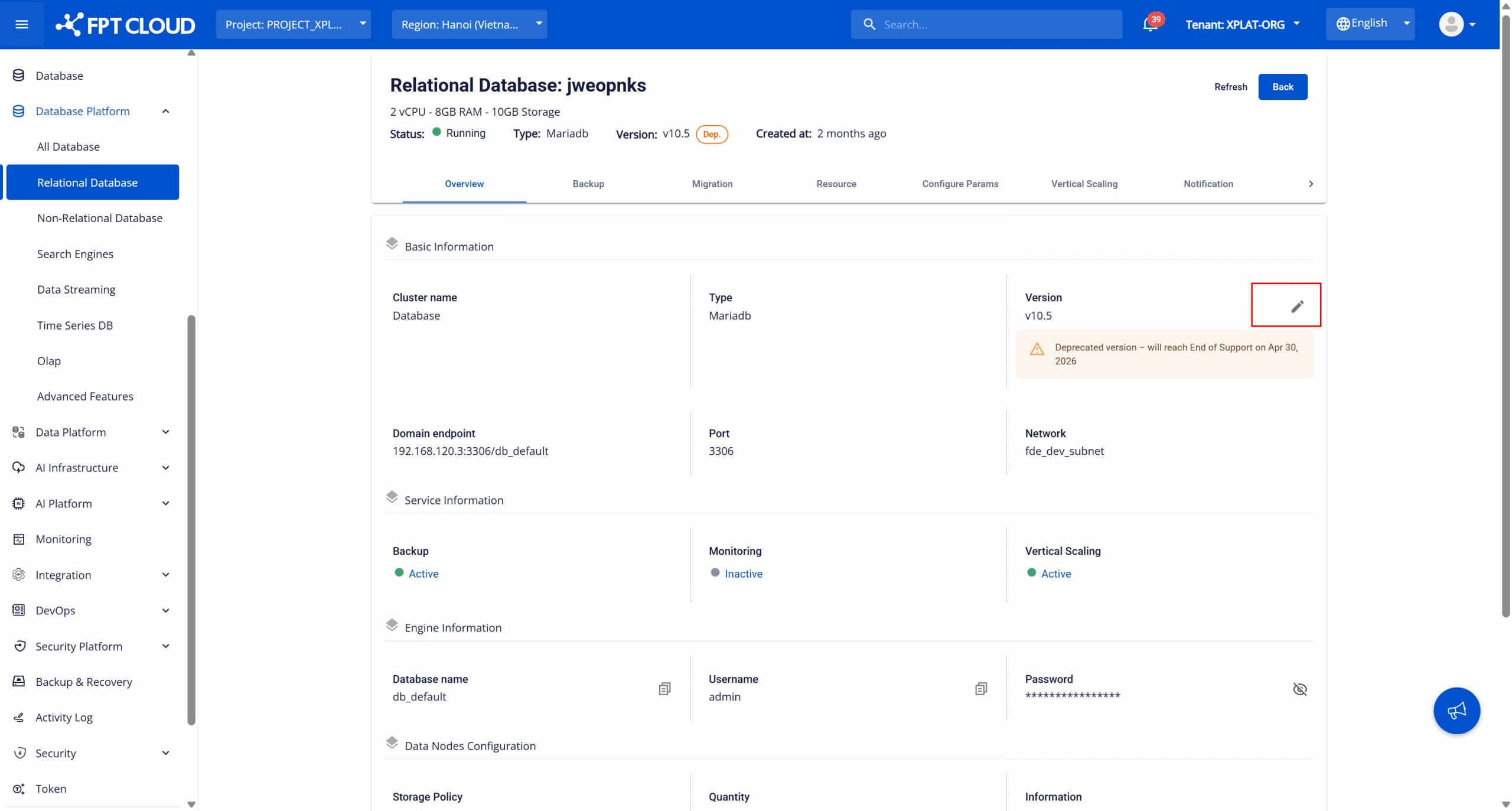
Step 2: Perform the version upgrade
On the Overview page, find and click the Upgrade icon next to the version information. A dialog will open showing the current version and the target version available for update.
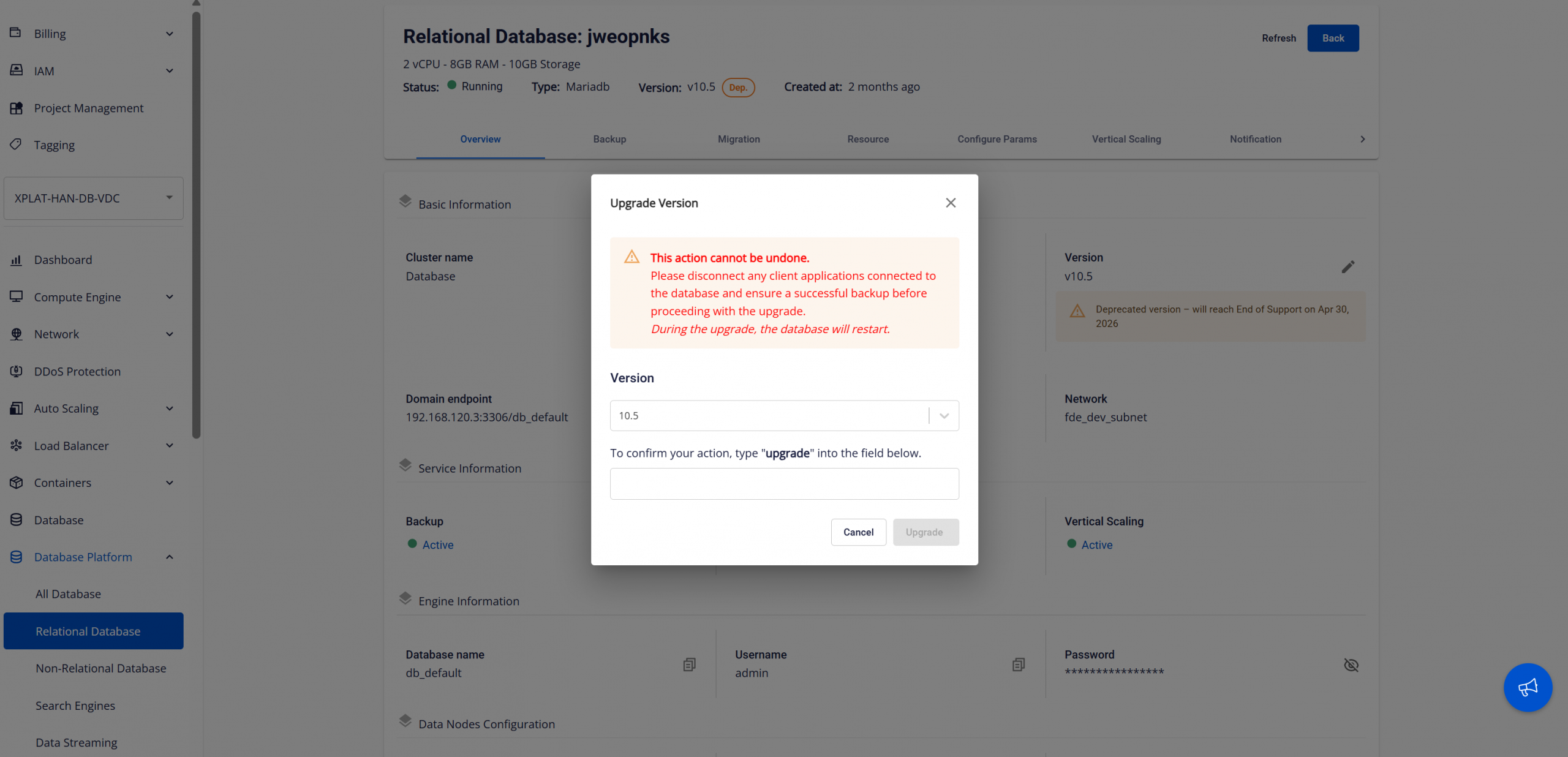
Select the version to upgrade to and enter the confirmation keyword into the input field. Click Upgrade to start the upgrade process. During execution, the database cluster status will change to "Updating". Do not attempt to connect or make changes while the update is in progress. The cluster will automatically restart during the update. When the upgrade is complete, the status will return to "Running" and the database will have been upgraded to the new version.
Important Notes
- Cannot be undone : Version updates cannot be rolled back; ensure a complete backup.
- Disconnection : All application connections must be stopped before upgrading.
- Service impact: The cluster will restart, causing temporary interruption.
- If the update fails, use the backup to restore the previous state.